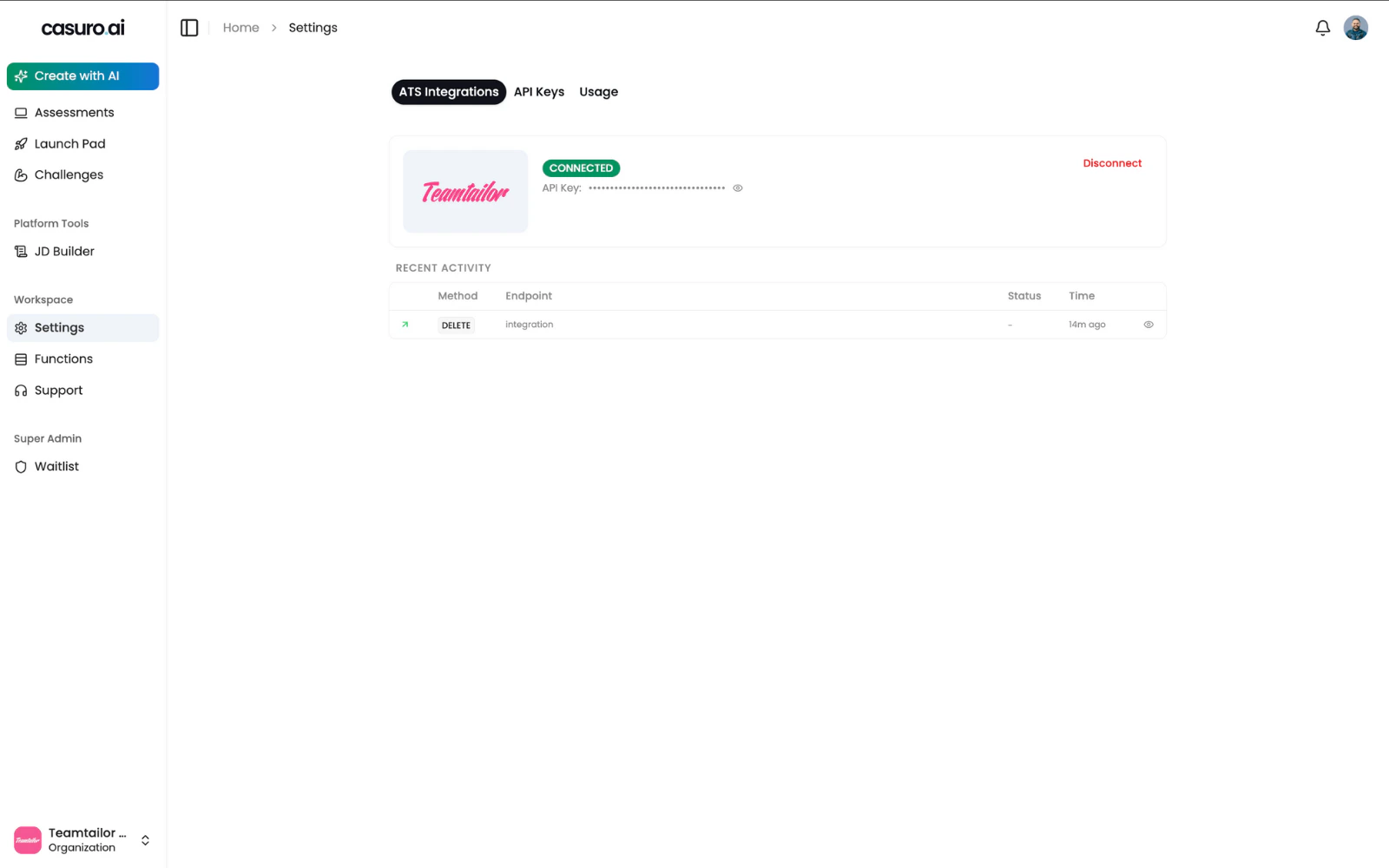
Connection Guide
Follow these steps to seamlessly integrate Teamtailor with Casuro.Initiate Connection
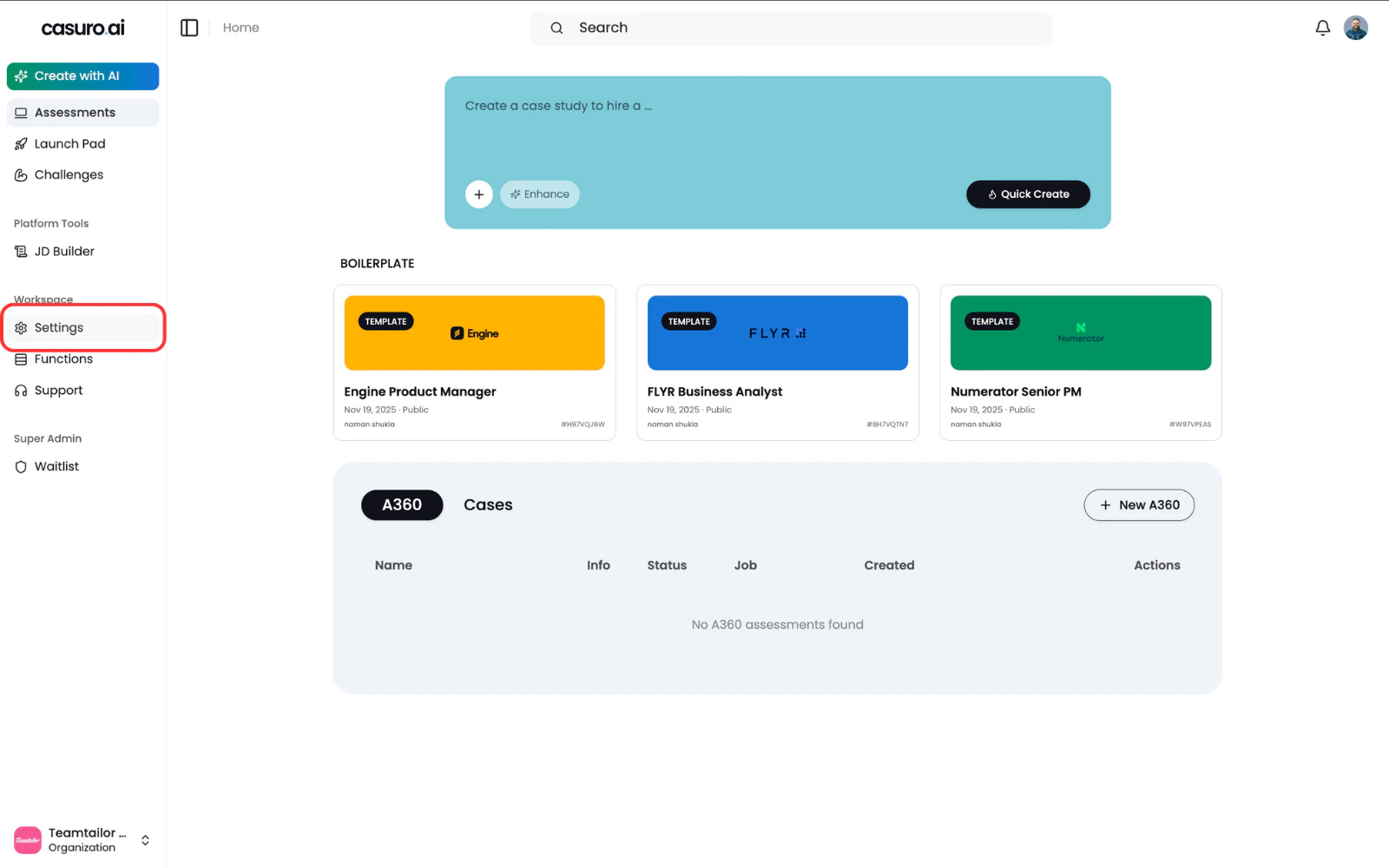
Open Casuro and click on 'Settings' in the left menu bar.
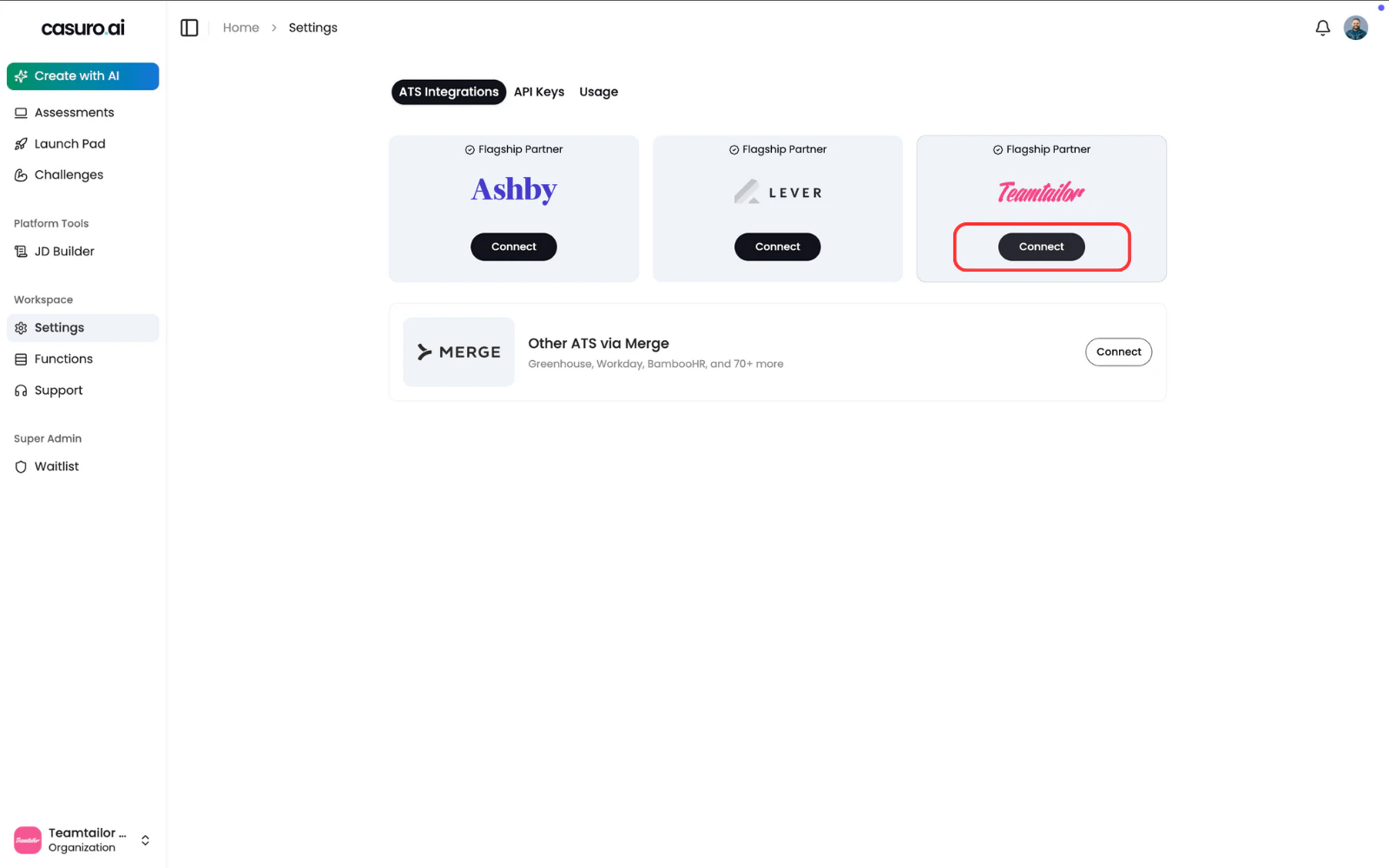
Under the 'ATS Integrations' tab, locate Teamtailor and click 'Connect'.
Configure Teamtailor Settings
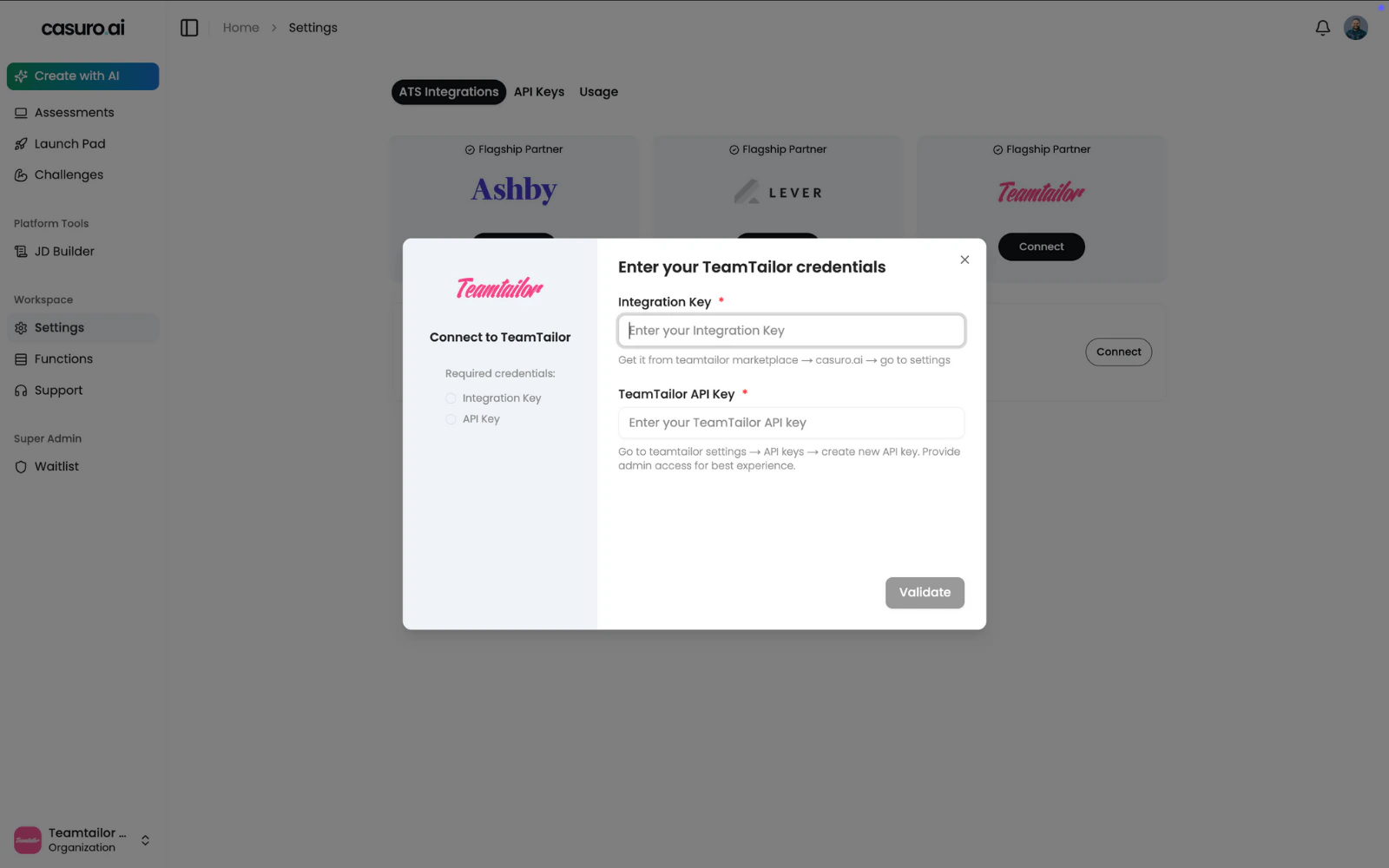
A configuration form will appear in Casuro requesting an Integration Key and an API Key.
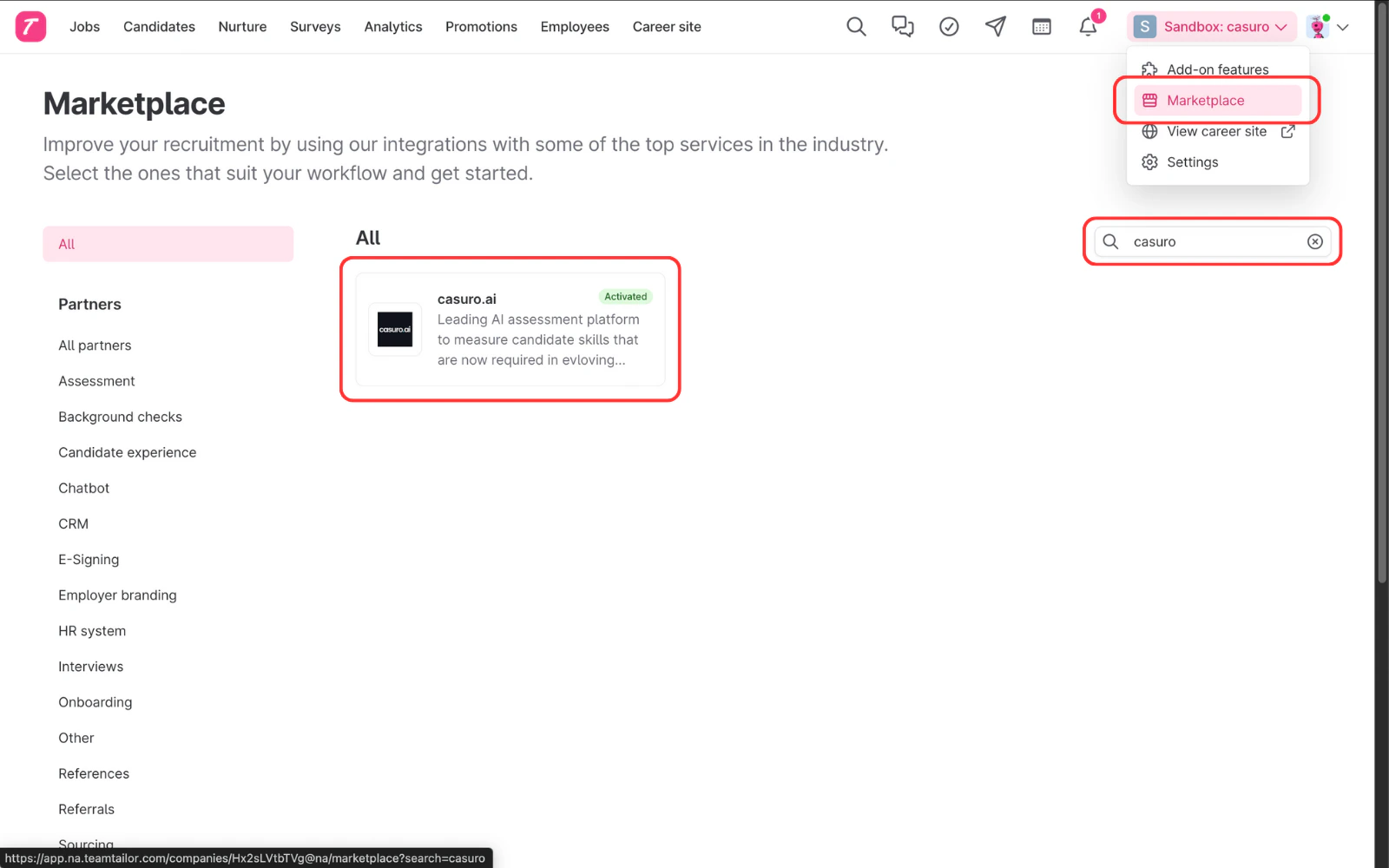
In a new tab, go to the Teamtailor Marketplace, search for 'Casuro', and ensure it is installed and enabled.
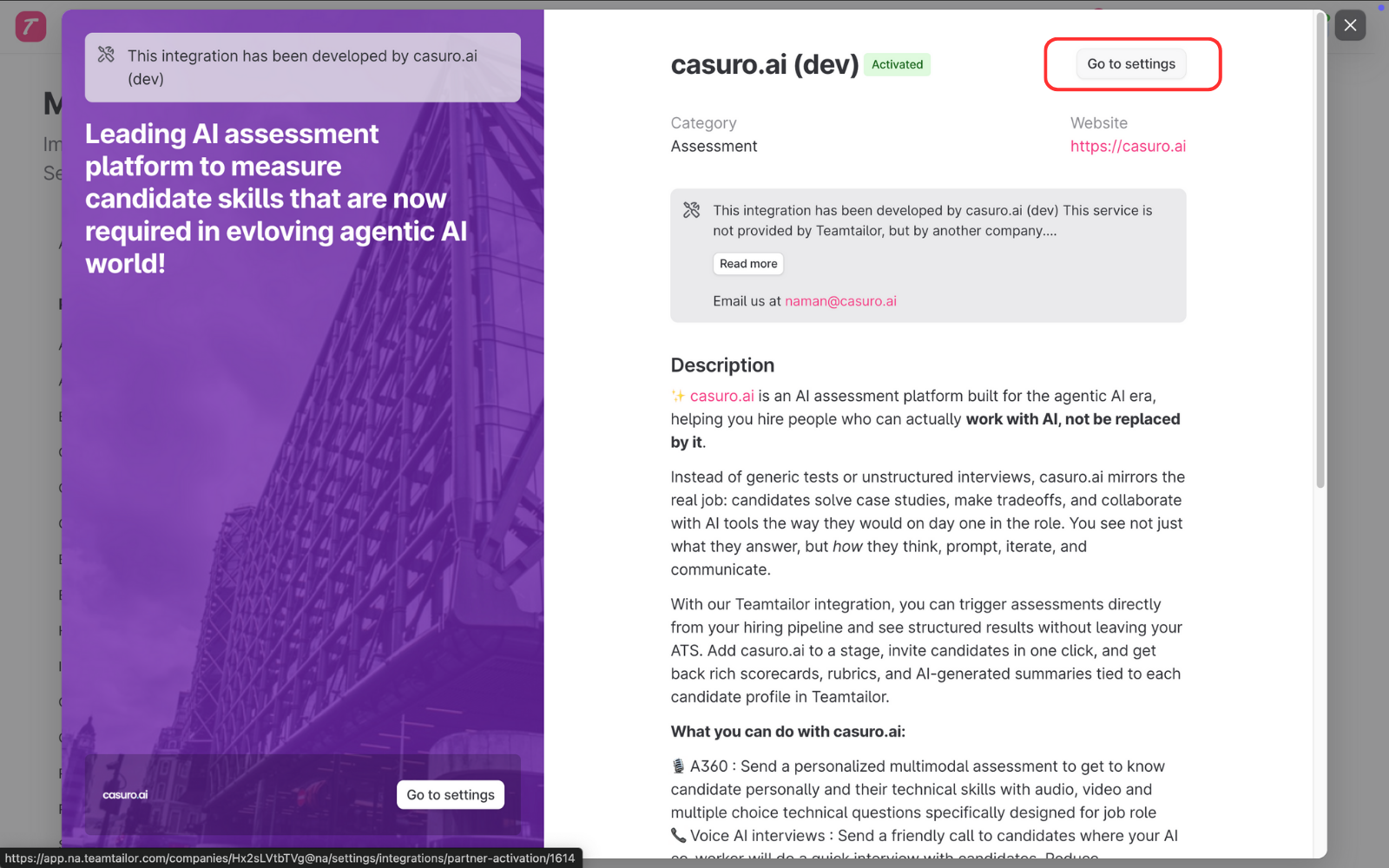
Click on the Casuro integration card and select 'Go to settings'.
Authenticate & Activate
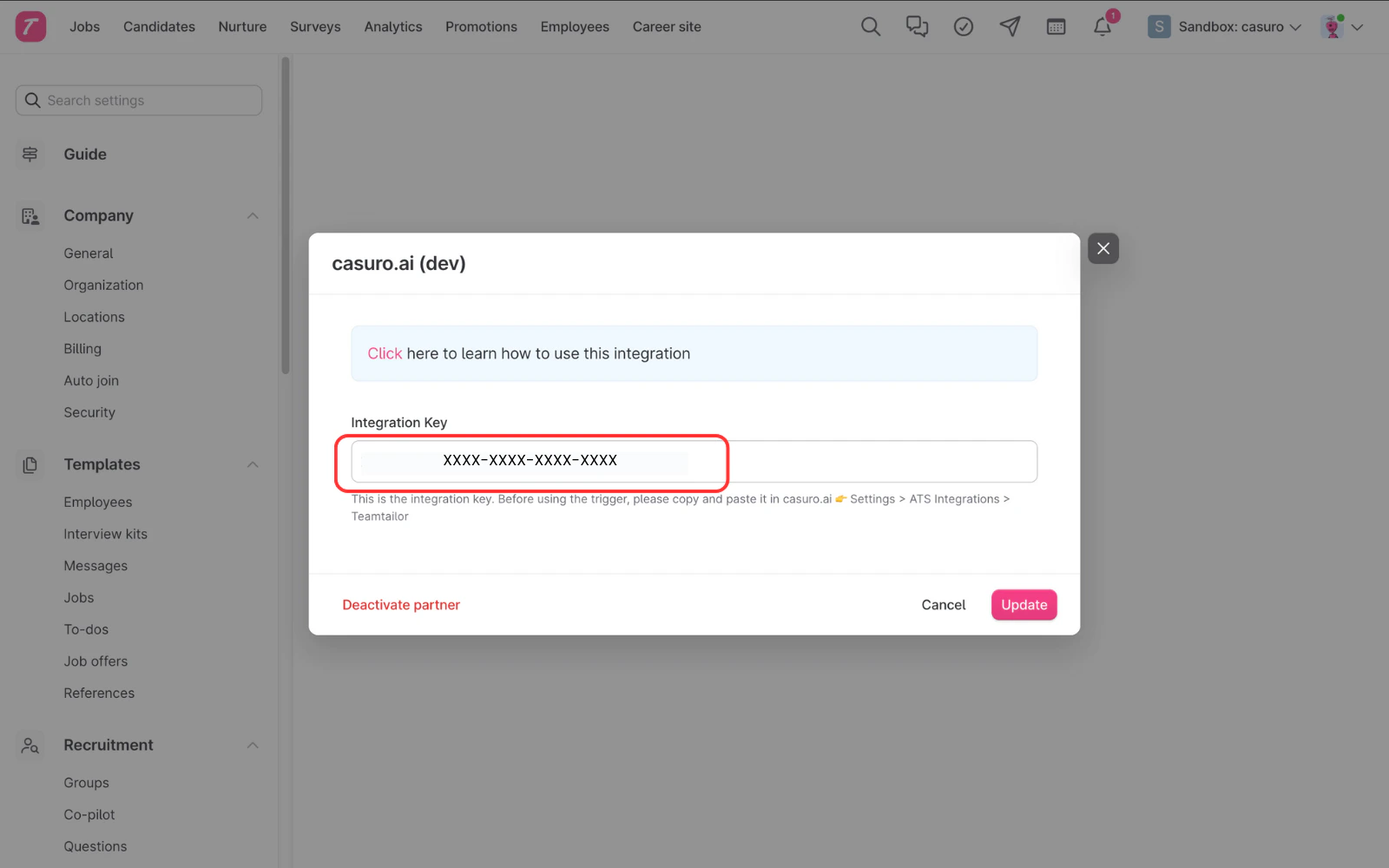
Copy the 'Integration Key' from the Teamtailor settings page and paste it into the Casuro form.
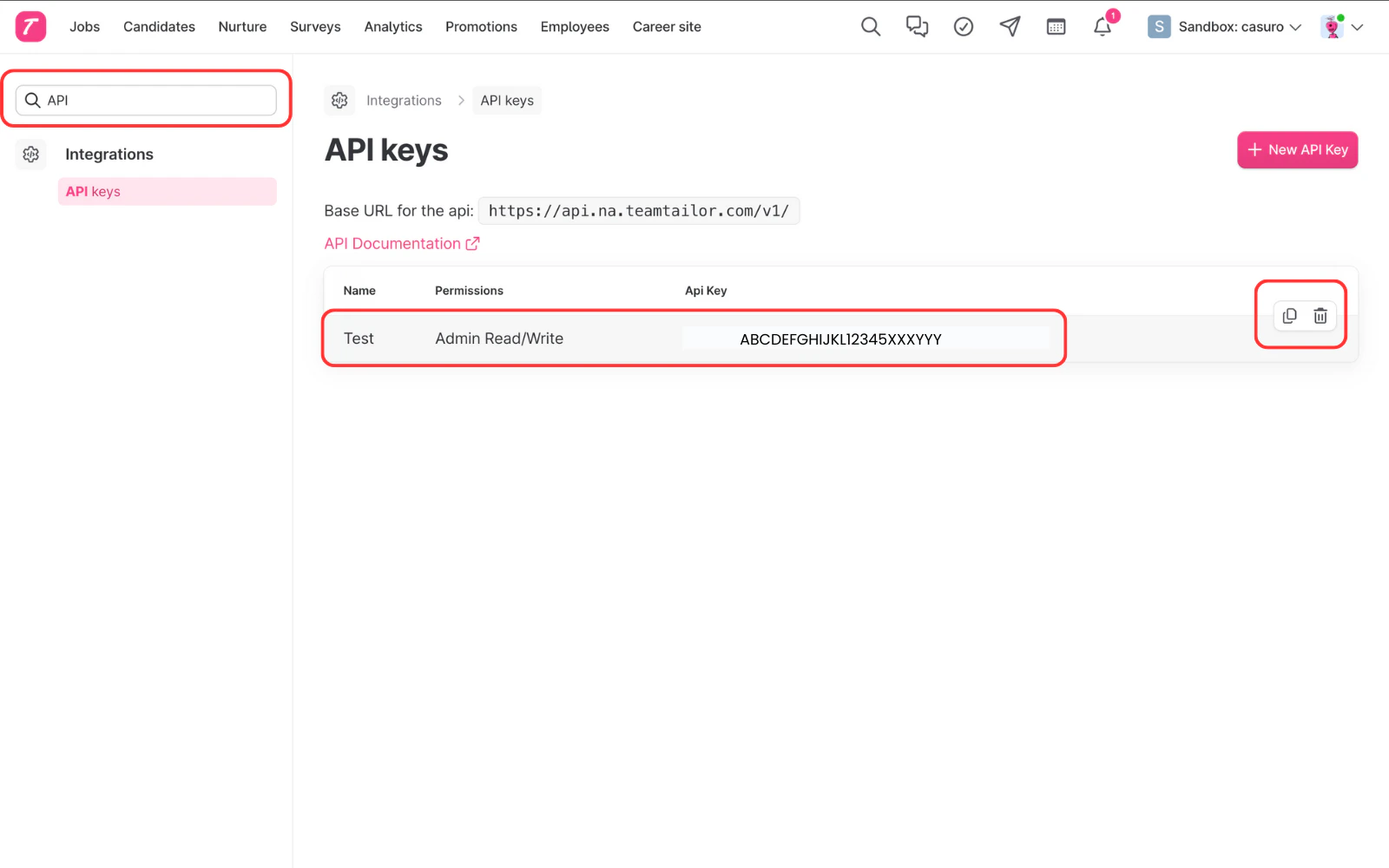
In Teamtailor, navigate to the 'API' section in the sidebar. Create a new API Key with 'Admin' scope (Read/Write) and copy it.
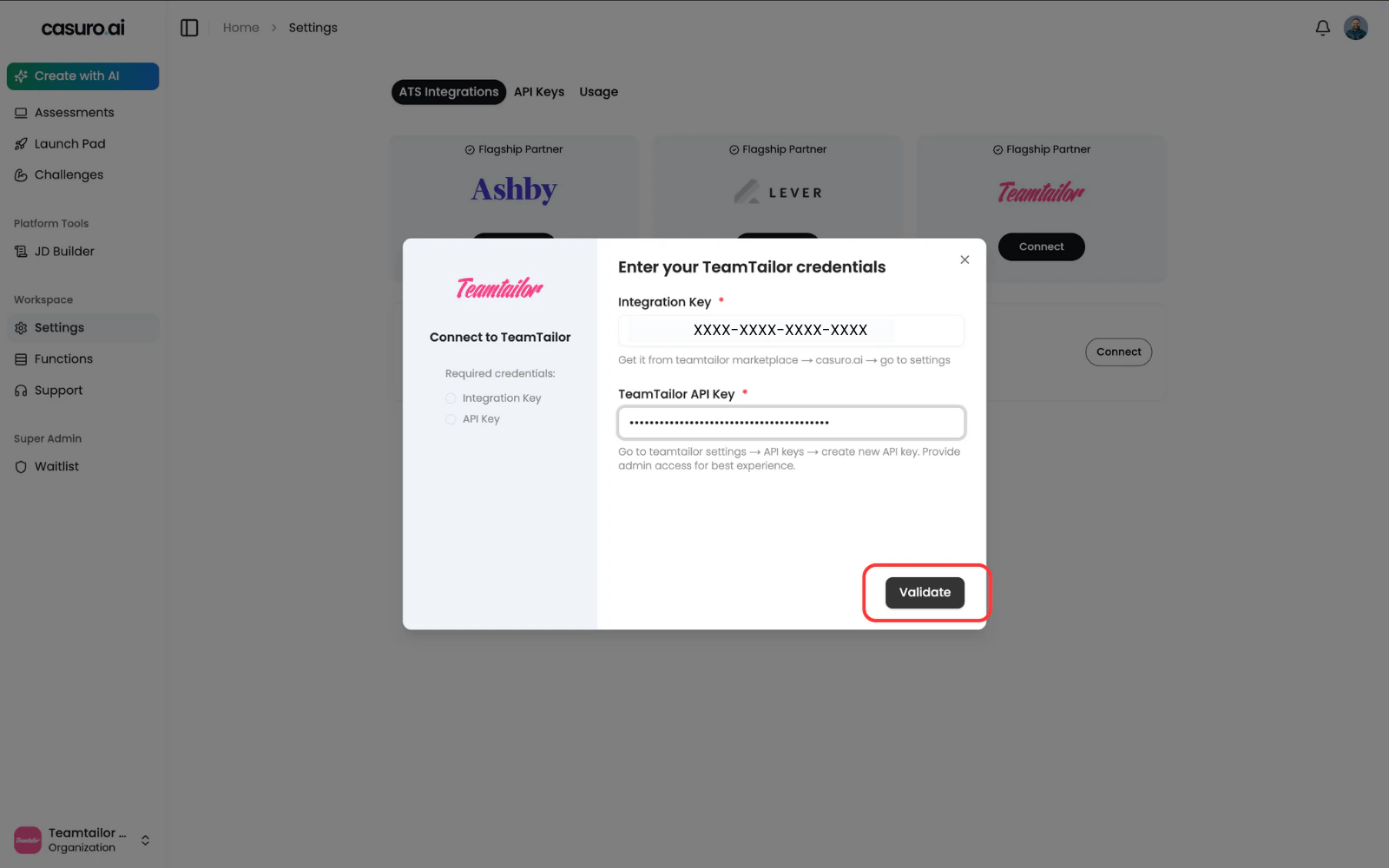
Paste the API Key into the Casuro form and click 'Validate' to verify the connection.
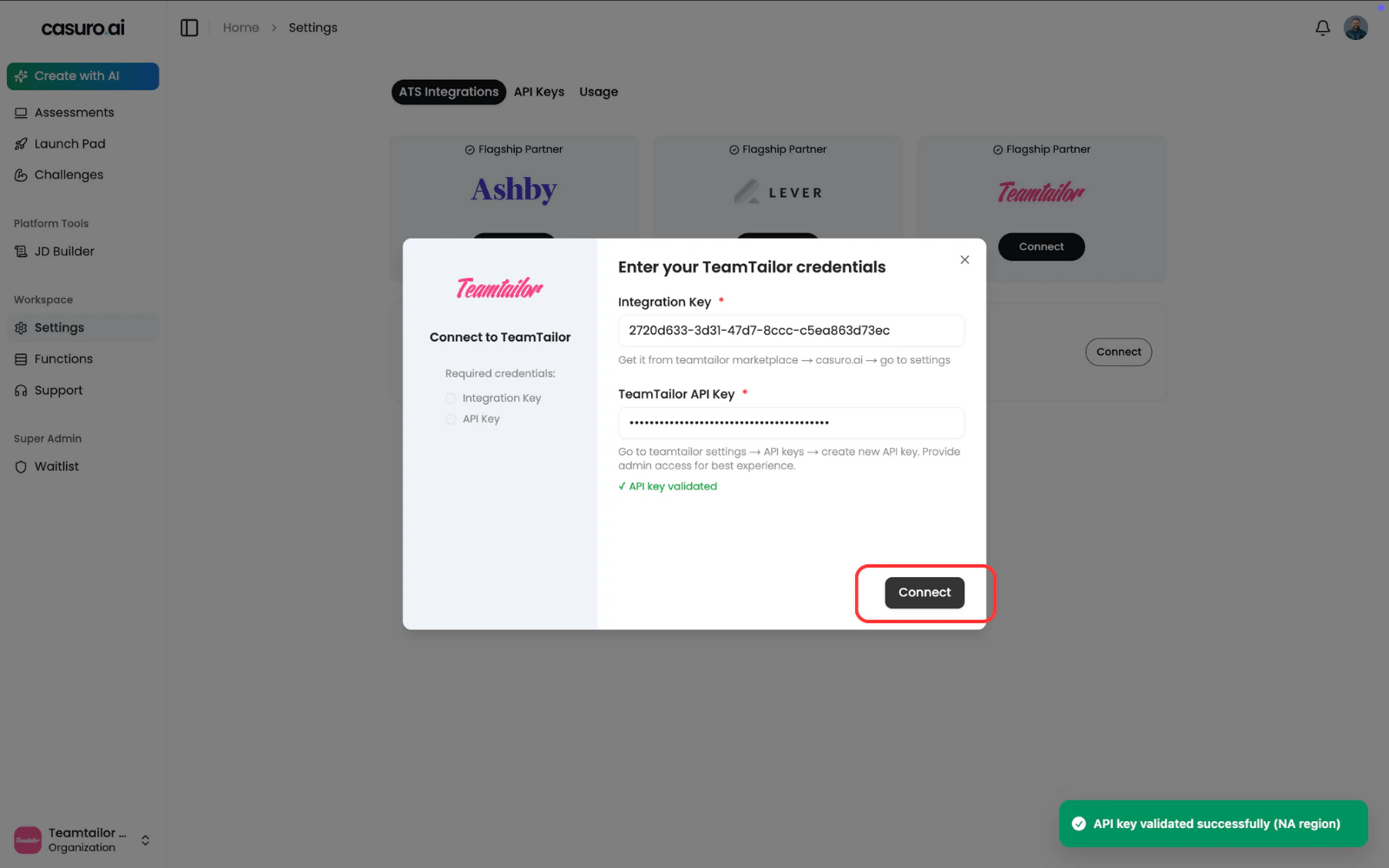
Once validated, the 'Connect' button will become active. Click it to finish.