Proud to be official integration partner of Ashby!
Watch this short video to learn how to setup Lever native integration with casuro.ai.

Step by step guide

Follow these simple steps to get started with Lever integration with casuro.ai
1

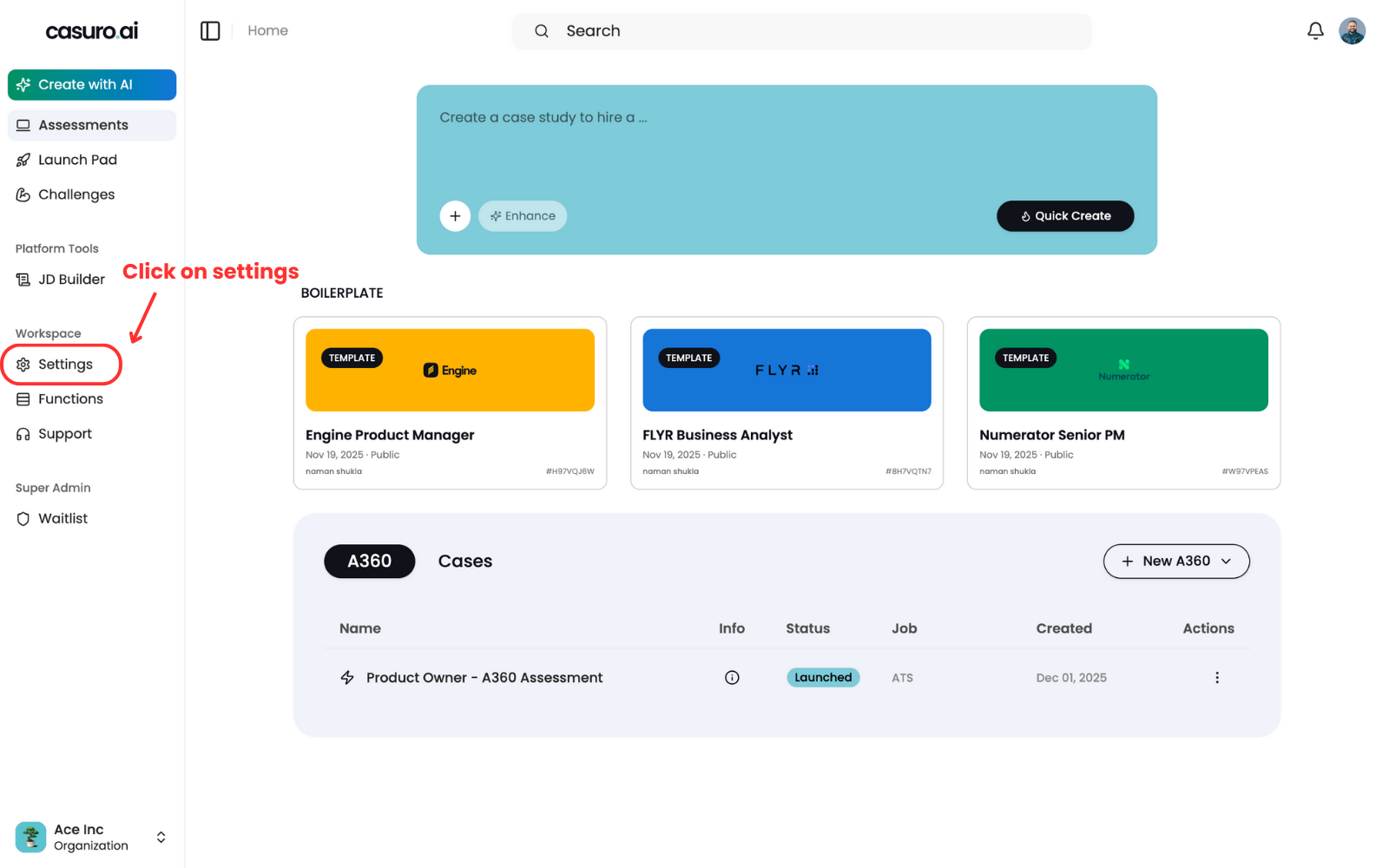
Open casuro.ai and hit connect

Descriptive alt text

Login to casuro.ai and click on settings on the left menubar.

Descriptive alt text

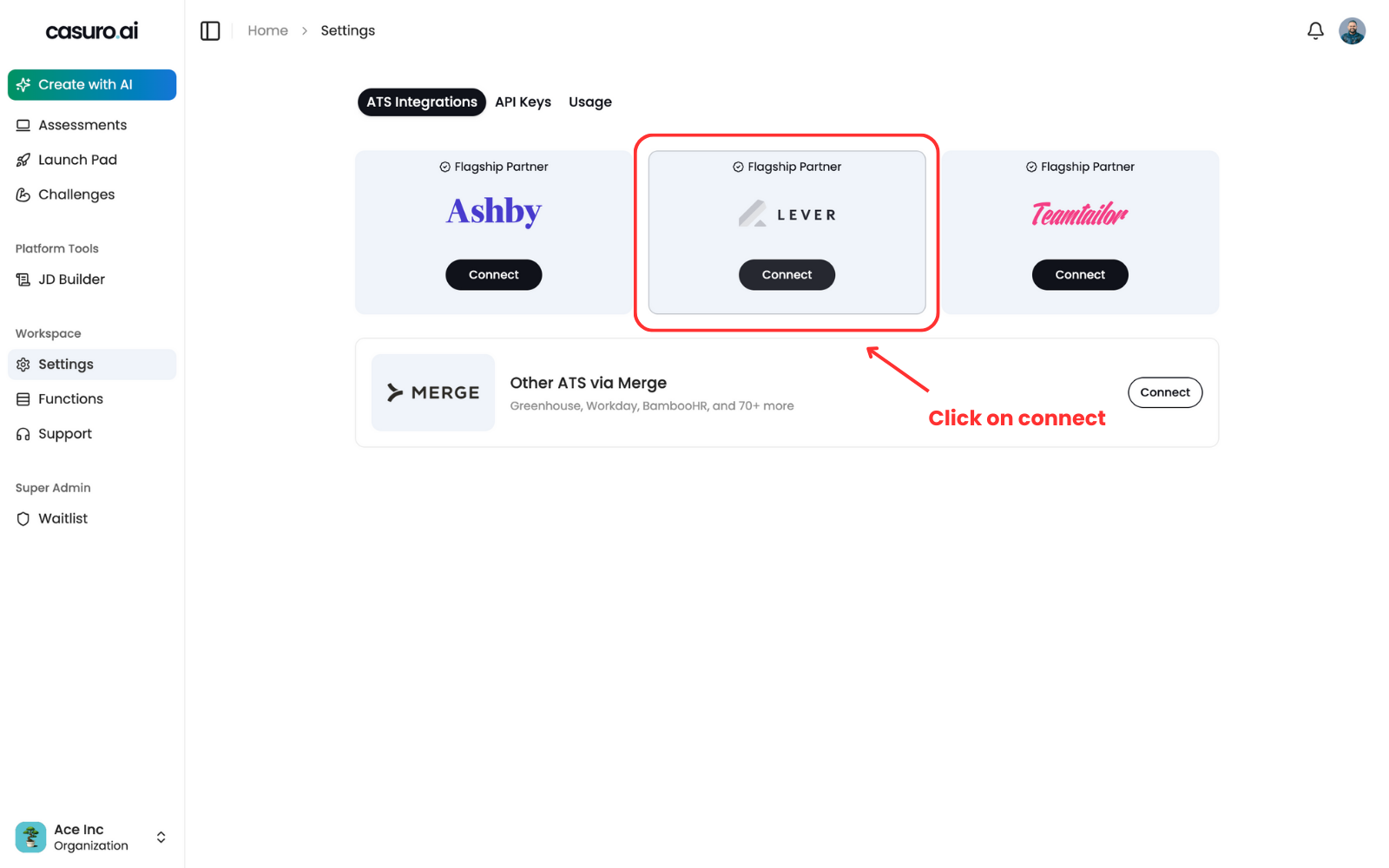
Under ATS integrations, click on connect to Lever to connect.

2

Authenticate Lever

Descriptive alt text

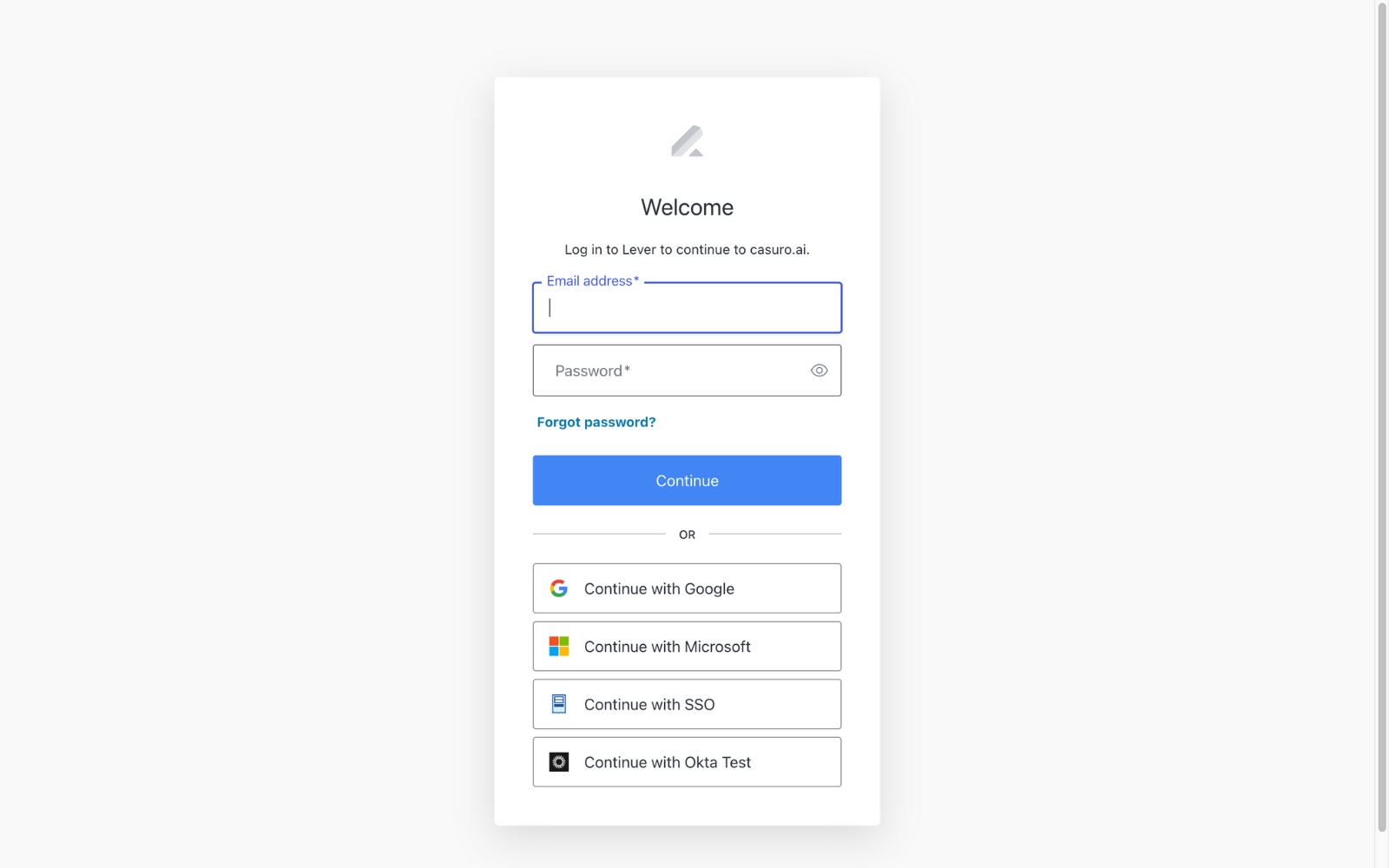
Once clicked, you will be redirected to Lever to authenticate. Sign-in to your Lever account to connect both platforms. Use your usual Lever credentials to log in and authenticate the integration.

Descriptive alt text

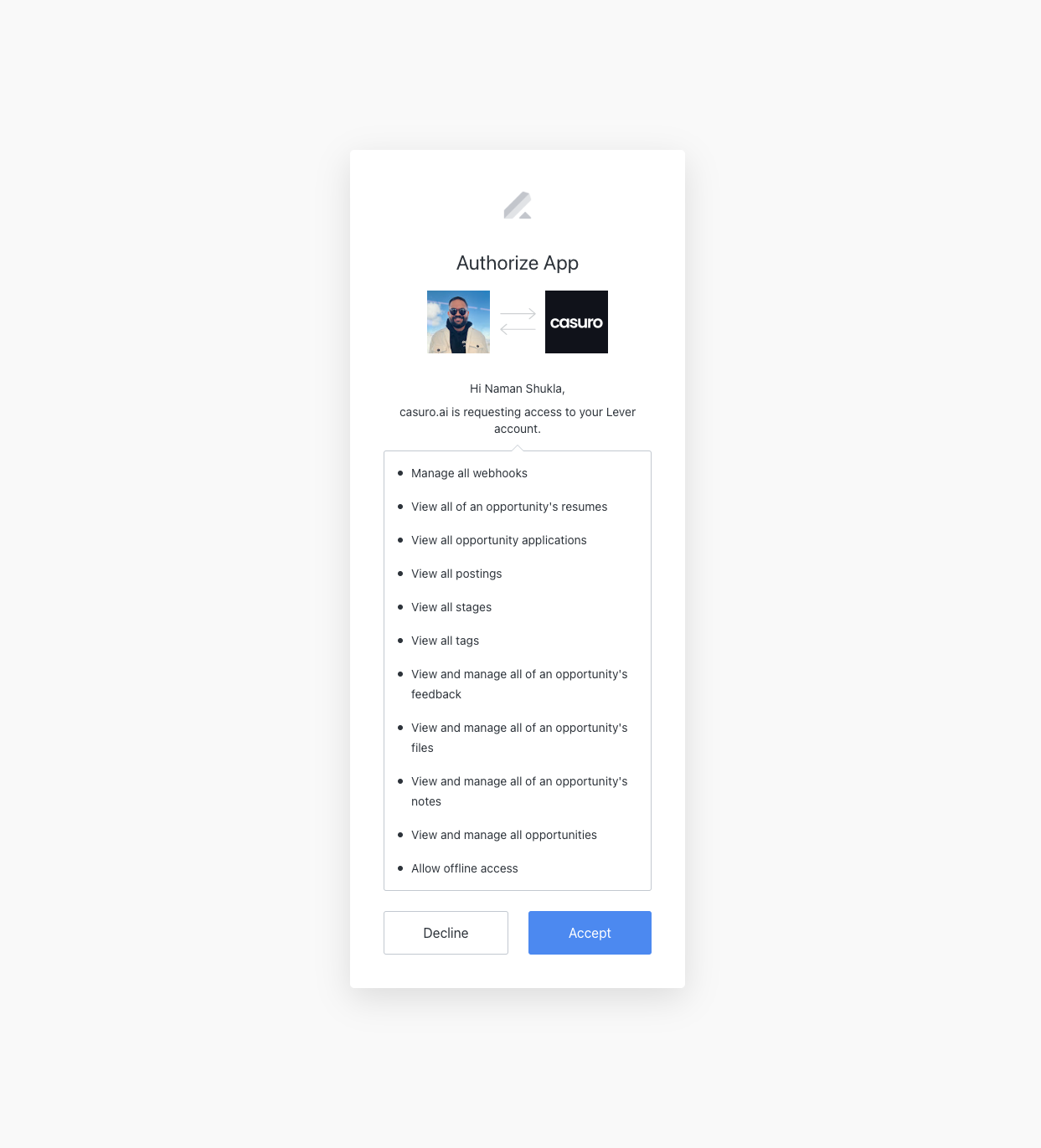
You will be shown the permission requested from casuro.ai. Accept the permission request to connect both platforms.

Congratulations! You are now connected to the Lever.
3

Configure webhook in Lever

Descriptive alt text

Once connected, we need to make sure that “Candidate Stage Change” webhook is active in Lever.

Descriptive alt text

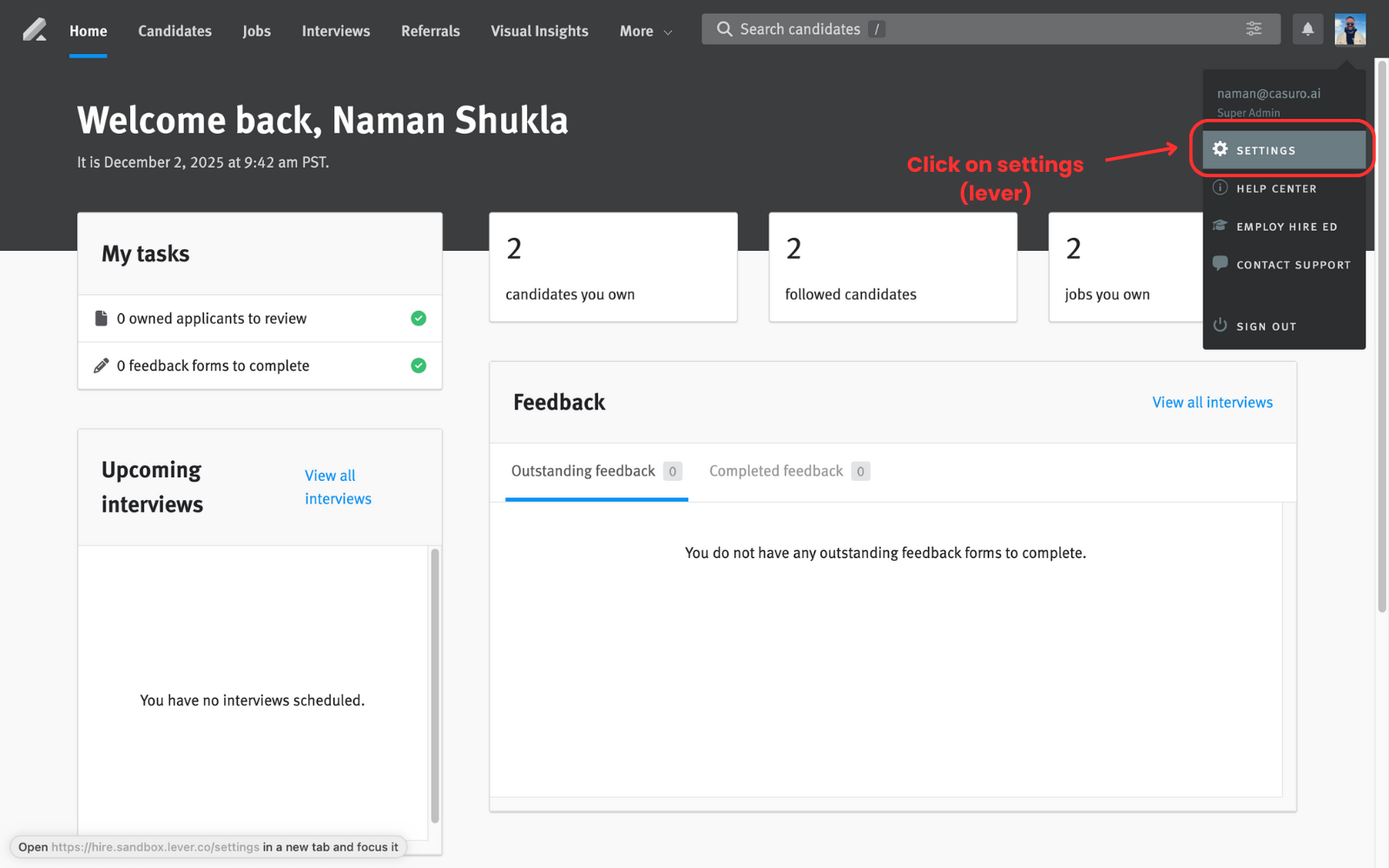
In Lever, go to settings.

Descriptive alt text

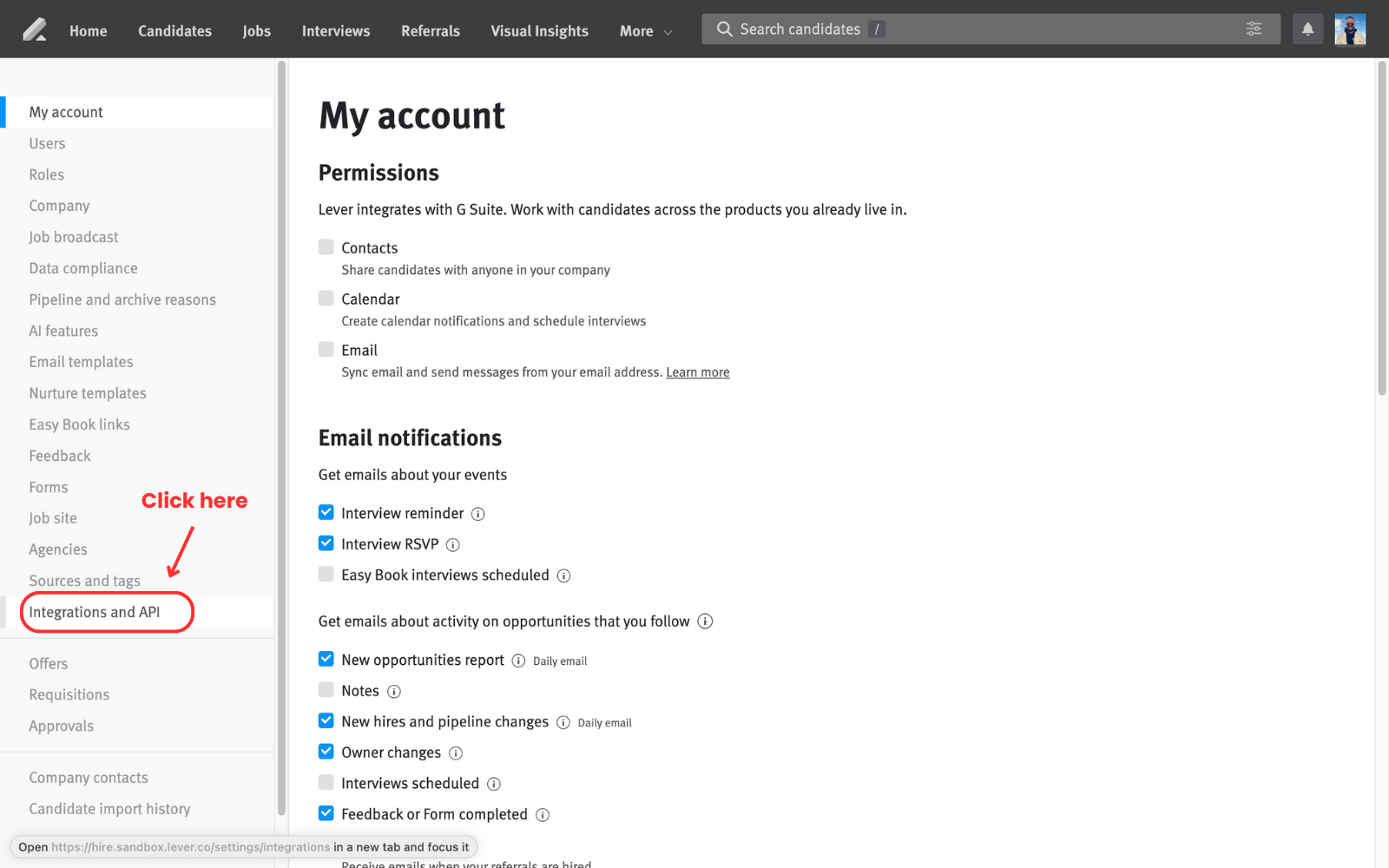
Click on integrations and API in the left menu bar.

Descriptive alt text

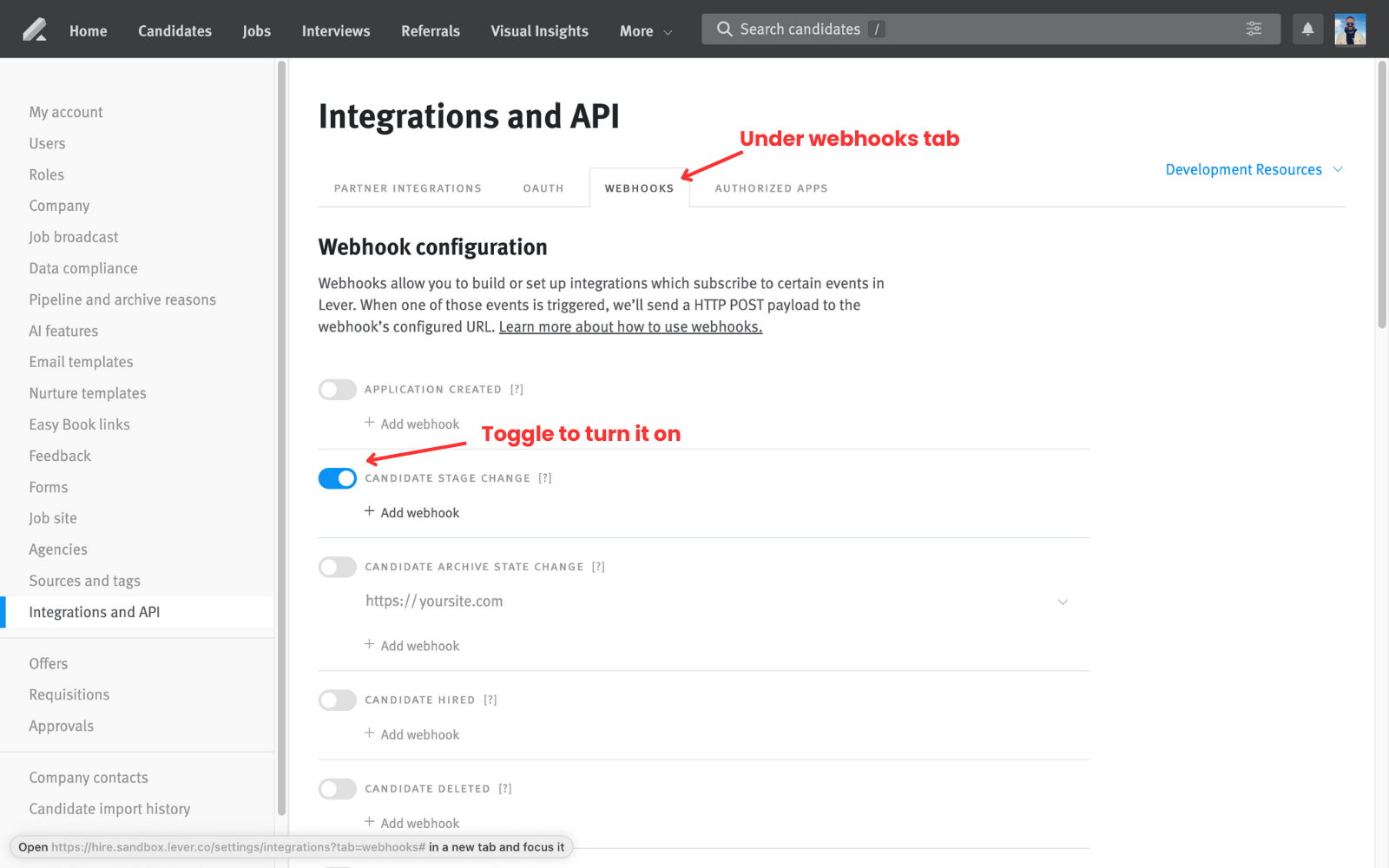
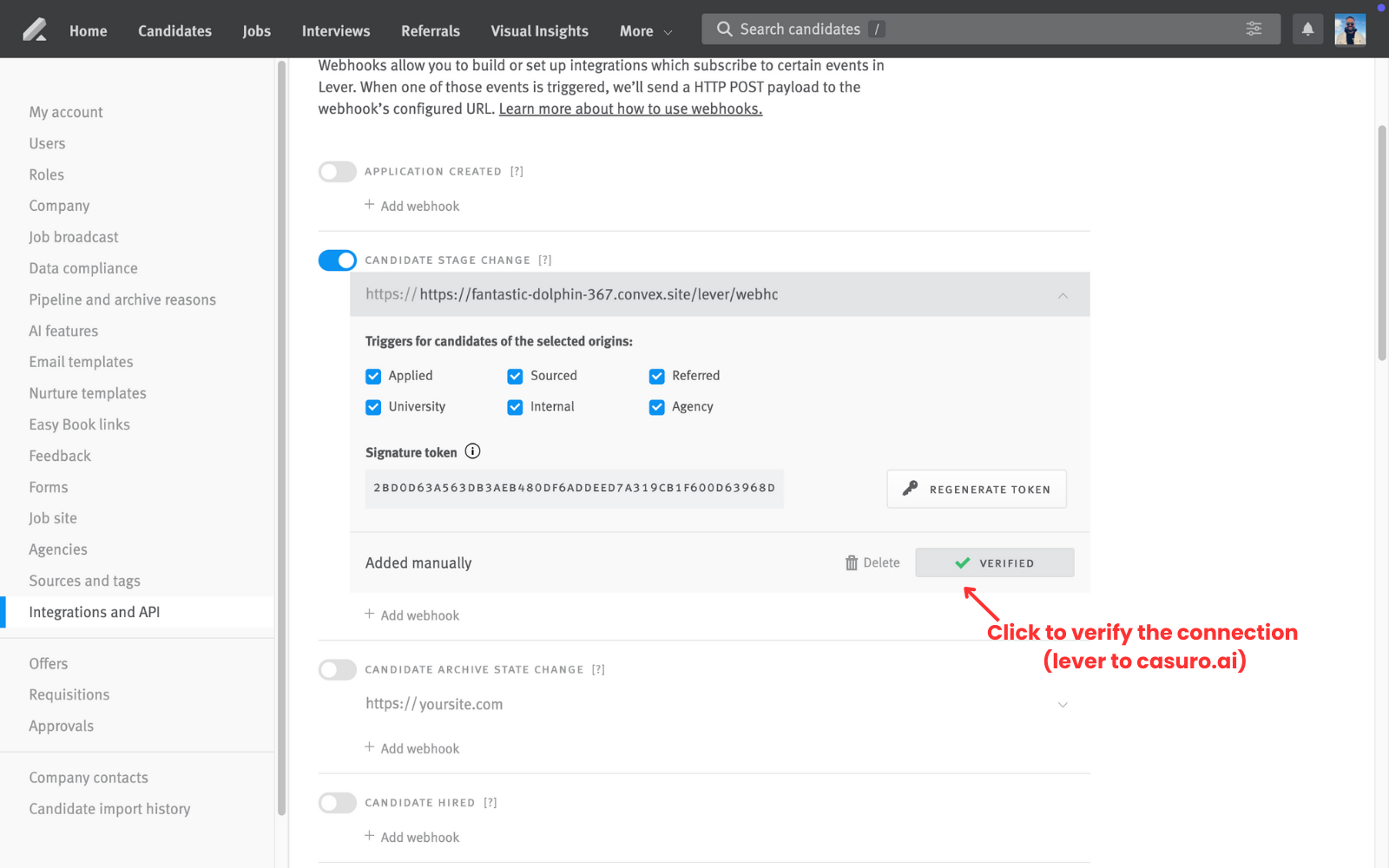
Click on the “webhooks” tab and toggle the candidate stage change (as shown in the image below).

Congratulations! Now we are fully connected to Lever.

Testing the integration

Descriptive alt text
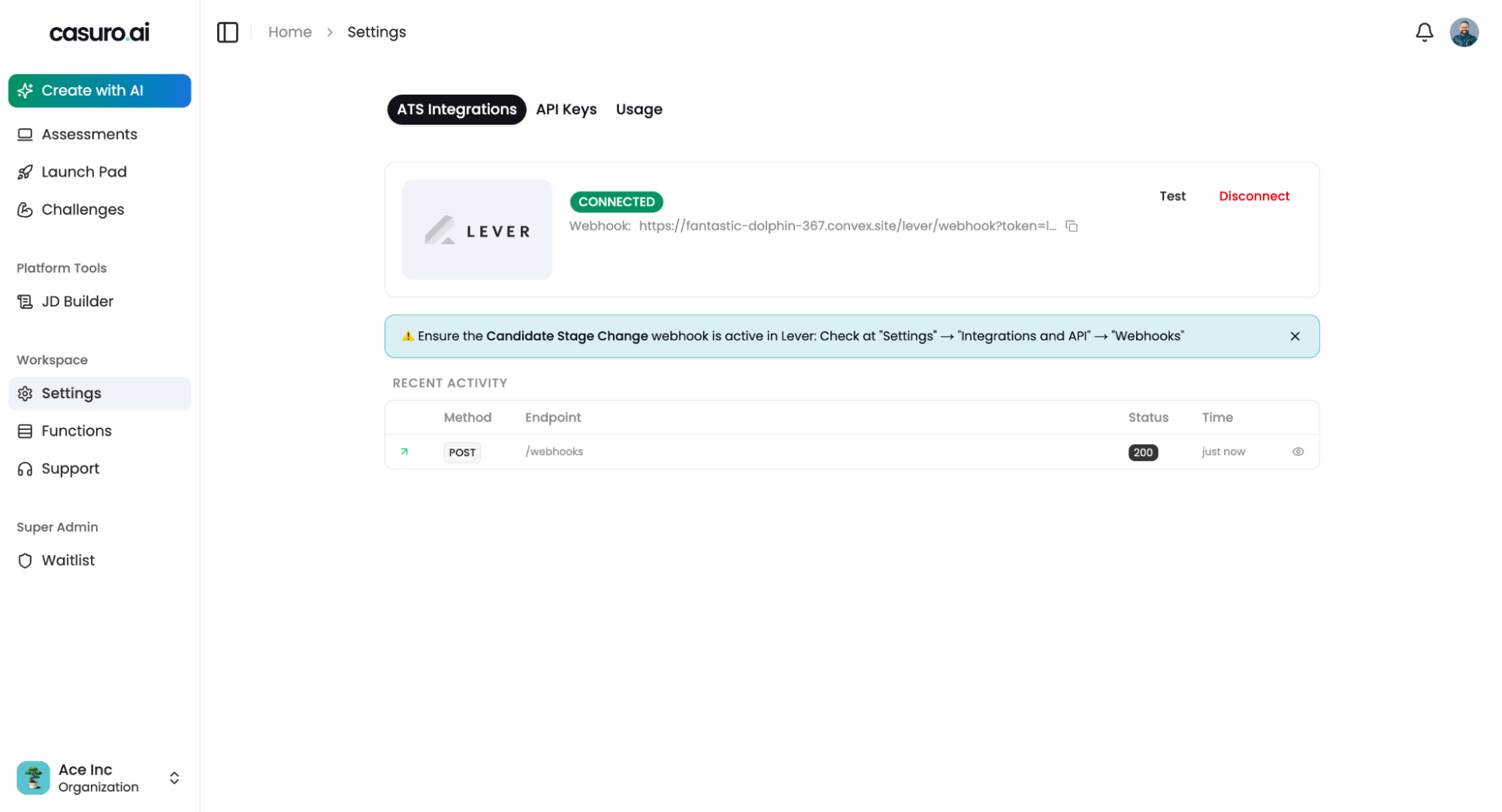
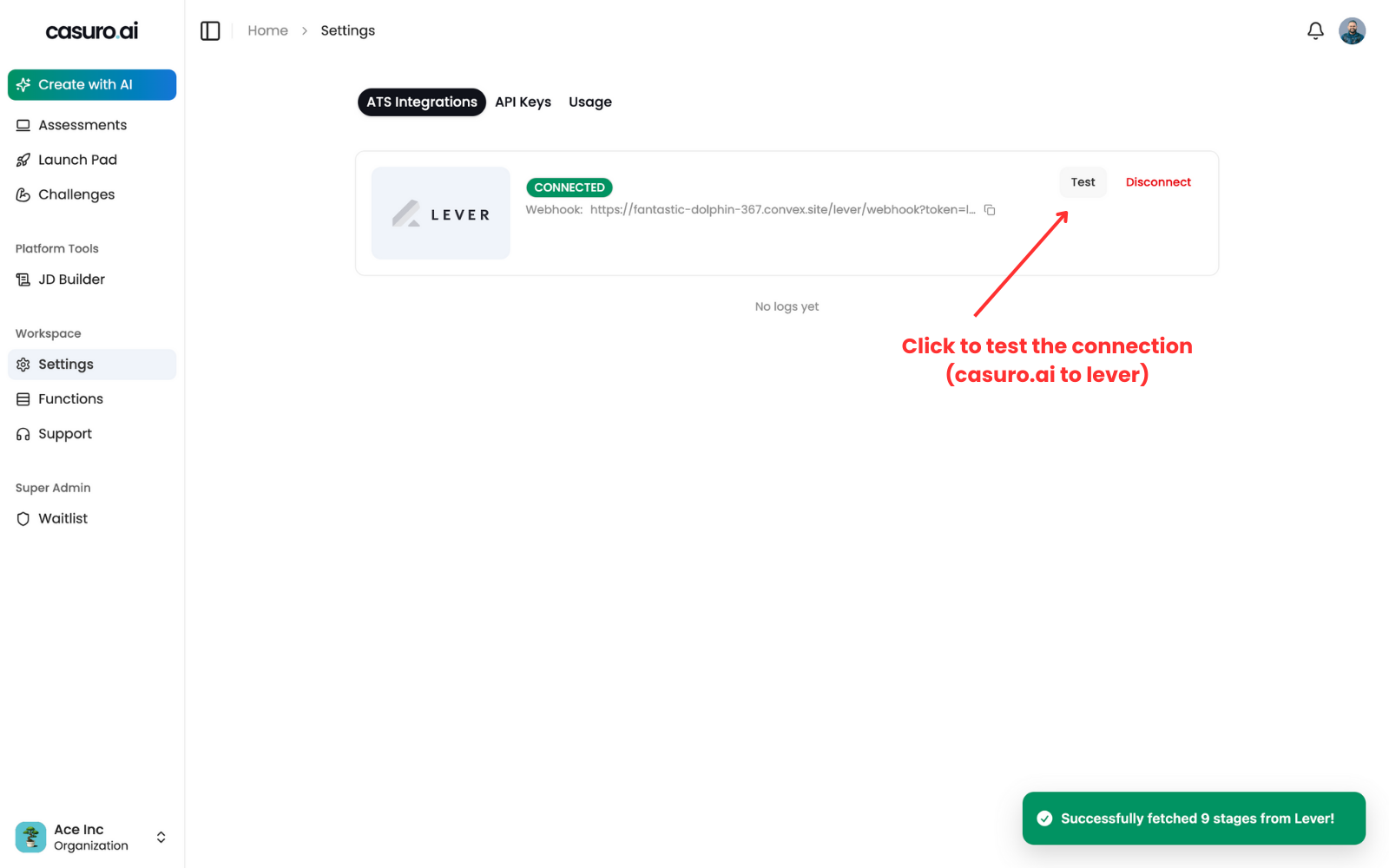
You can test the integration by clicking on “Test” in casuro.ai settings page under ATS integrations tab. This will test casuro.ai to Lever requests.
Descriptive alt text
You can also test the webhook integration from Lever by clicking on “Verify webhook” in the Lever webhooks page. This will test Lever to casuro.ai requests via webhooks.

Debugging

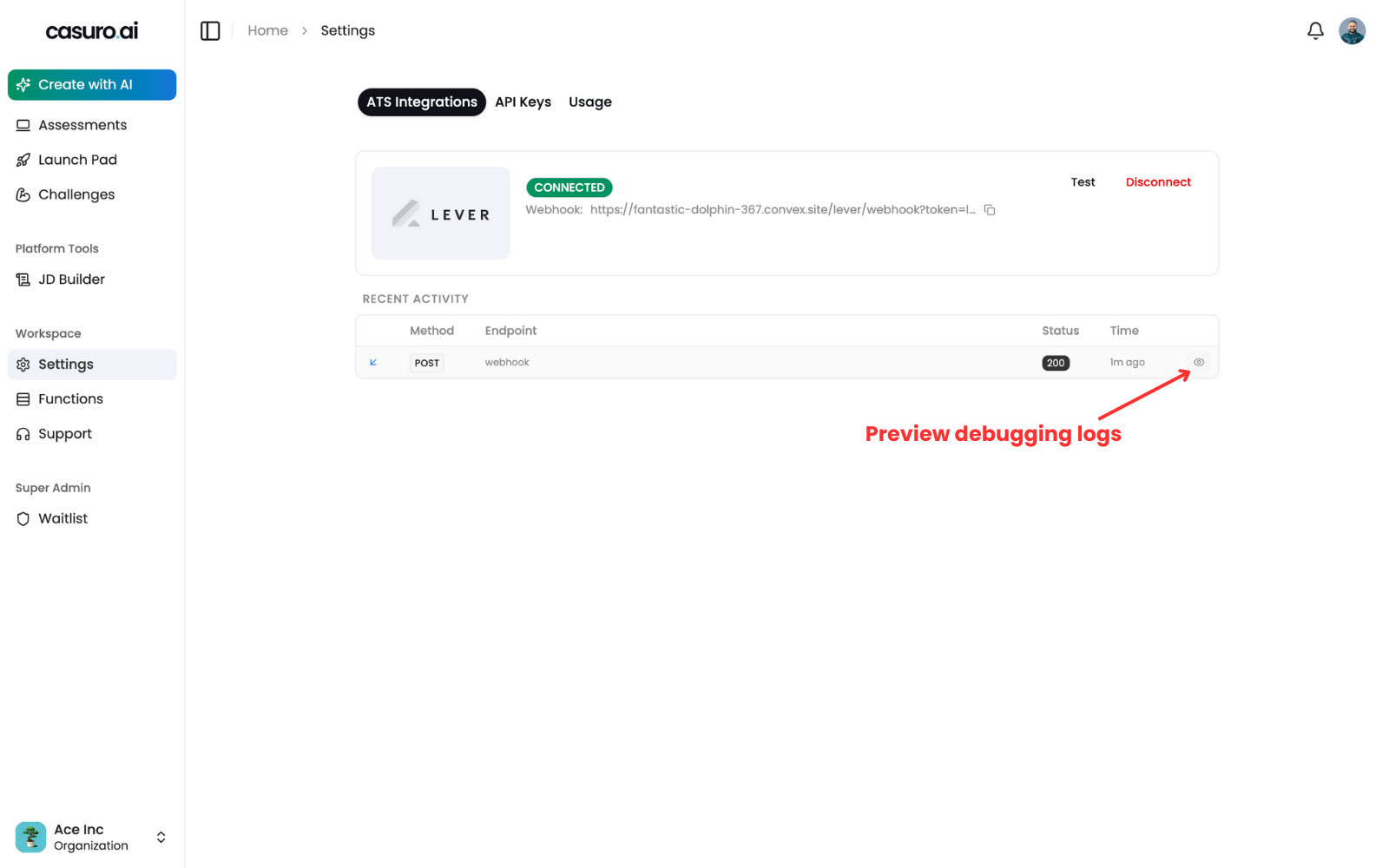
If you face any issues, you can check the logs in casuro.ai settings page under ATS integrations tab. This will show you the logs of the integration.
Descriptive alt text
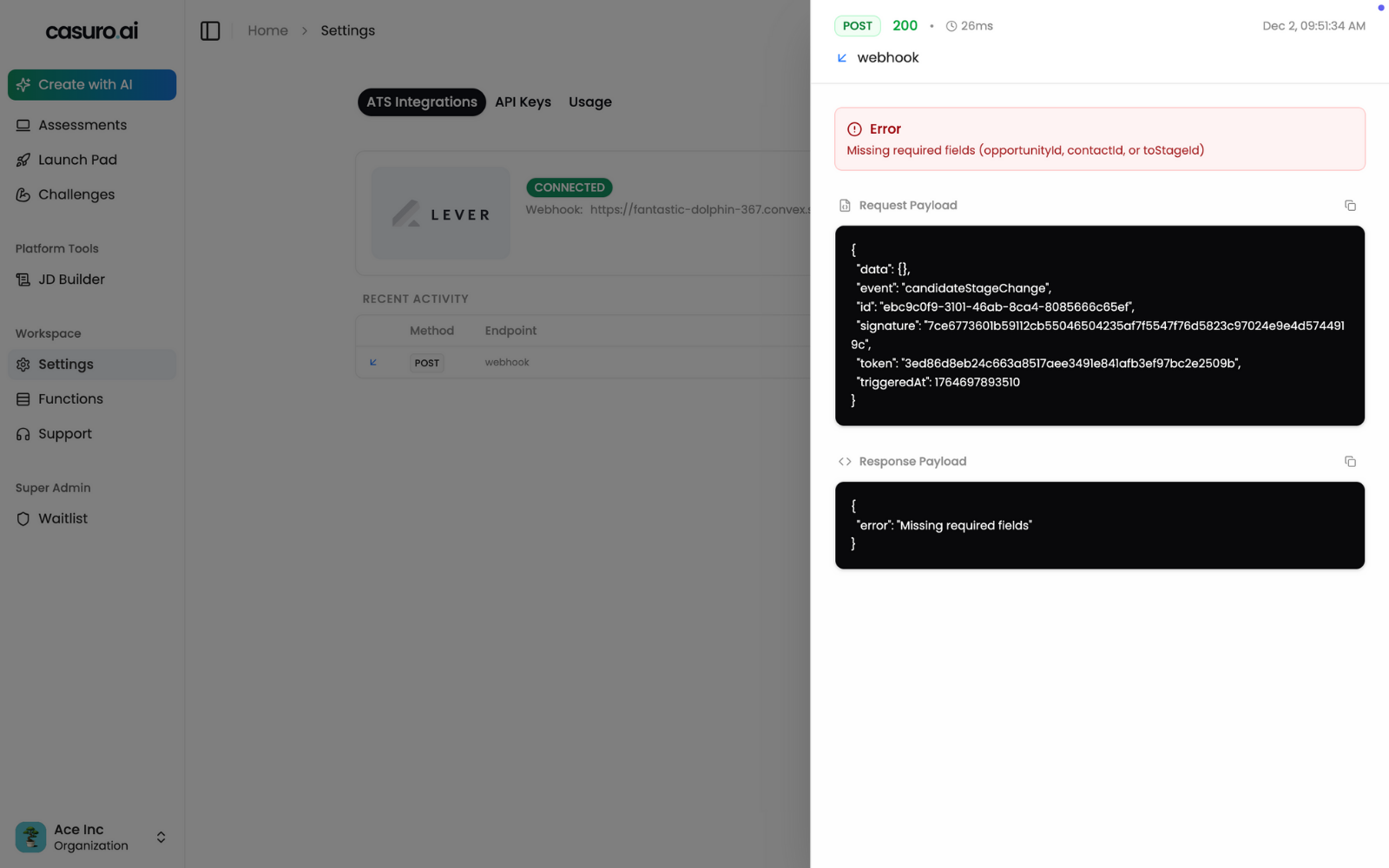
Full preview of the logs is available in casuro.ai.
Descriptive alt text
If this doesn’t help, please reach out to us at [email protected] for any help or just ping in the community slack channel.