

A360 Assessment Workflow
Streamline your multimodal screening process directly within Greenhouse.Create and Launch Assessment
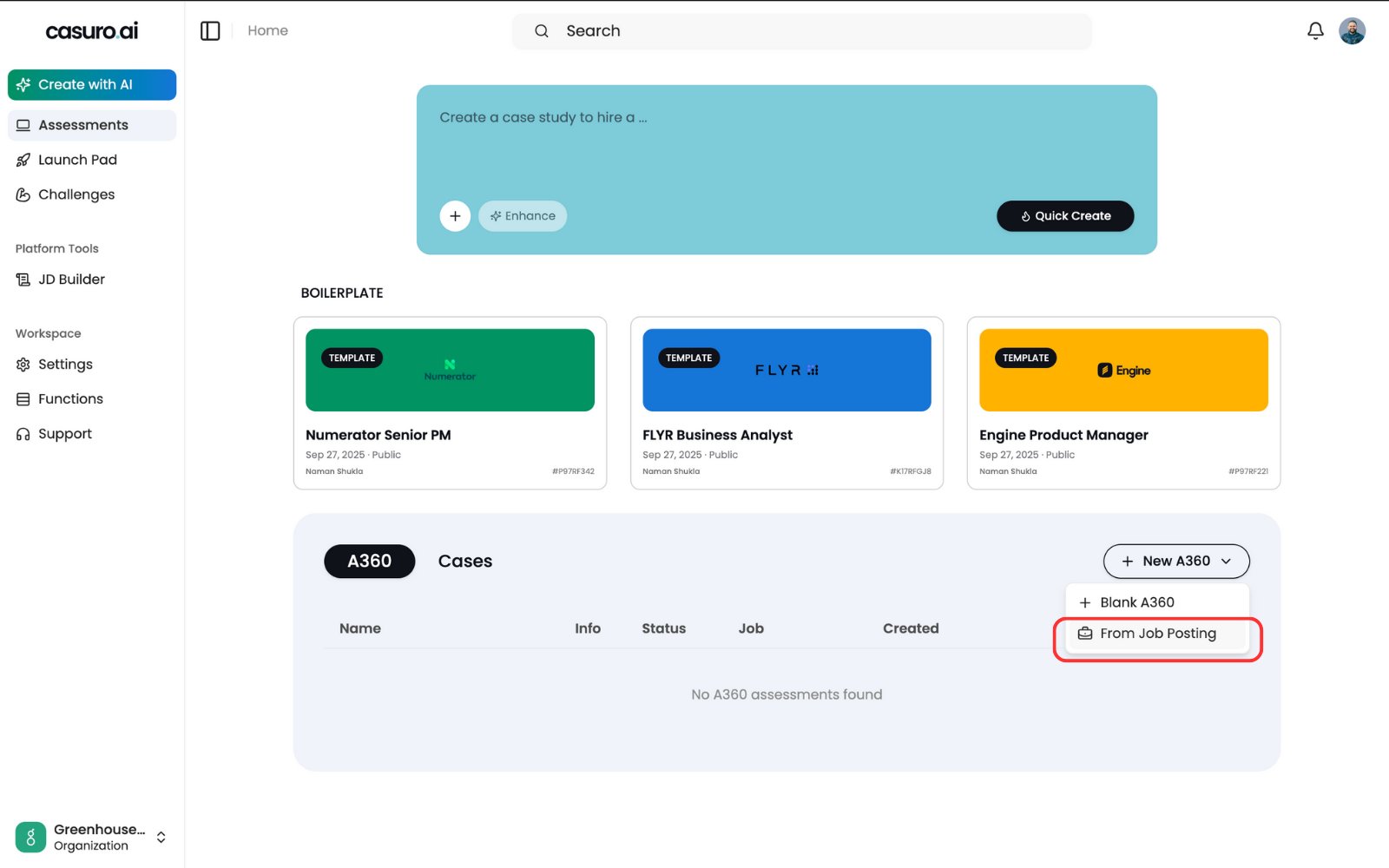
In casuro, select 'A360 Assessment', click 'New A360', and choose 'From Job Posting'.
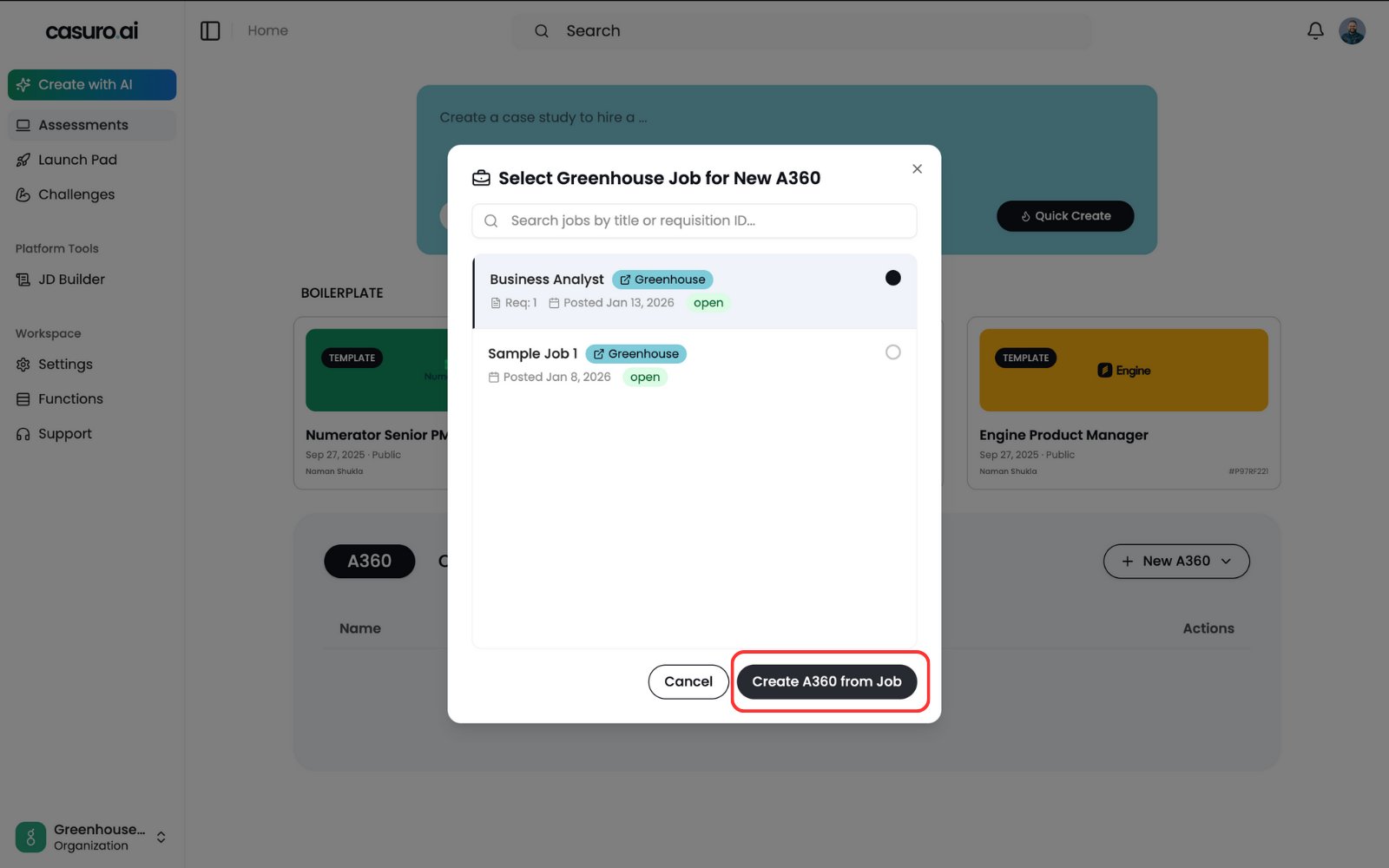
Select the relevant job posting and click 'Create'.
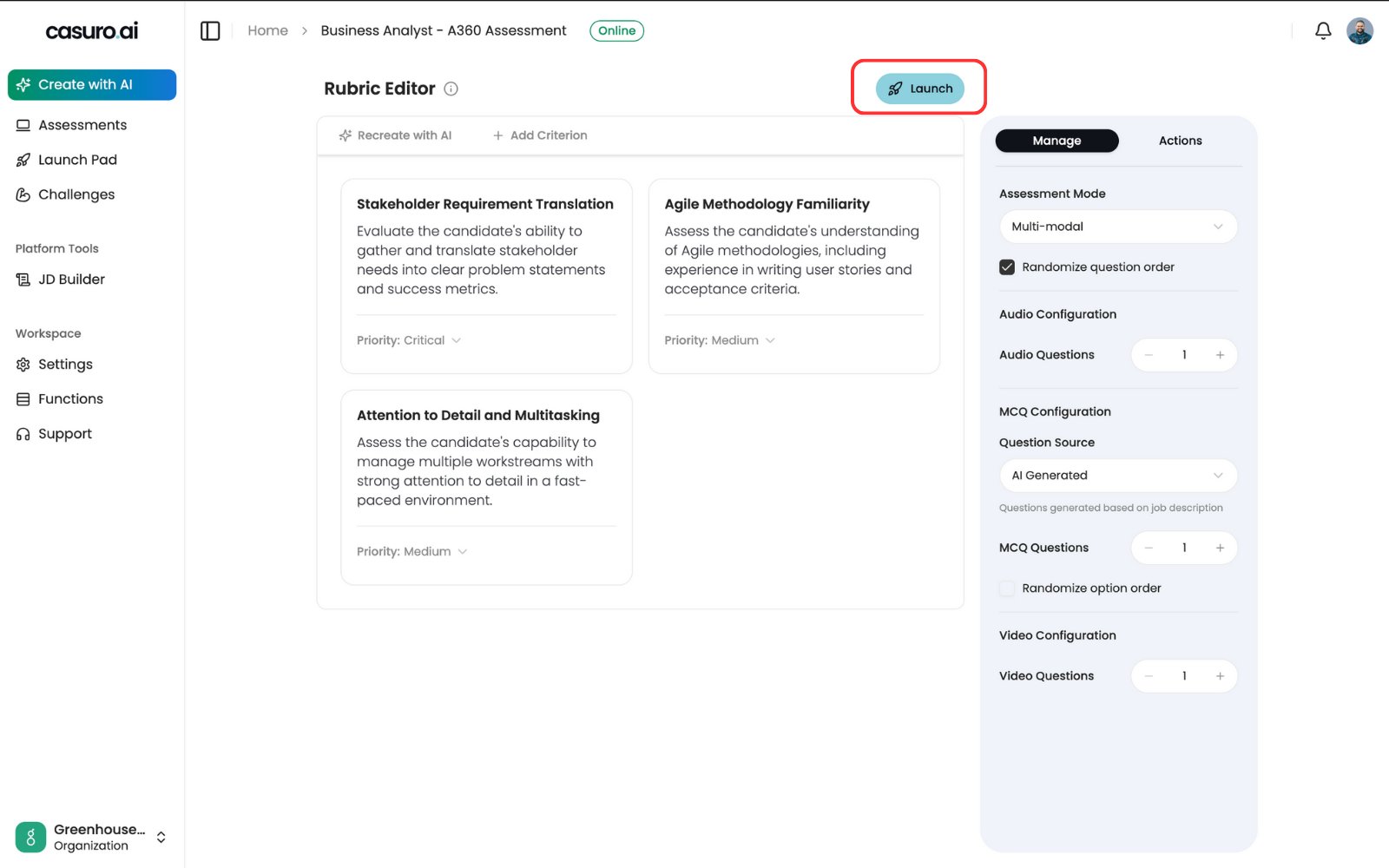
Customize your assessment in the editor, then click 'Launch'. Once launched, this assessment is now available in Greenhouse.
Add casuro.ai Stage in Greenhouse
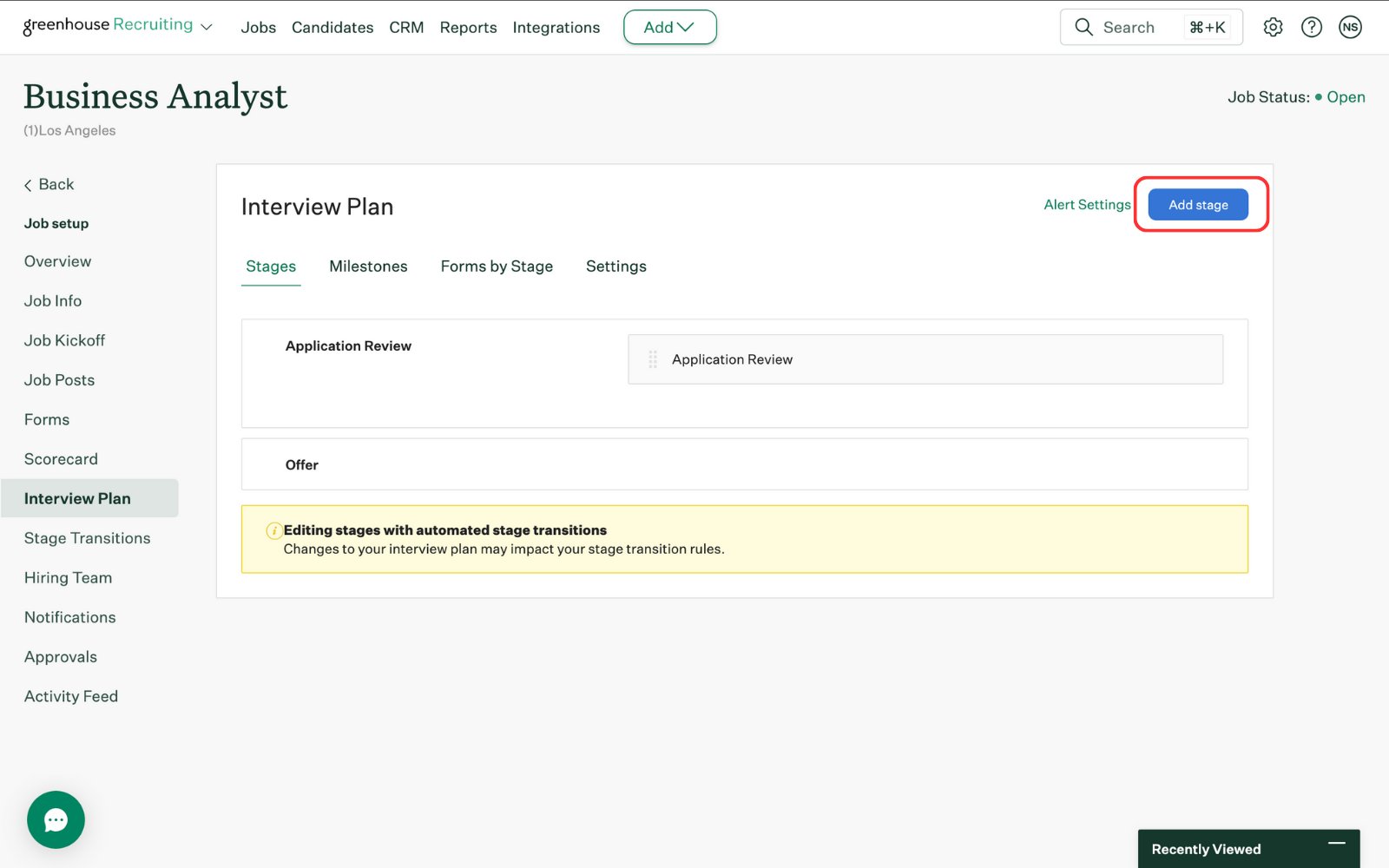
In Greenhouse, click 'Add Stage' to add a casuro.ai stage.
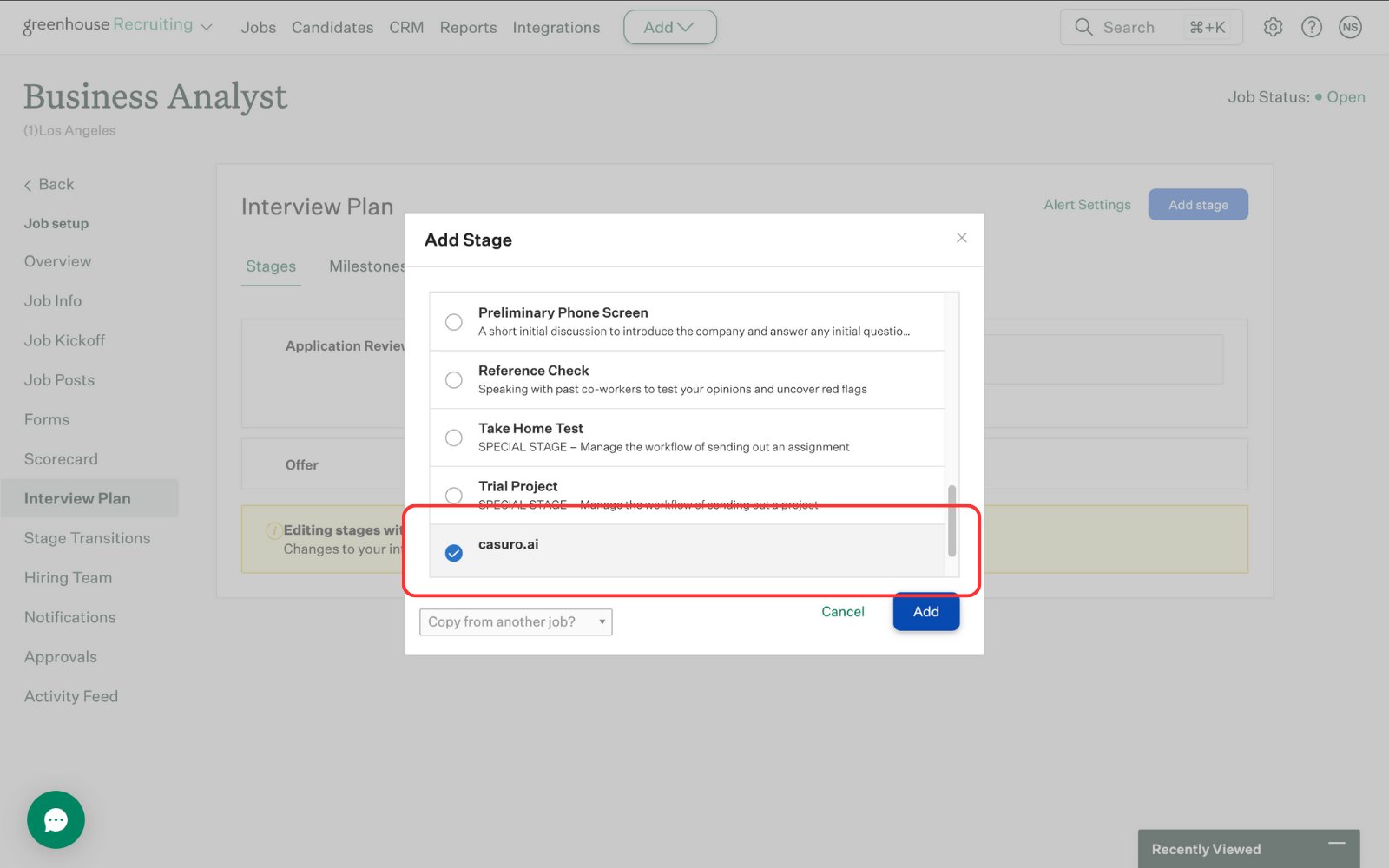
Select the casuro.ai stage and click 'Add'. Note: You need to provide your account manager with the API key to enable the casuro.ai assessment stage. More information is in the setup page.
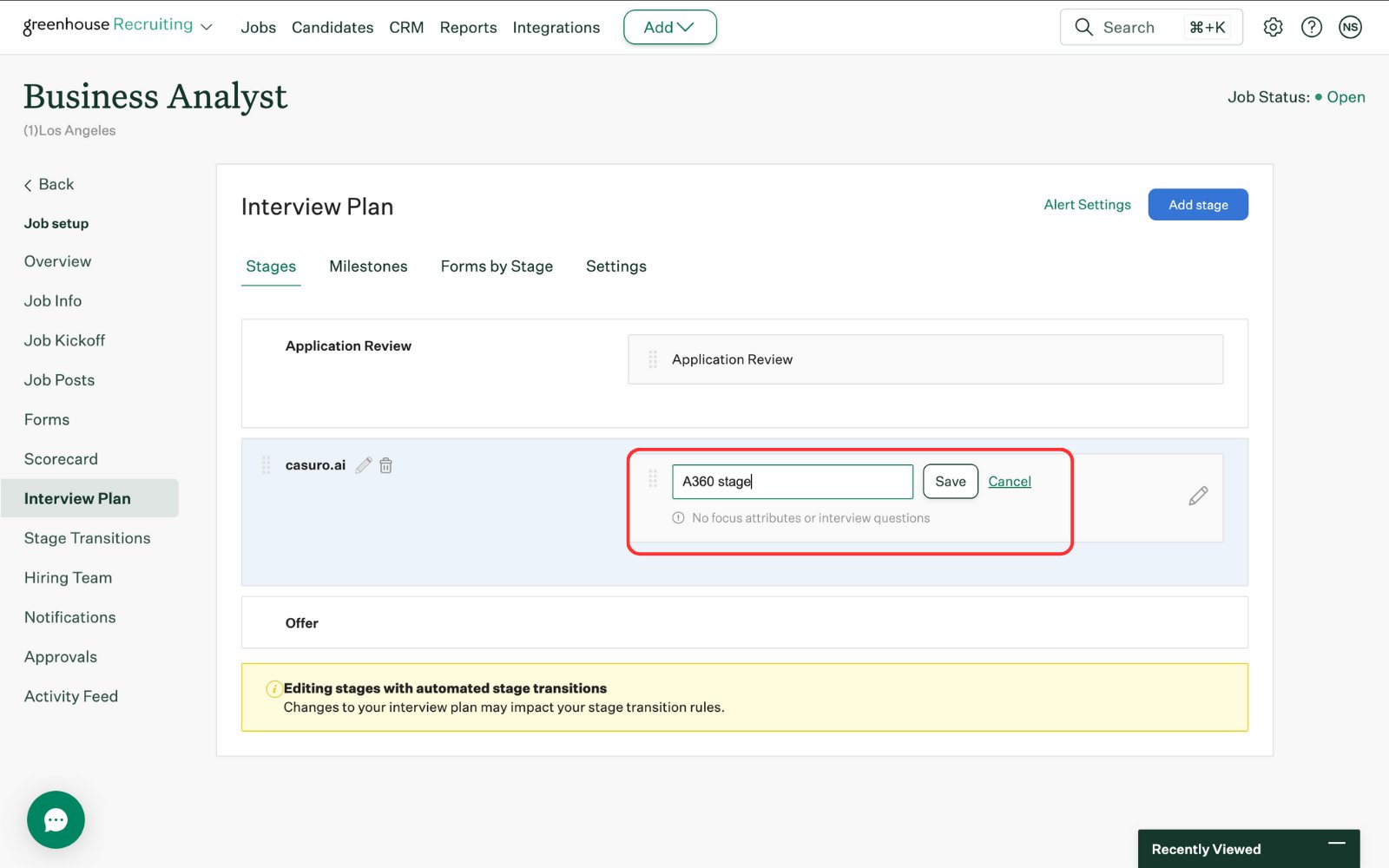
Give the stage a relevant name and click 'Save'.
Configure the Stage
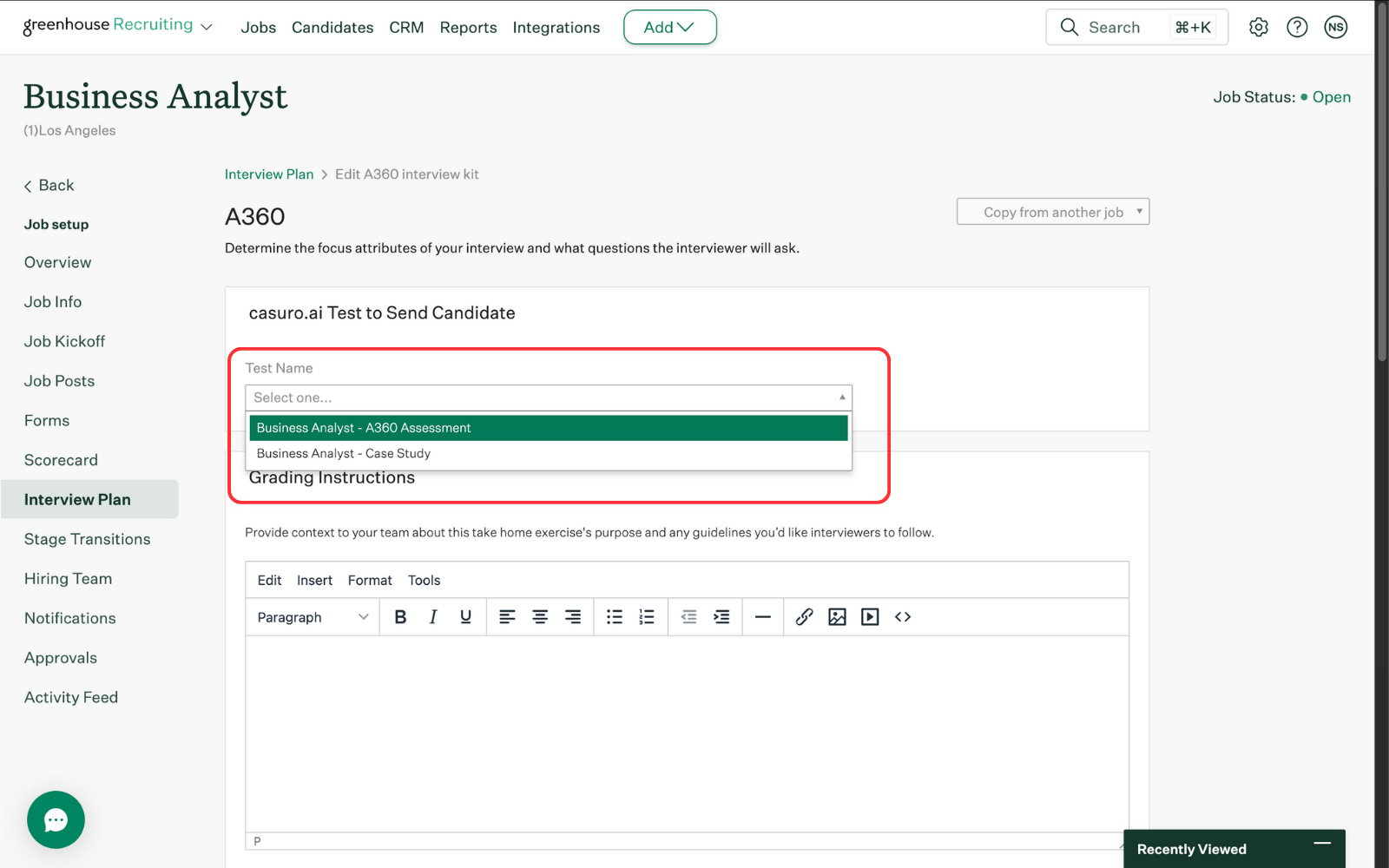
Edit the stage and select the assessment you want to use. All launched assessments are available in Greenhouse.
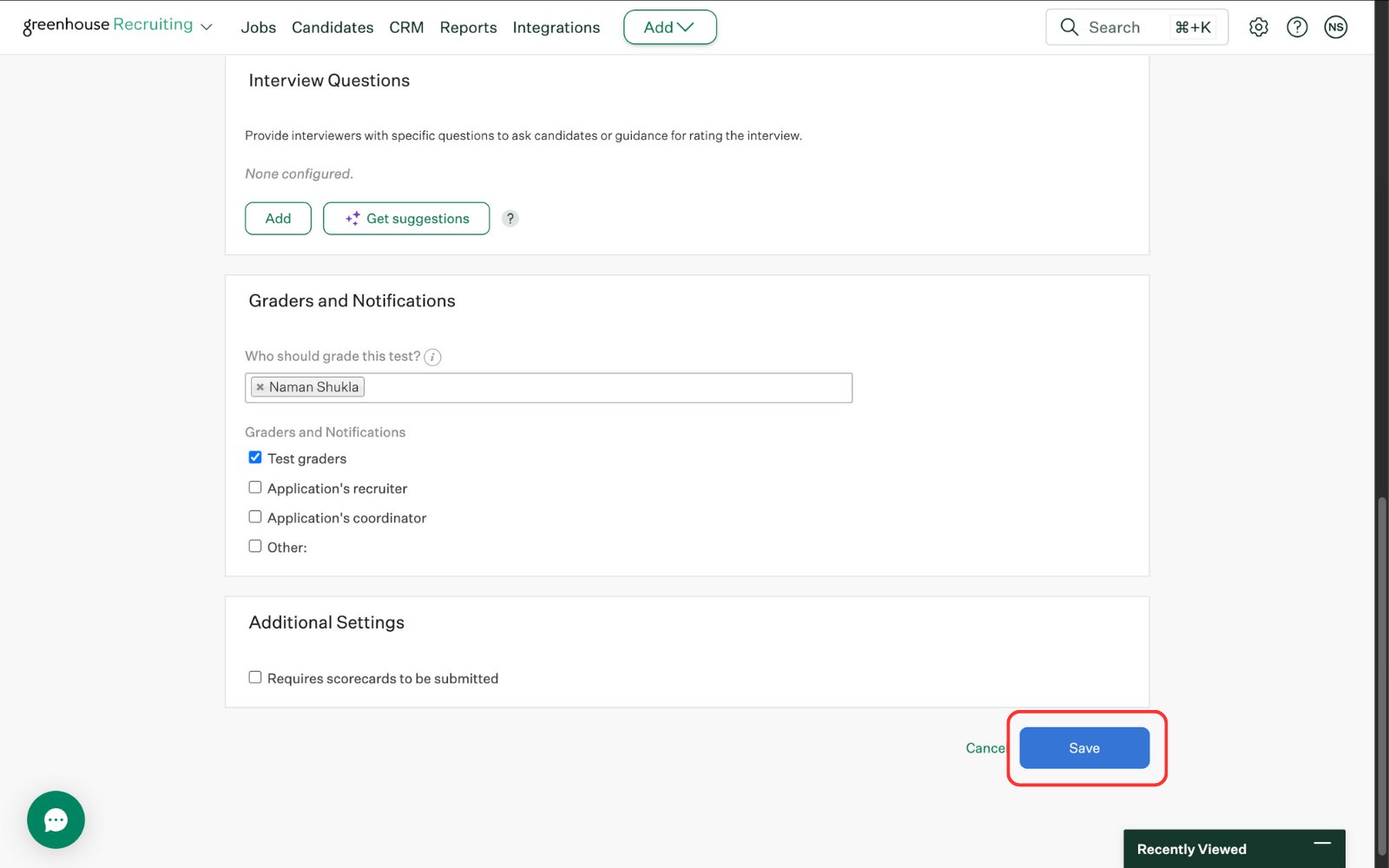
Update other settings as needed and click 'Save'.
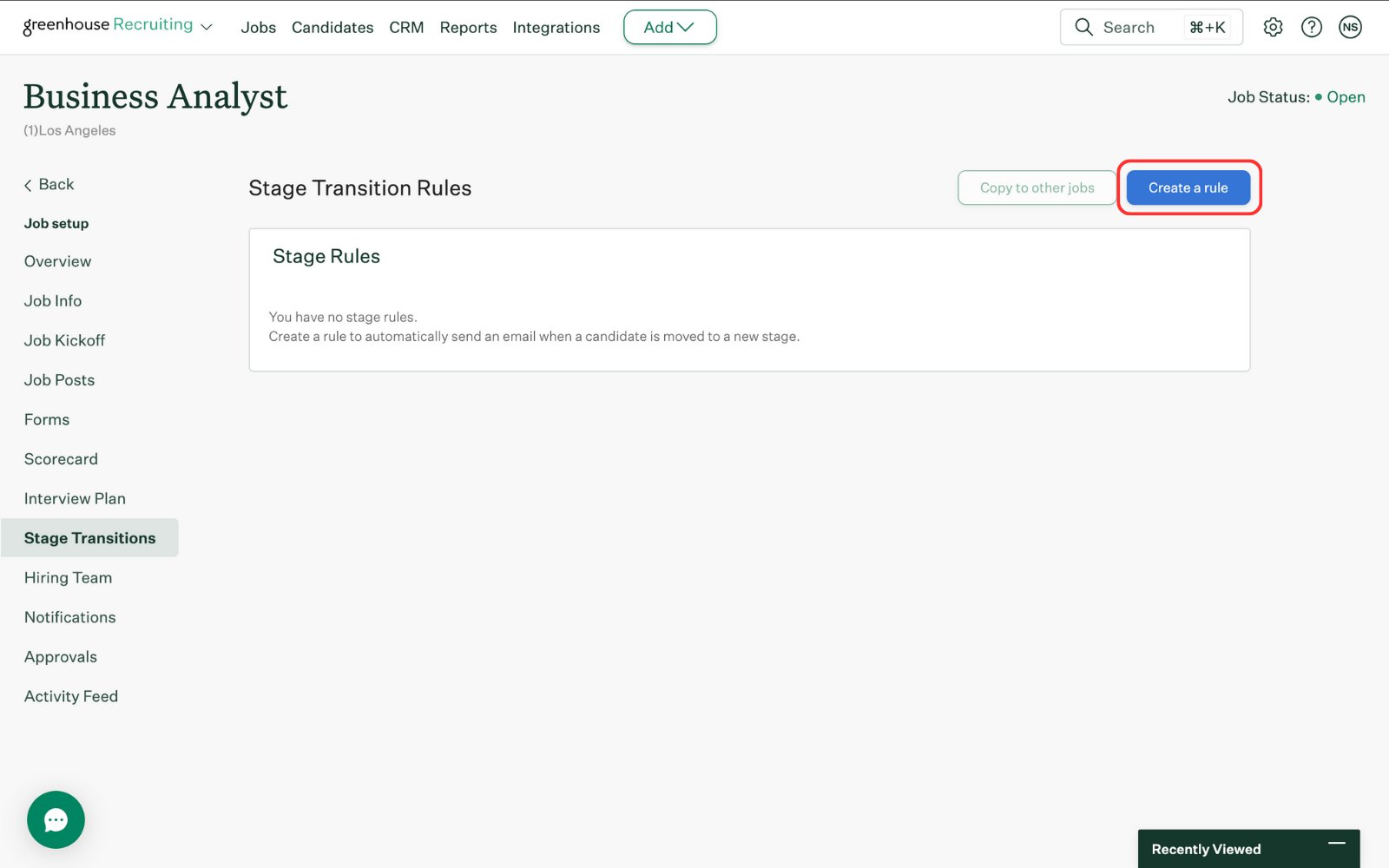
[Optional] You can add stage transition rules. Click 'Create a rule'.
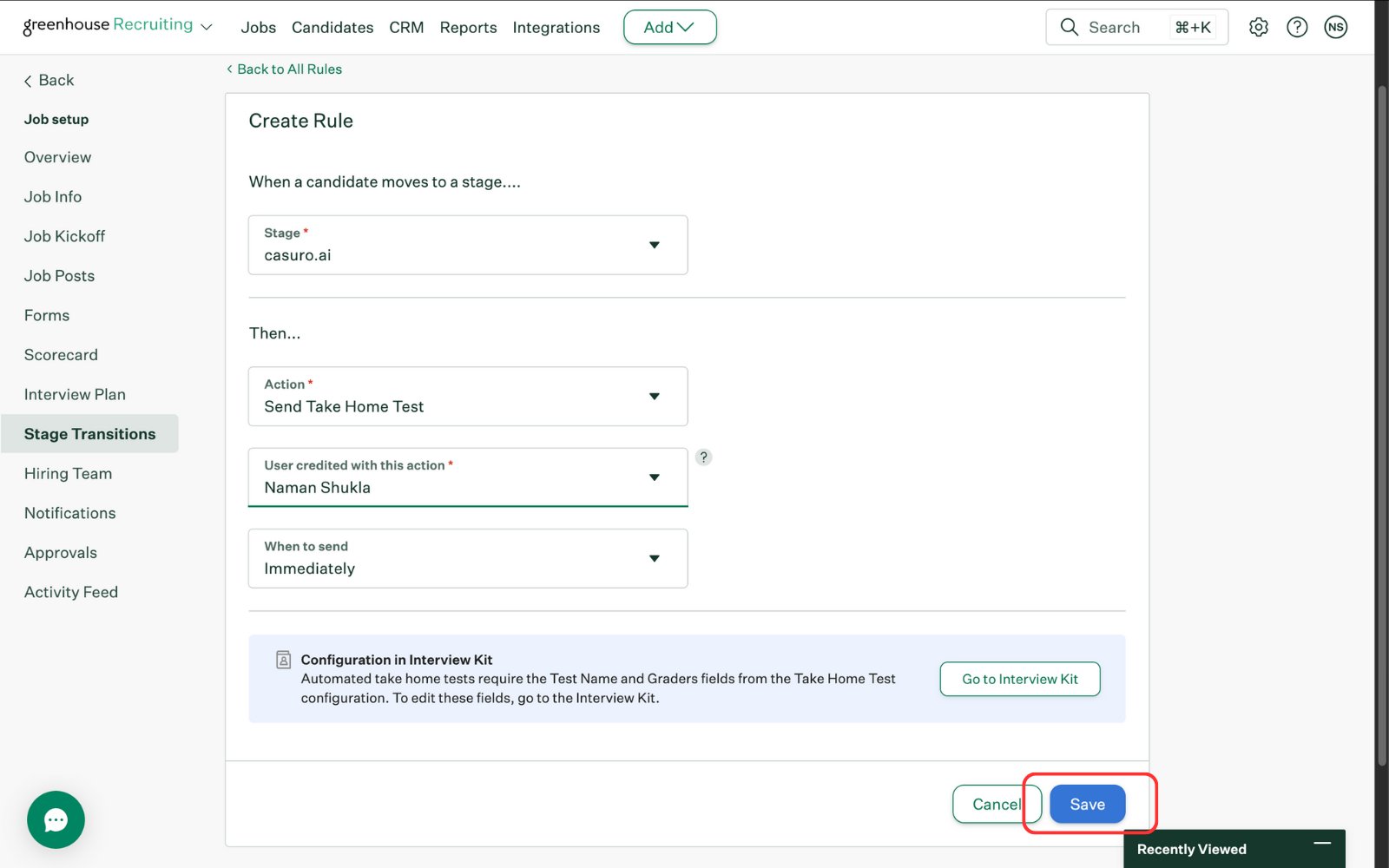
[Optional] Once rules are created, hit 'Save'.
Track Progress & Results
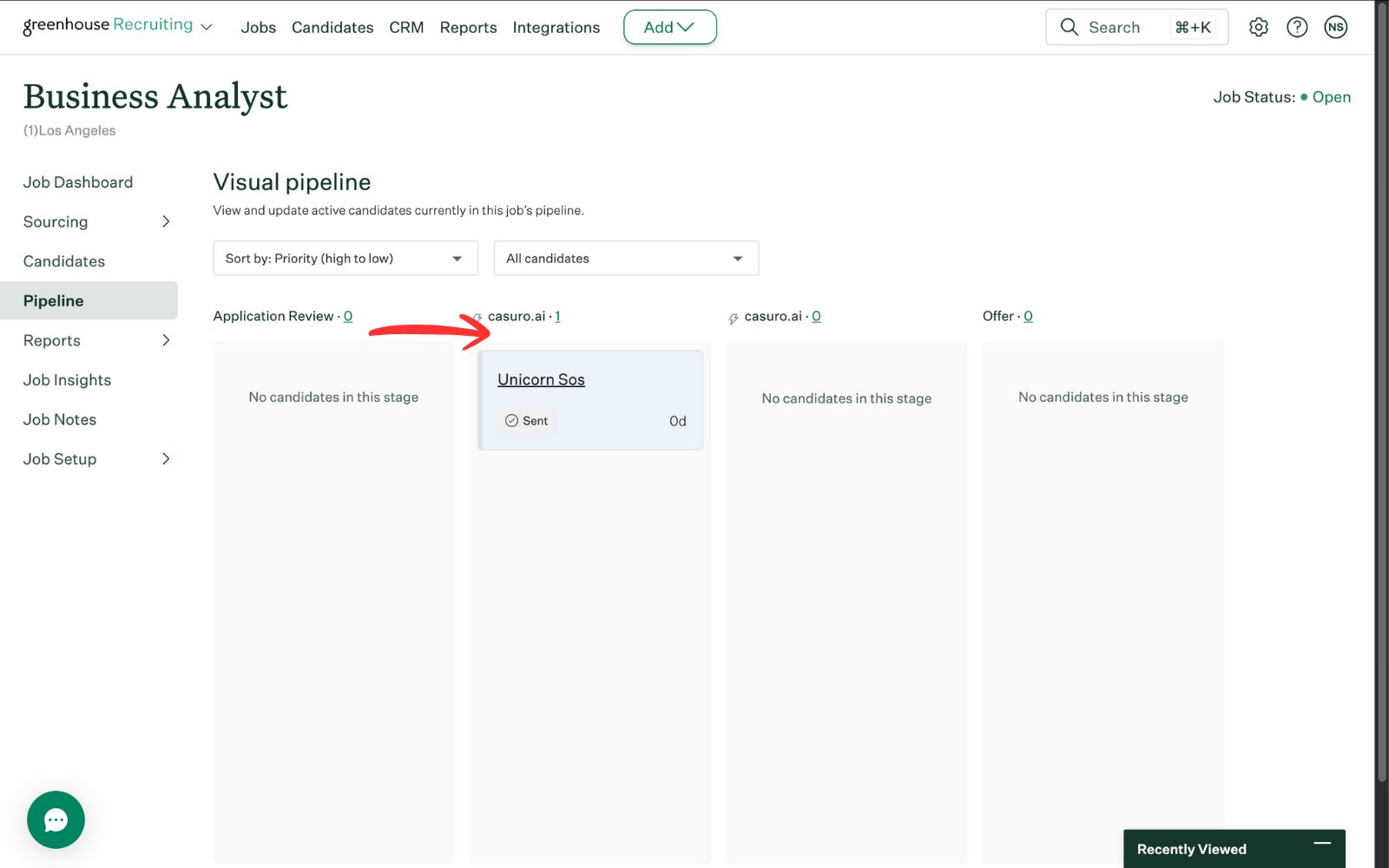
Move the candidate to the casuro stage you created in Greenhouse.
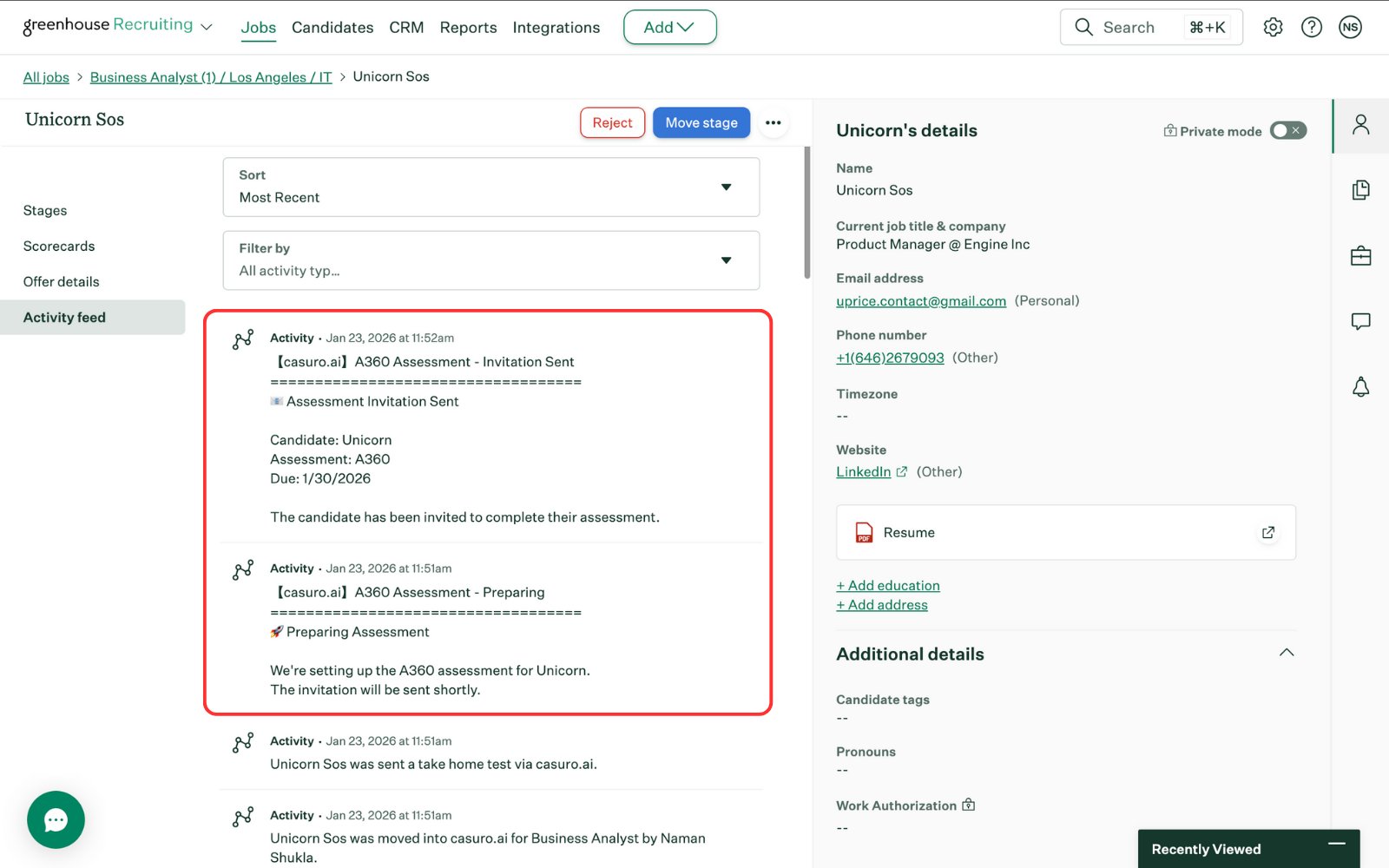
In the activity feed, you will see notifications from casuro.ai including preparation and invitation notifications.
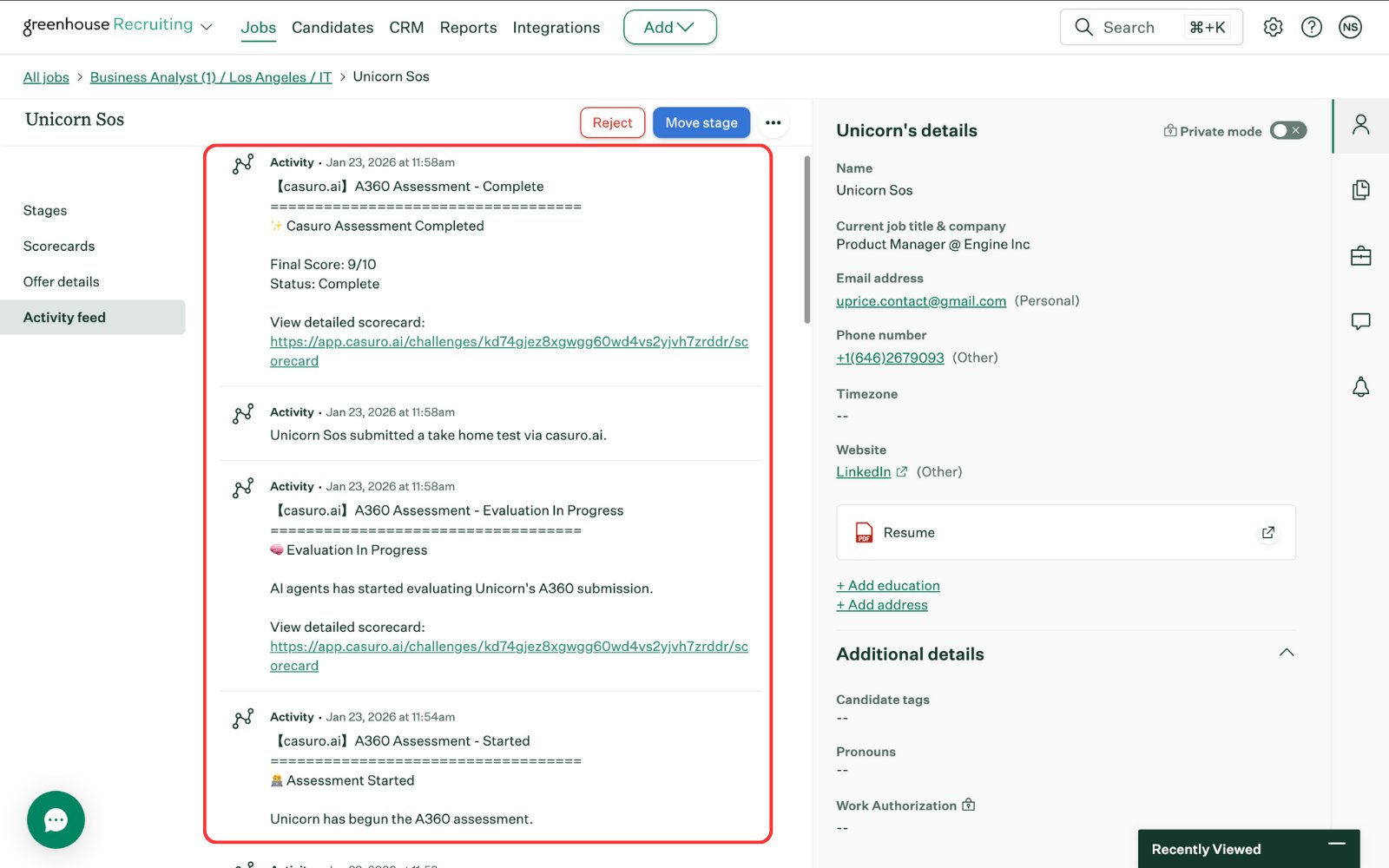
Once assessment is completed, you will see the full log trail of the assessment in the activity feed.
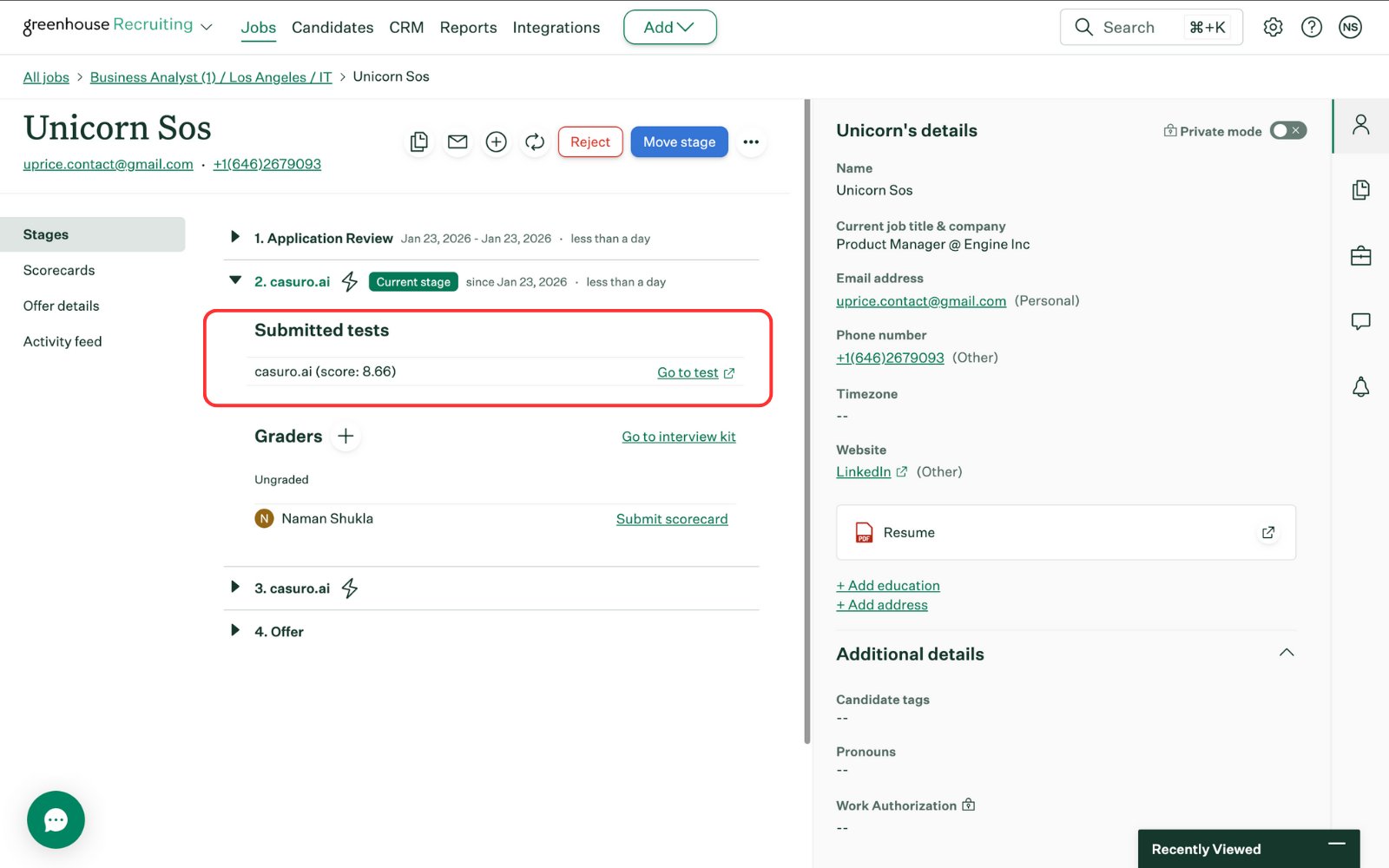
In the stages section, you will see the final score of the candidate and a link to the scorecard.
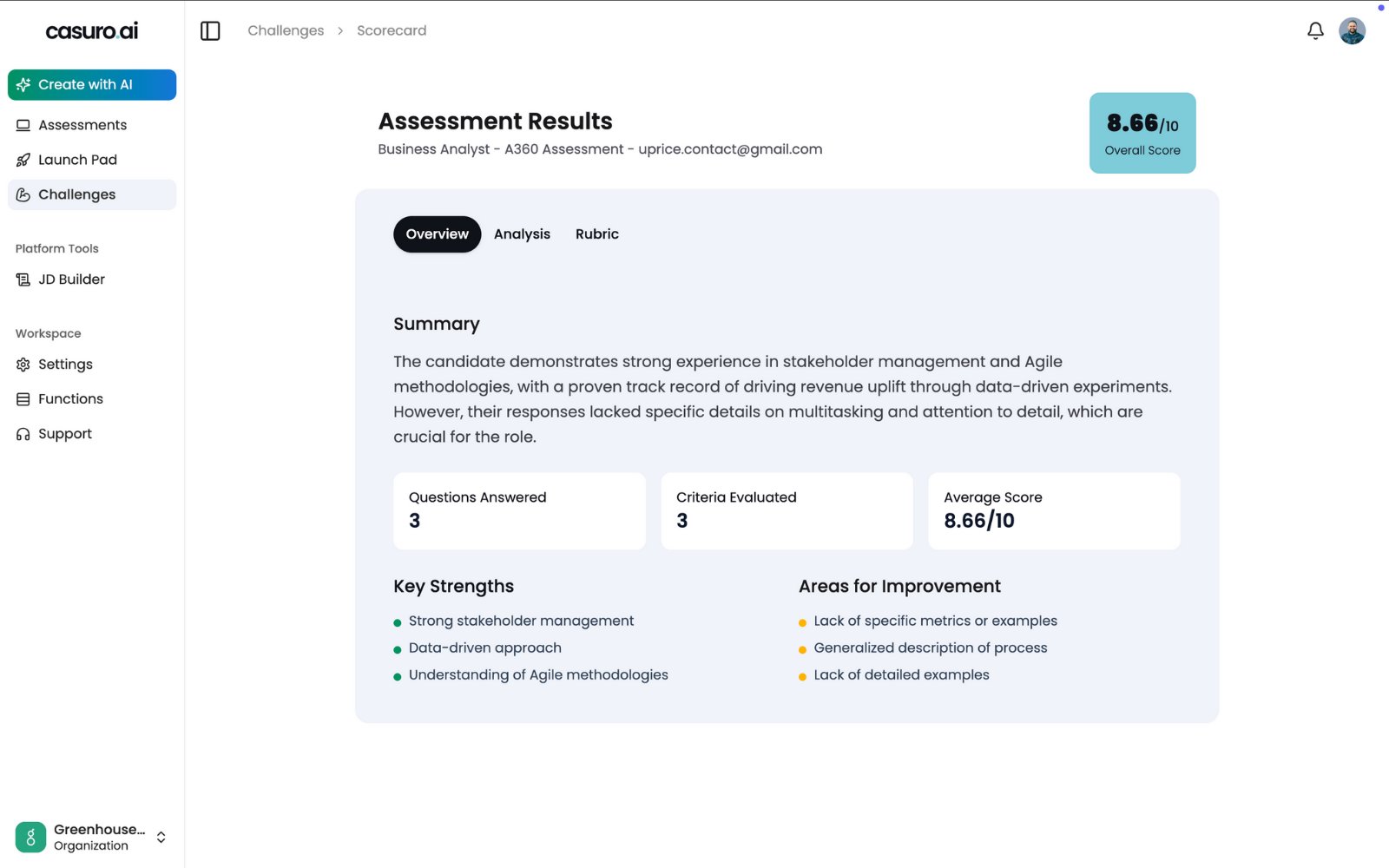
Clicking the scorecard link directs you to the detailed casuro.ai scorecard.
- Preparing assessment
- Invitation sent
- Assessment started
- Assessment completed
- Evaluation started
- Evaluation completed
Case Study Assessment Workflow
Deploy realistic work simulations automated through your ATS.Create and Launch Case Study
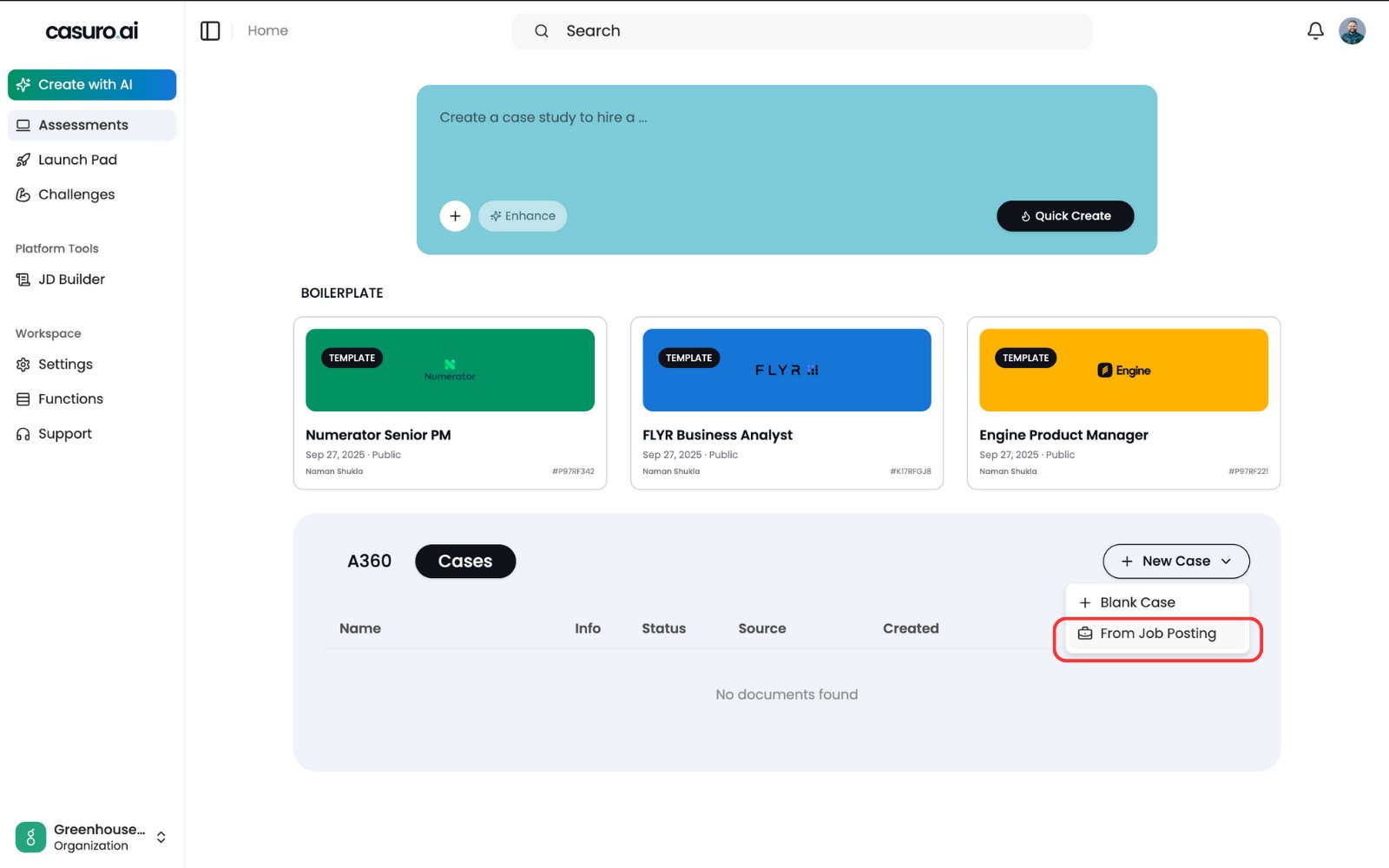
In casuro, select 'Case Study', click 'New Case Study', and choose 'From Job Posting'.
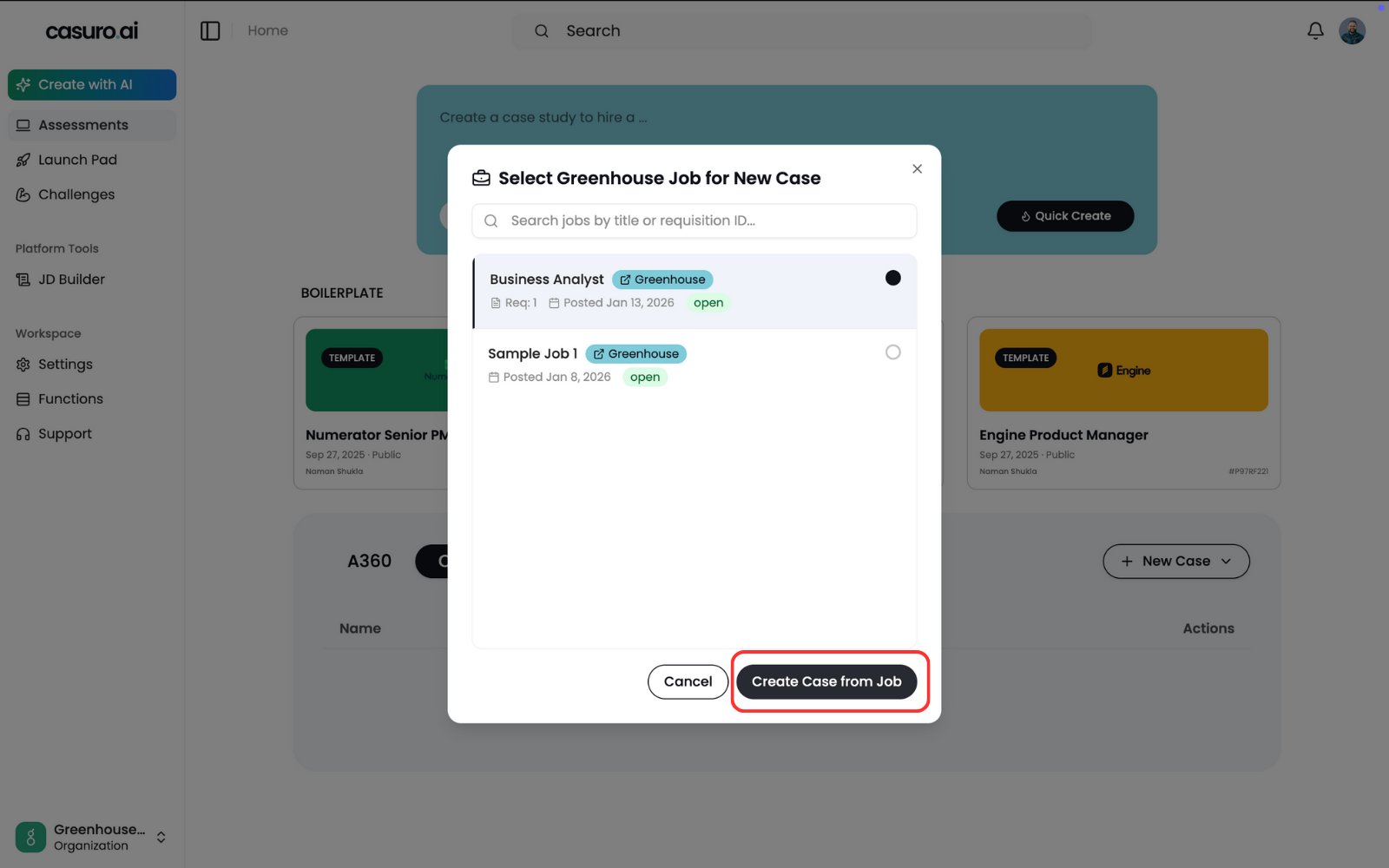
Select the job posting to generate the case study context and click 'Create'.
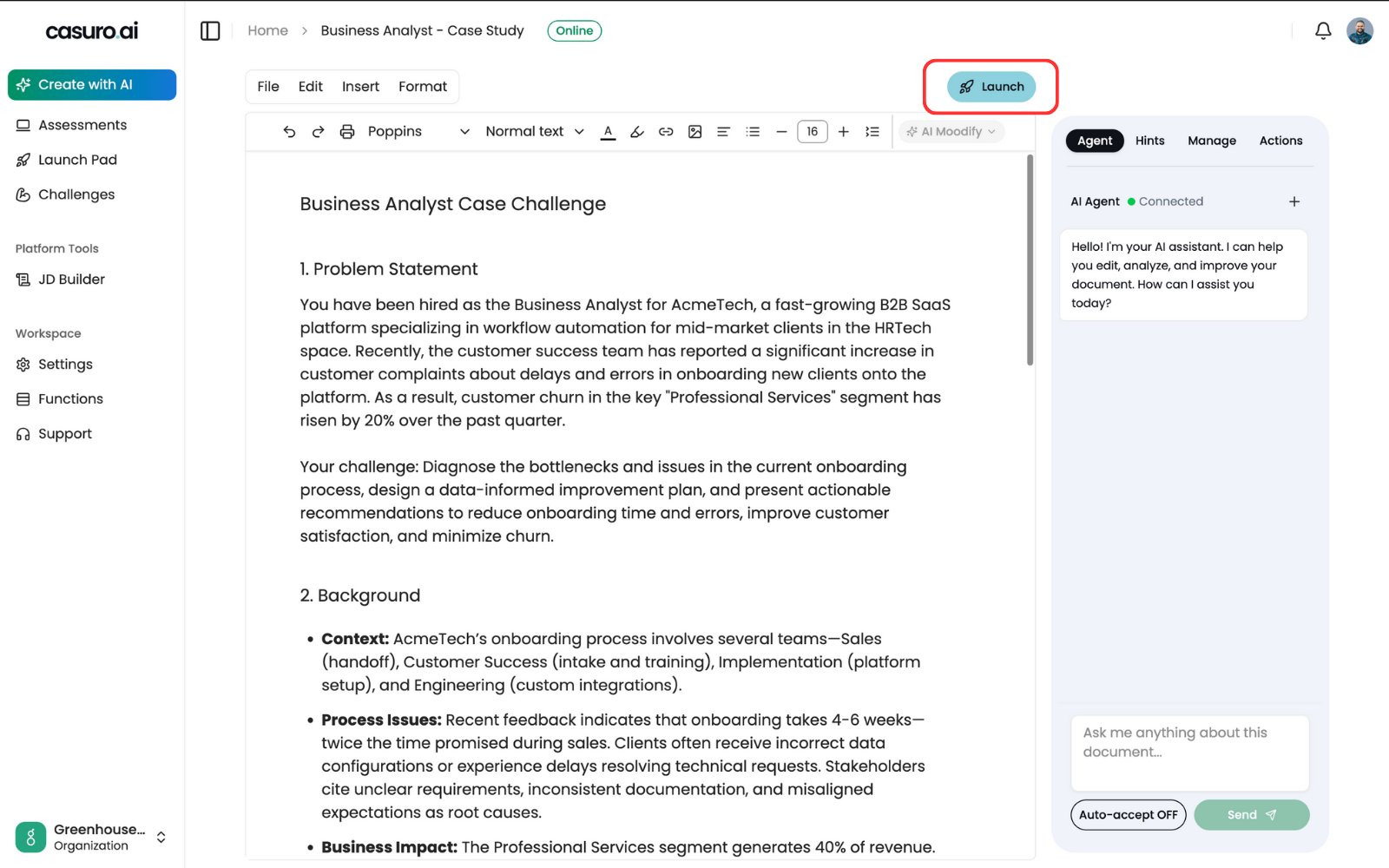
Review the generated content in the editor and click 'Launch'. Once launched, this assessment is now available in Greenhouse.
Add casuro.ai Stage in Greenhouse
In Greenhouse, click 'Add Stage' to add a casuro.ai stage.
Select the casuro.ai stage and click 'Add'. Note: You need to provide your account manager with the API key to enable the casuro.ai assessment stage. More information is in the setup page.
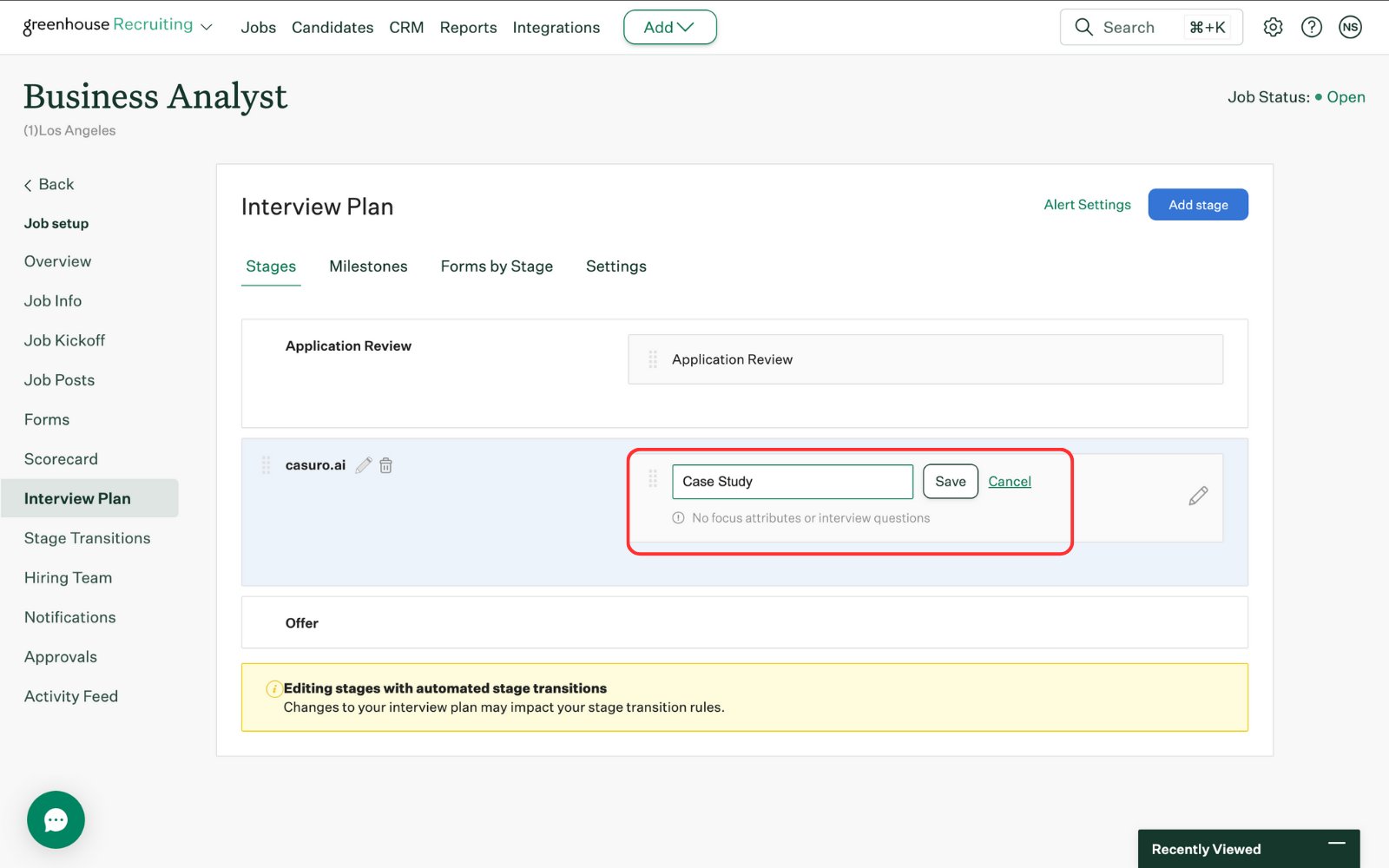
Give the stage a relevant name and click 'Save'.
Configure the Stage
Edit the stage and select the assessment you want to use. All launched assessments are available in Greenhouse.
Update other settings as needed and click 'Save'.
[Optional] You can add stage transition rules. Click 'Create a rule'.
[Optional] Once rules are created, hit 'Save'.
Track Progress & Results
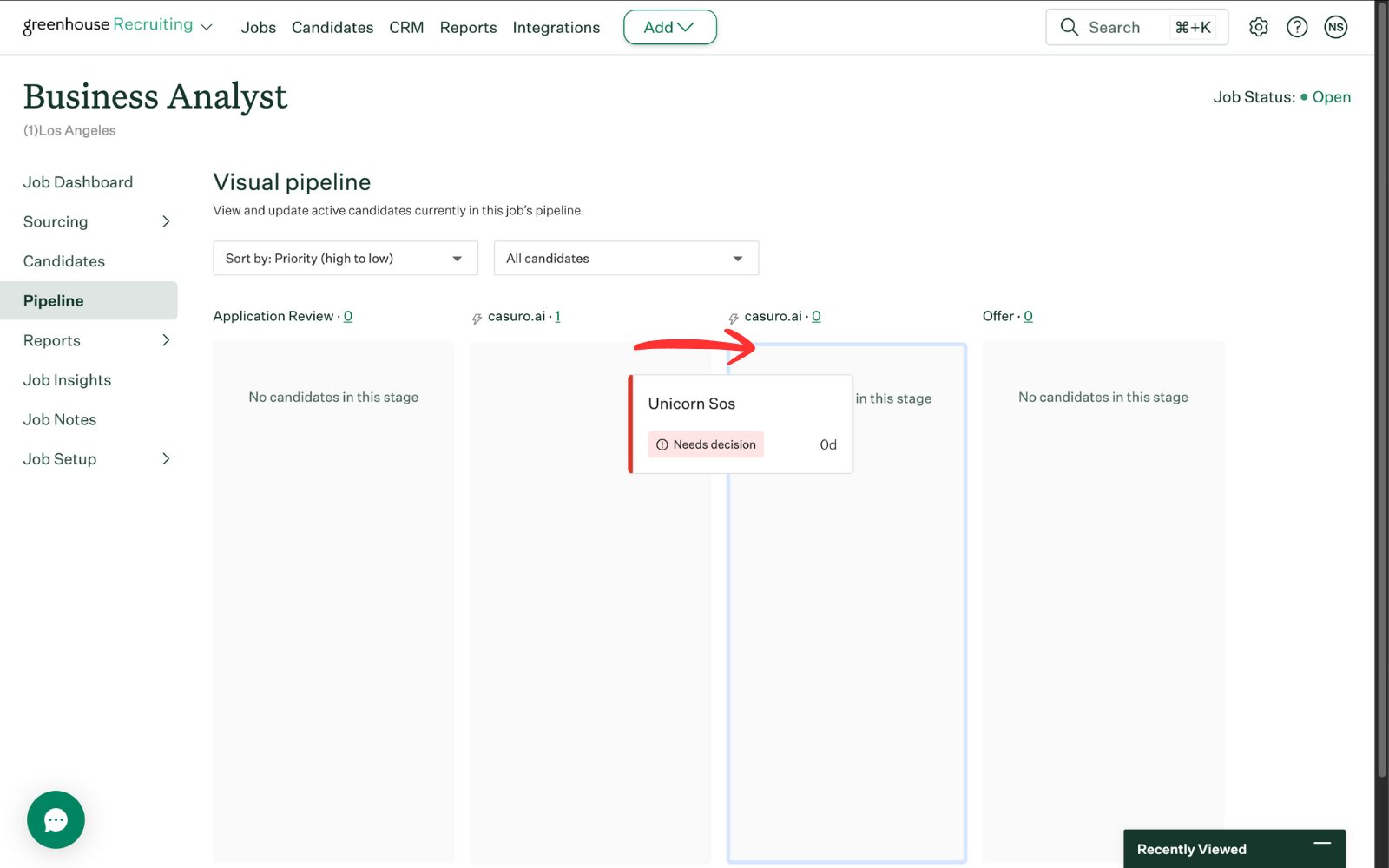
Move the candidate to the casuro stage you created in Greenhouse.
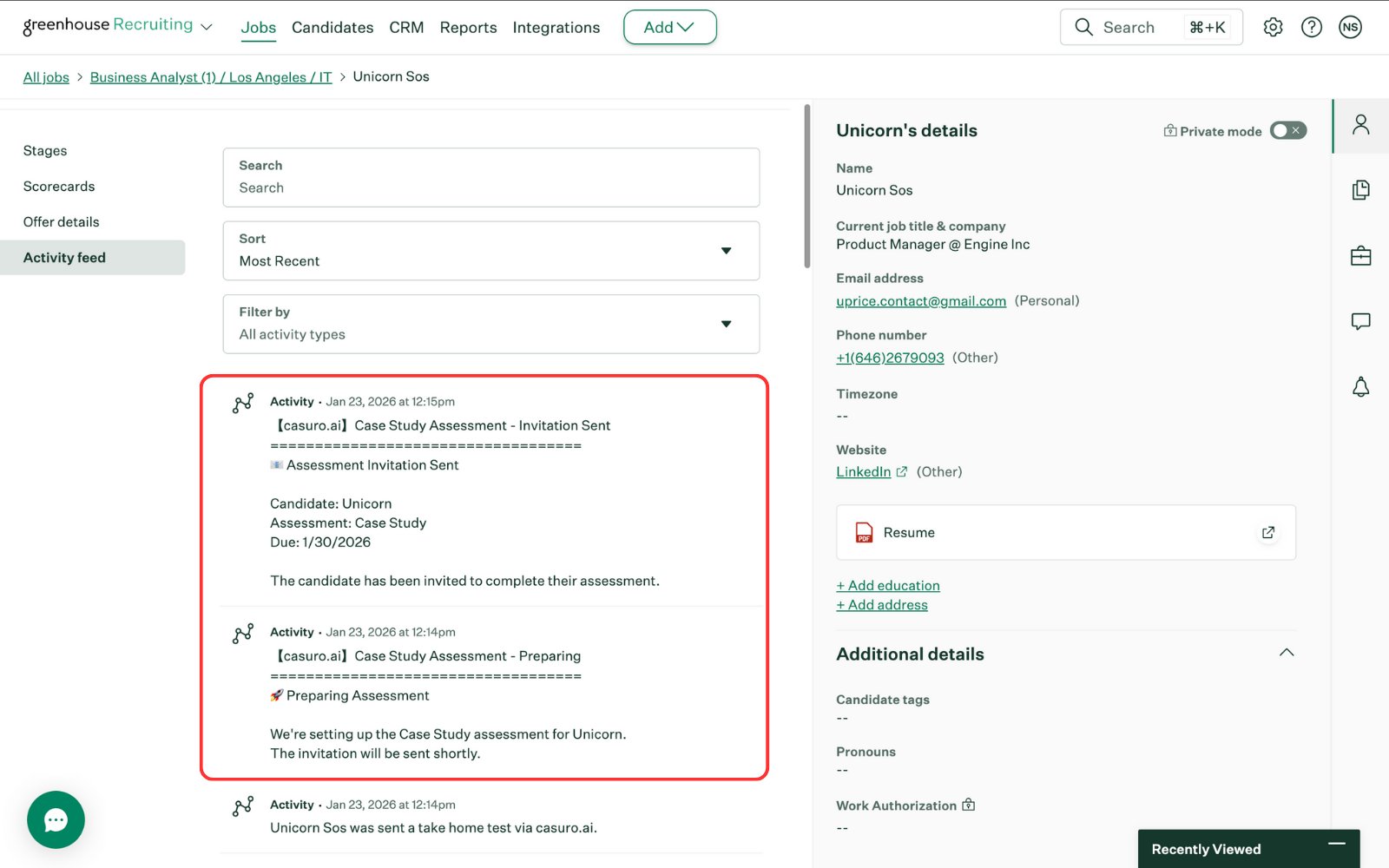
In the activity feed, you will see notifications from casuro.ai including preparation and invitation notifications.
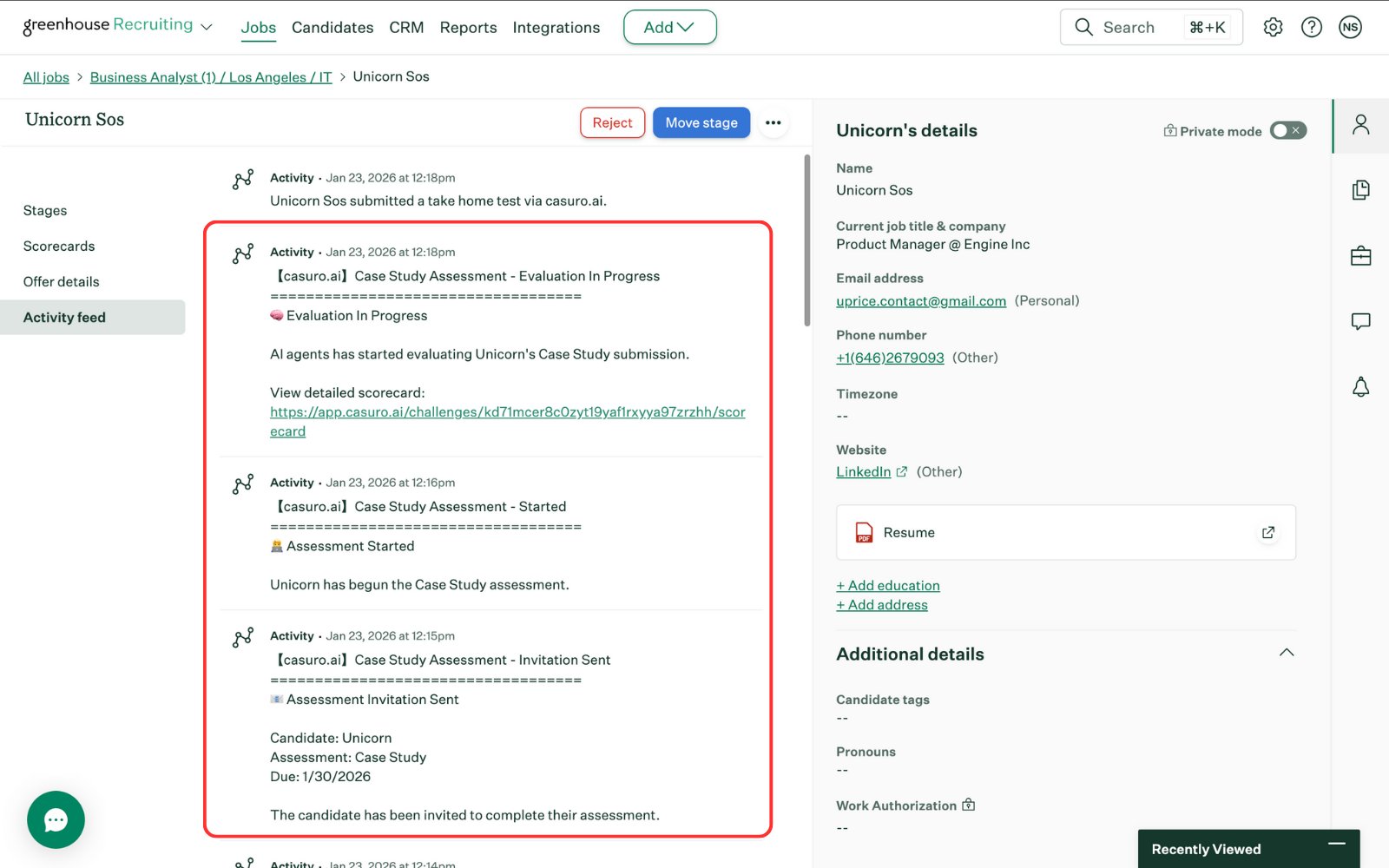
Once completed, you will see the full log trail of the assessment in the activity feed.
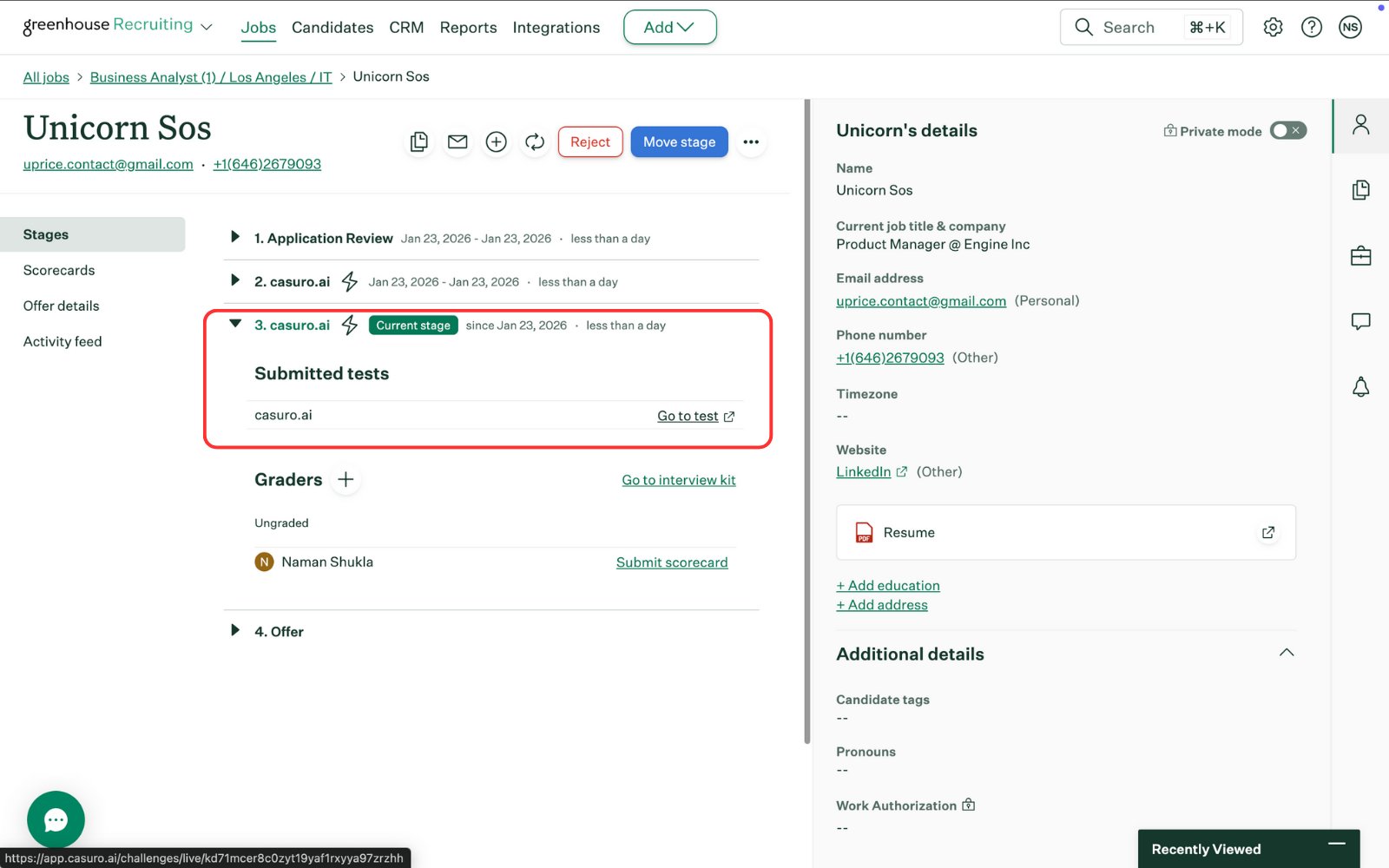
In the stages section, you will see the final score of the candidate and a link to the scorecard.
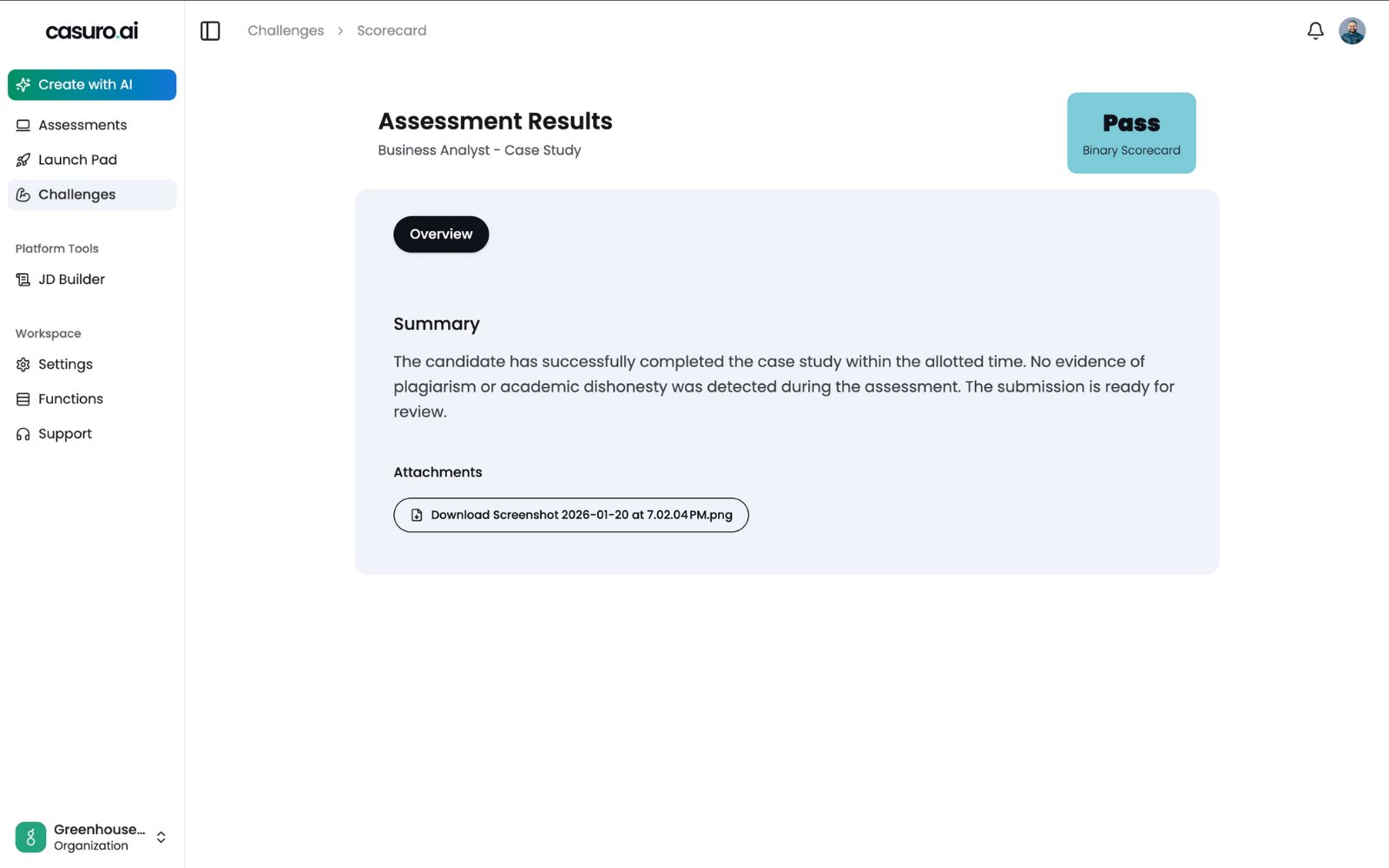
Clicking the scorecard link directs you to the detailed casuro.ai scorecard.
- Preparing assessment
- Invitation sent
- Assessment started
- Assessment completed
- Evaluation started
- Evaluation completed