> ## Documentation Index
> Fetch the complete documentation index at: https://docs.casuro.ai/llms.txt
> Use this file to discover all available pages before exploring further.

# Setup

> Setup Lever native integration with casuro.ai

<Callout icon="party-popper" color="#7ECBD9" iconType="regular">
  Proud to be official integration partner of Ashby!
</Callout>

Watch this short video to learn how to setup Lever native integration with casuro.ai.

<video controls className="w-full aspect-video rounded-xl" src="https://brand.assets.casuro.ai/videos/Lever/LeverCasuroWalkthroughVideo.mov" />

## Step by step guide

Follow these simple steps to get started with Lever integration with casuro.ai
<Steps>
  <Step title="Open casuro.ai and hit connect">
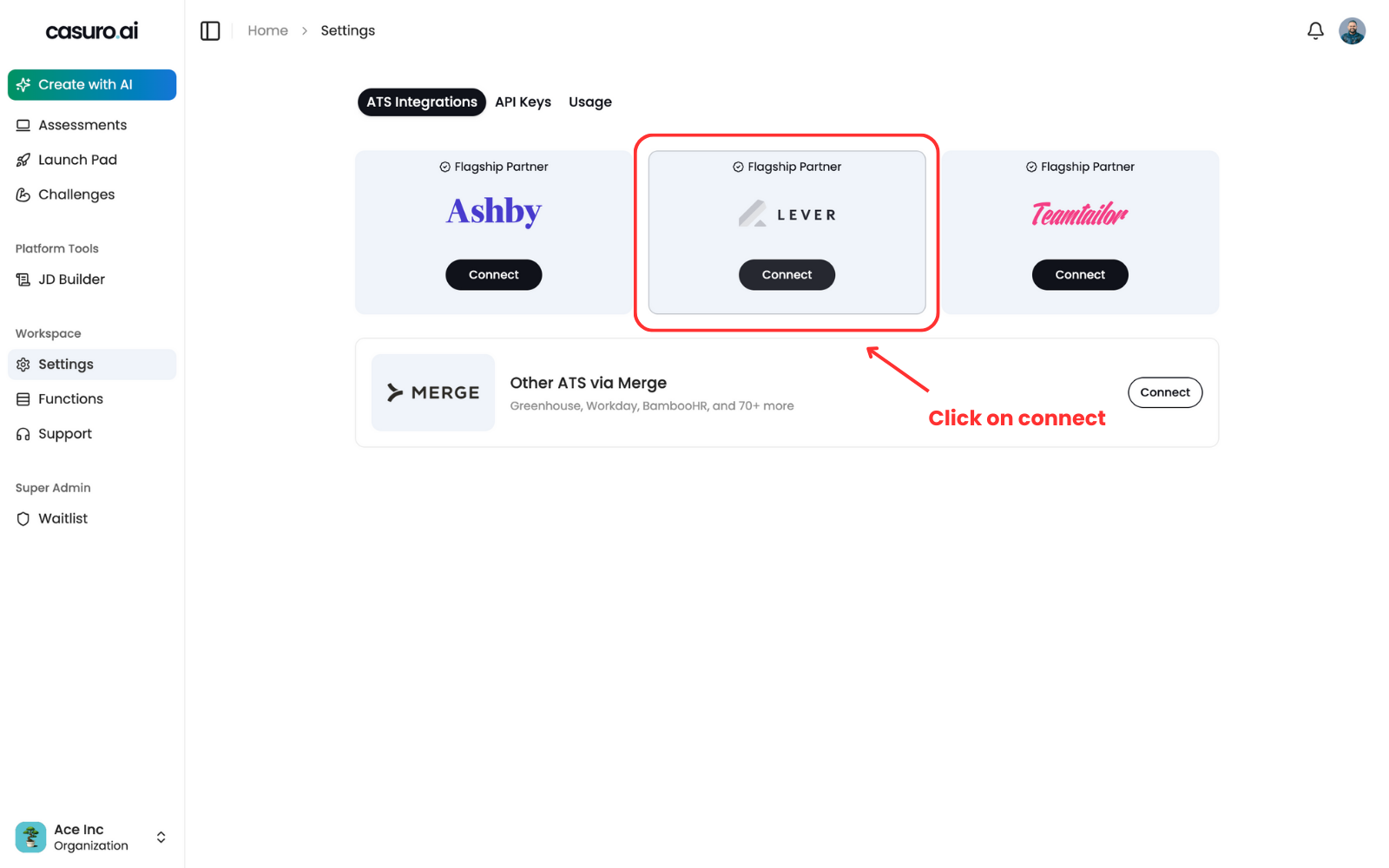
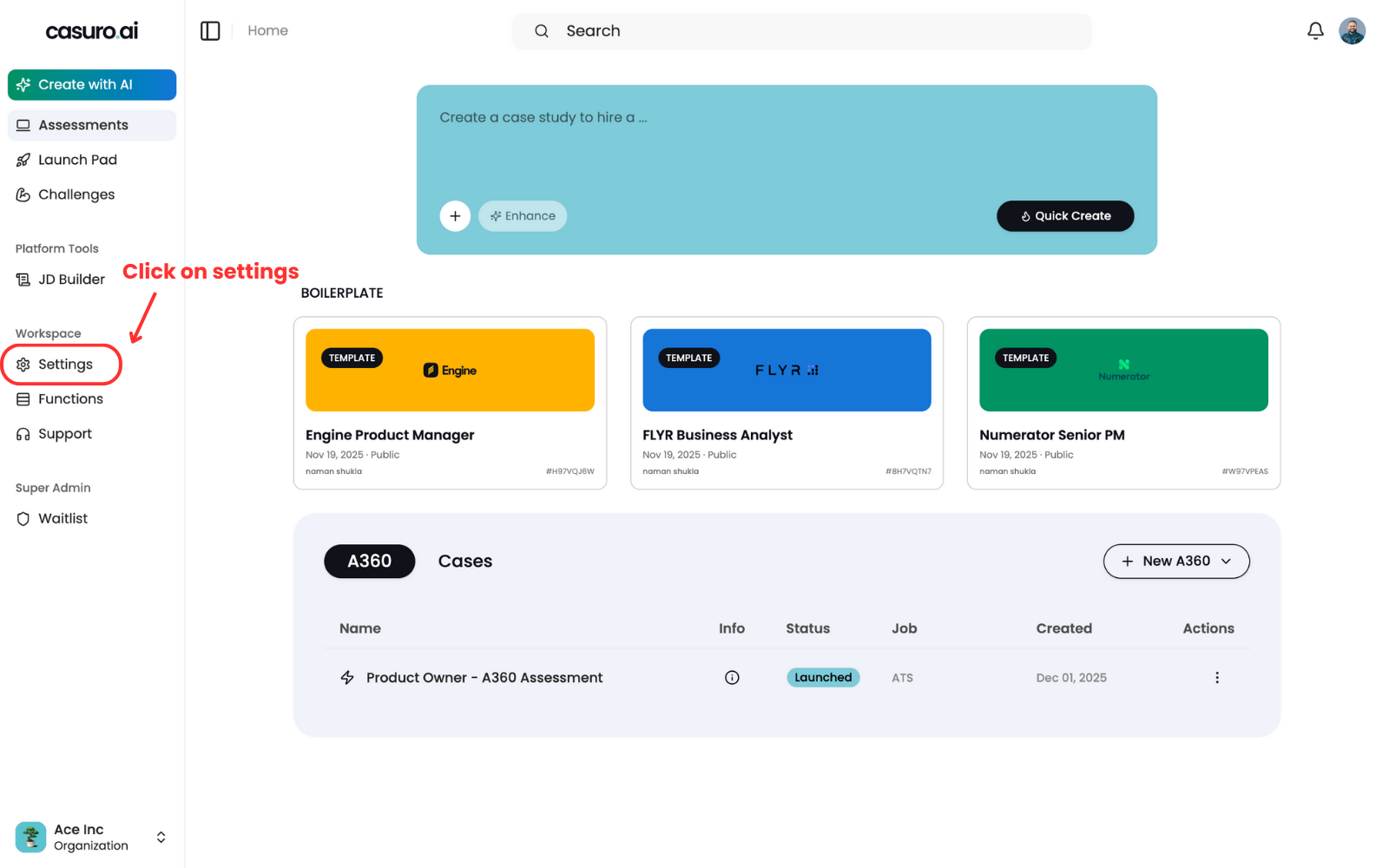
    <Frame caption="Login to casuro.ai and click on settings on the left menubar.">
      <img src="https://mintcdn.com/casuro/gA-onDWXKx268PjJ/images/integrations/lever/setup/step1.png?fit=max&auto=format&n=gA-onDWXKx268PjJ&q=85&s=ec2a0c910f3e3038488933b105e86c4f" alt="Descriptive alt text" width="1600" height="1000" data-path="images/integrations/lever/setup/step1.png" />
    </Frame>

    <br />

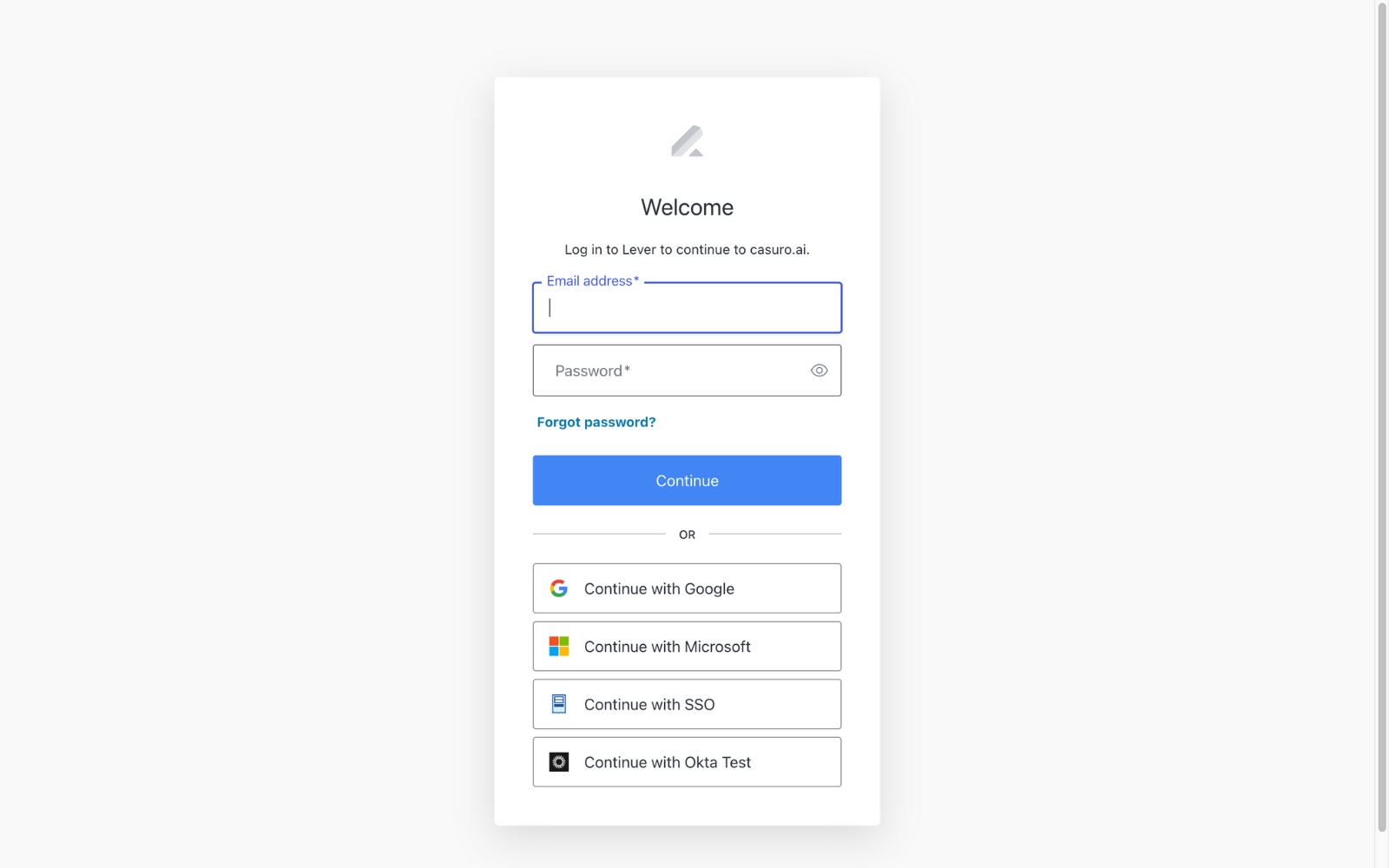
    <Frame caption="Under ATS integrations, click on connect to Lever to connect.">
      <img src="https://mintcdn.com/casuro/gA-onDWXKx268PjJ/images/integrations/lever/setup/step2.png?fit=max&auto=format&n=gA-onDWXKx268PjJ&q=85&s=710c6c33ad63221ef0a6a2b1ece7761f" alt="Descriptive alt text" width="1600" height="1000" data-path="images/integrations/lever/setup/step2.png" />
    </Frame>
  </Step>

  <Step title="Authenticate Lever">
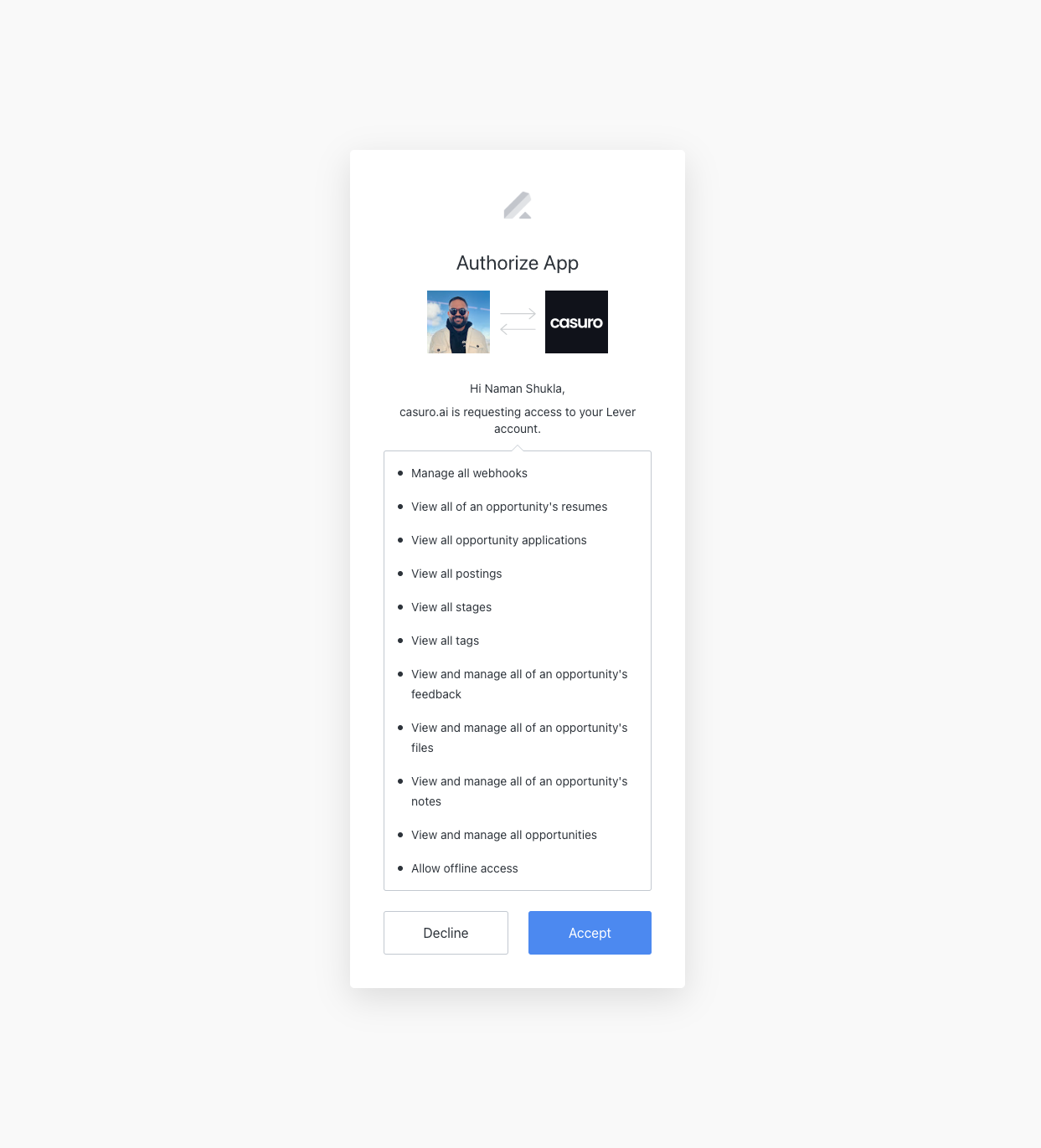
    <Frame caption="Once clicked, you will be redirected to Lever to authenticate. Sign-in to your Lever account to connect both platforms. Use your usual Lever credentials to log in and authenticate the integration.">
      <img src="https://mintcdn.com/casuro/gA-onDWXKx268PjJ/images/integrations/lever/setup/step3.png?fit=max&auto=format&n=gA-onDWXKx268PjJ&q=85&s=66071a8004864d1611af21a109524c8b" alt="Descriptive alt text" width="1600" height="1000" data-path="images/integrations/lever/setup/step3.png" />
    </Frame>

    <br />

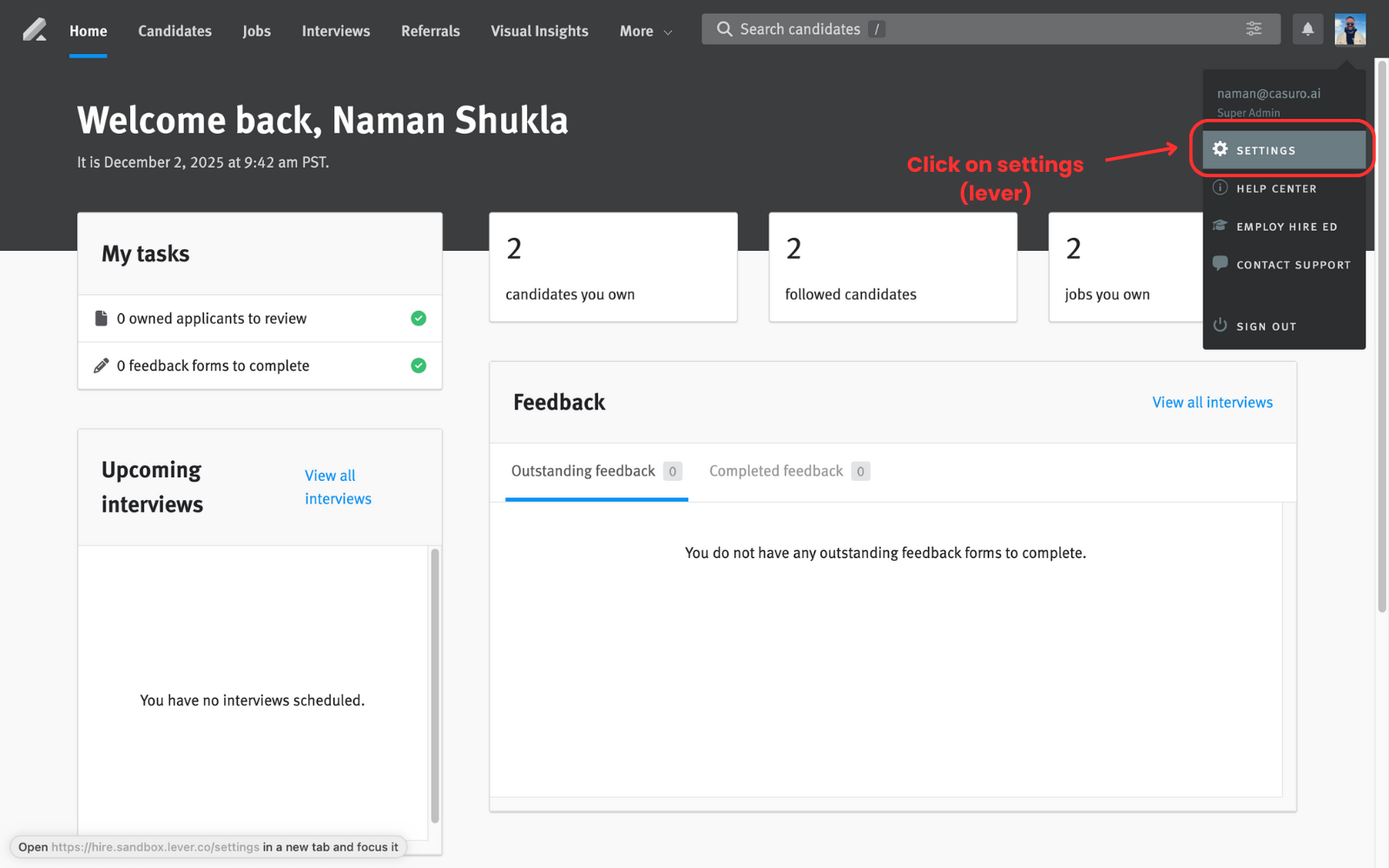
    <Frame caption="You will be shown the permission requested from casuro.ai. Accept the permission request to connect both platforms.">
      <img src="https://mintcdn.com/casuro/gA-onDWXKx268PjJ/images/integrations/lever/setup/step4.png?fit=max&auto=format&n=gA-onDWXKx268PjJ&q=85&s=61efbfce957cc67fd3cada32e10afd44" alt="Descriptive alt text" width="1243" height="1371" data-path="images/integrations/lever/setup/step4.png" />
    </Frame>

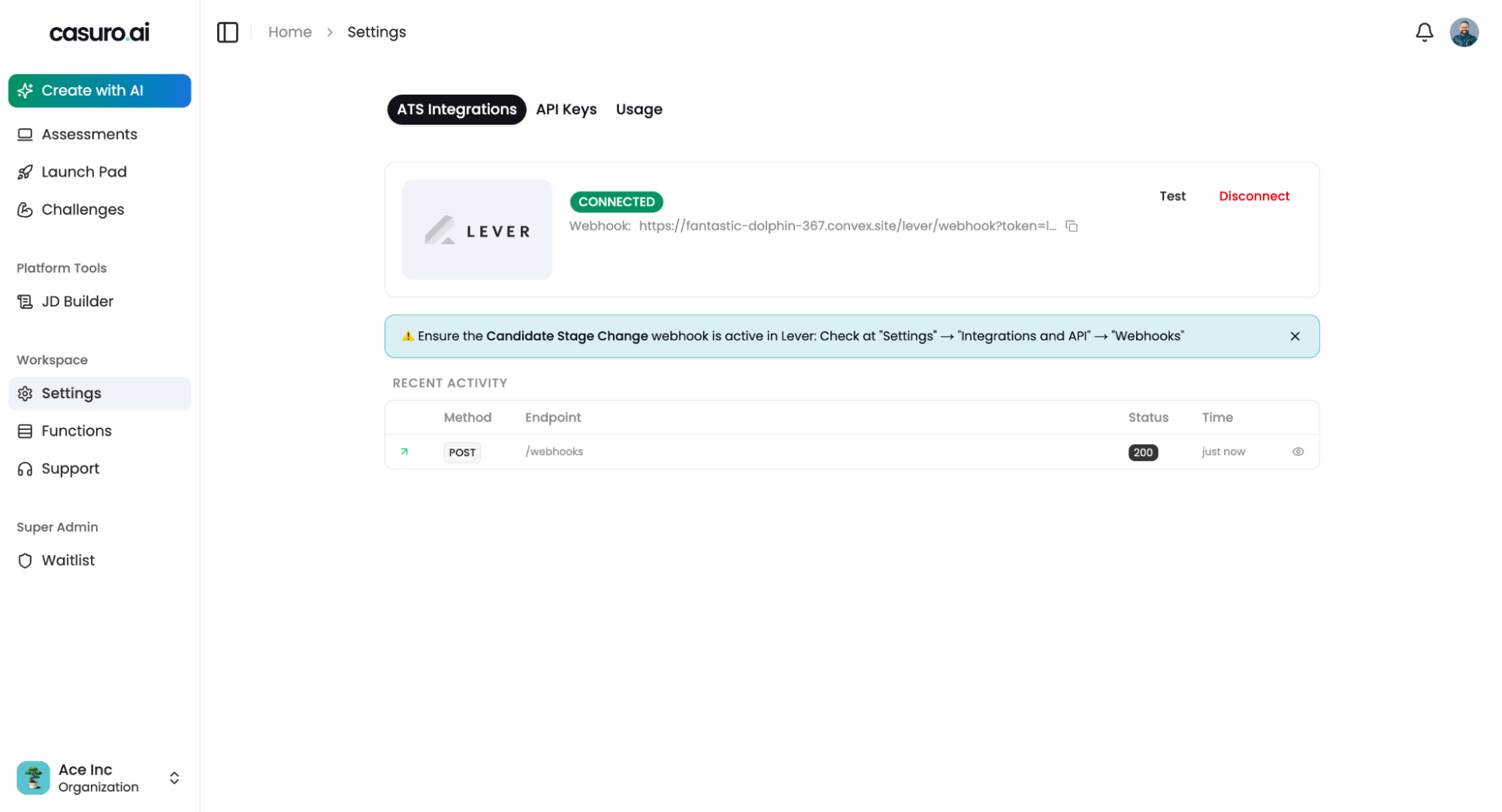
    Congratulations! You are now connected to the Lever.
  </Step>

  <Step title="Configure webhook in Lever">
    <Frame caption="Once connected, we need to make sure that “Candidate Stage Change” webhook is active in Lever.">
      <img src="https://mintcdn.com/casuro/gA-onDWXKx268PjJ/images/integrations/lever/setup/step5.png?fit=max&auto=format&n=gA-onDWXKx268PjJ&q=85&s=ffc53fdf9a04f9fdc407d1becbd862bb" alt="Descriptive alt text" width="1999" height="1081" data-path="images/integrations/lever/setup/step5.png" />
    </Frame>

    <br />

    <Frame caption="In Lever, go to settings.">
      <img src="https://mintcdn.com/casuro/gA-onDWXKx268PjJ/images/integrations/lever/setup/step6.png?fit=max&auto=format&n=gA-onDWXKx268PjJ&q=85&s=7b4cb0dde0ae5832b1970ed88d543854" alt="Descriptive alt text" width="1600" height="1000" data-path="images/integrations/lever/setup/step6.png" />
    </Frame>

    <br />

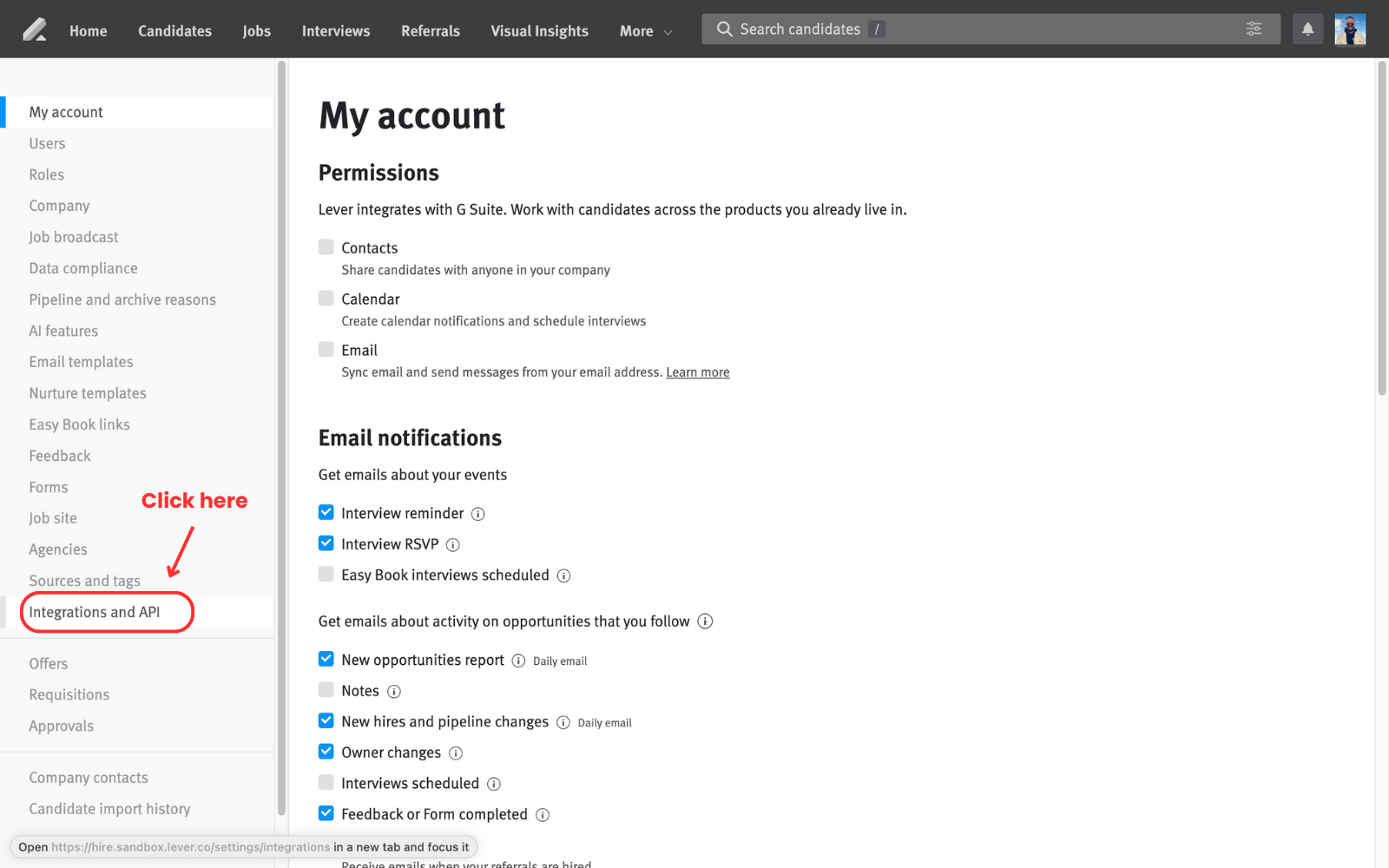
    <Frame caption="Click on integrations and API in the left menu bar.">
      <img src="https://mintcdn.com/casuro/gA-onDWXKx268PjJ/images/integrations/lever/setup/step7.png?fit=max&auto=format&n=gA-onDWXKx268PjJ&q=85&s=94a6404166da8602bb8071228fe891a9" alt="Descriptive alt text" width="1600" height="1000" data-path="images/integrations/lever/setup/step7.png" />
    </Frame>

    <br />

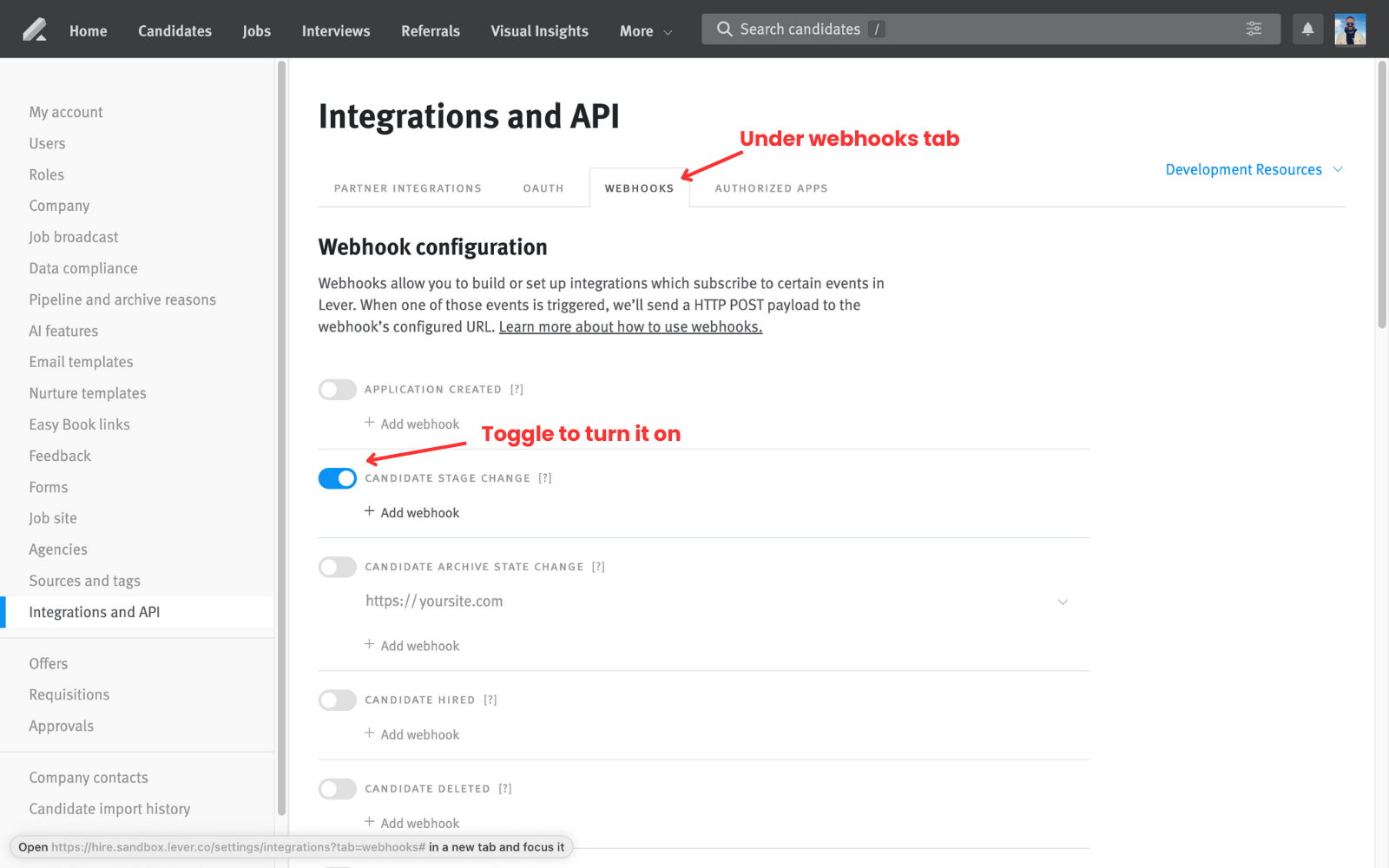
    <Frame caption="Click on the “webhooks” tab and toggle the candidate stage change (as shown in the image below).">
      <img src="https://mintcdn.com/casuro/gA-onDWXKx268PjJ/images/integrations/lever/setup/step8.png?fit=max&auto=format&n=gA-onDWXKx268PjJ&q=85&s=98690027619676f6d1dd5b00213e7251" alt="Descriptive alt text" width="1600" height="1000" data-path="images/integrations/lever/setup/step8.png" />
    </Frame>

    Congratulations! Now we are fully connected to Lever.
  </Step>
</Steps>

## Testing the integration

<Frame>
  <img src="https://mintcdn.com/casuro/gA-onDWXKx268PjJ/images/integrations/lever/setup/test1.png?fit=max&auto=format&n=gA-onDWXKx268PjJ&q=85&s=629fc040a9c0b49ea335d5e8af78c796" alt="Descriptive alt text" width="1600" height="1000" data-path="images/integrations/lever/setup/test1.png" />
</Frame>

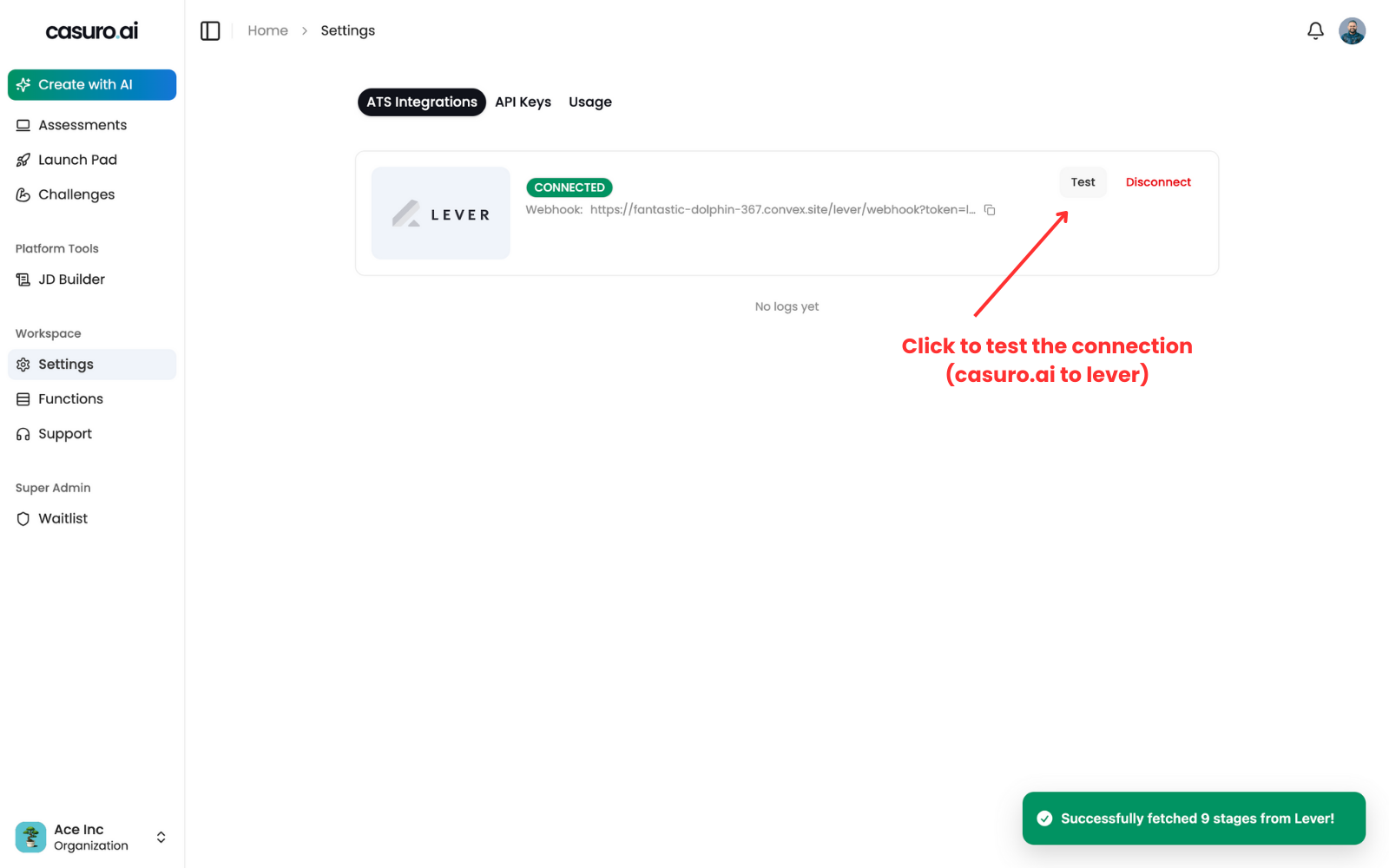
You can test the integration by clicking on “Test” in casuro.ai settings page under ATS integrations tab.
This will test casuro.ai to Lever requests.
<Frame>
  <img src="https://mintcdn.com/casuro/gA-onDWXKx268PjJ/images/integrations/lever/setup/test2.png?fit=max&auto=format&n=gA-onDWXKx268PjJ&q=85&s=dbaeb53f90d61659ebeb6d61aeeb22e6" alt="Descriptive alt text" width="1600" height="1000" data-path="images/integrations/lever/setup/test2.png" />
</Frame>

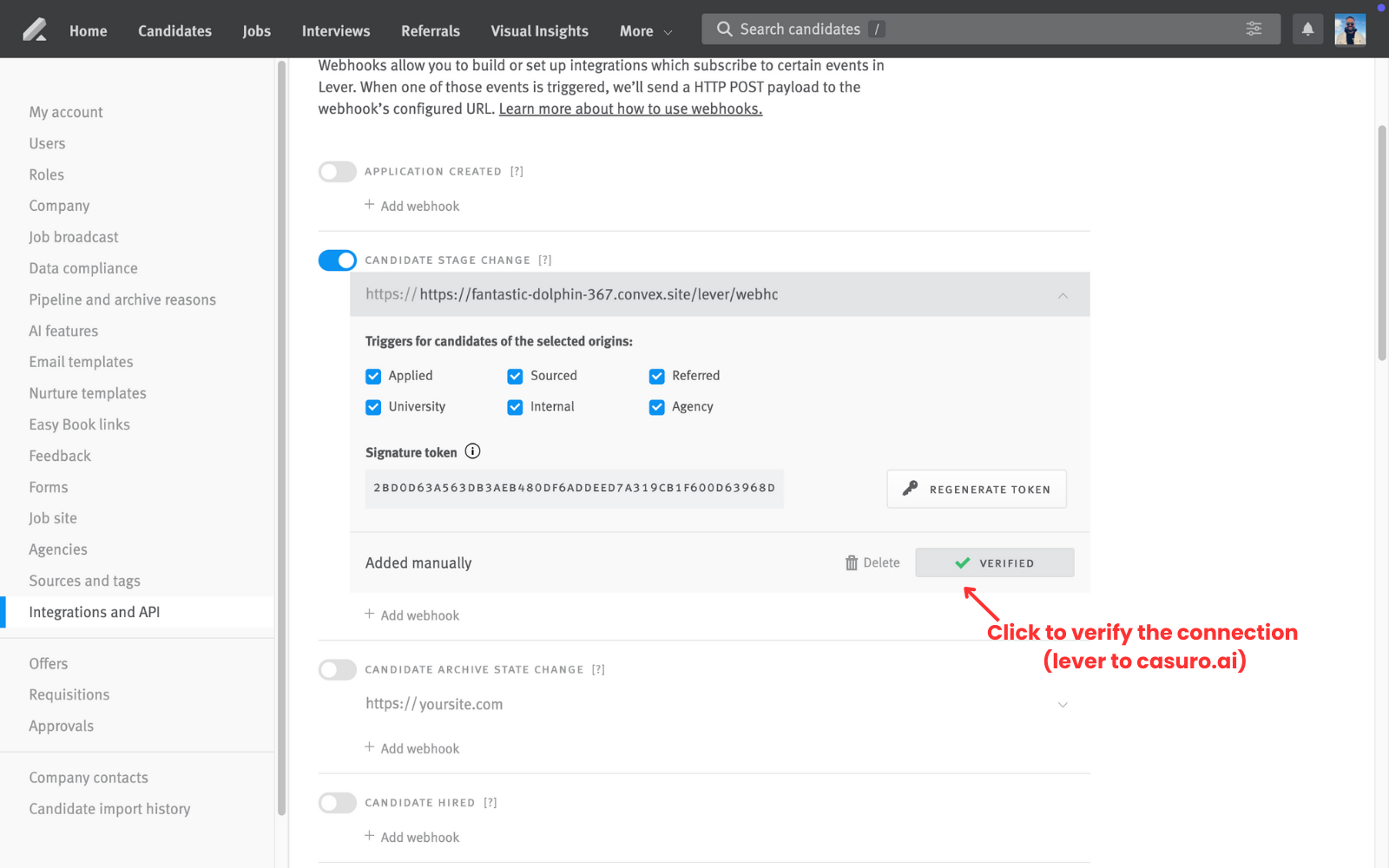
You can also test the webhook integration from Lever by clicking on “Verify webhook” in the Lever webhooks page.
This will test Lever to casuro.ai requests via webhooks.

## Debugging

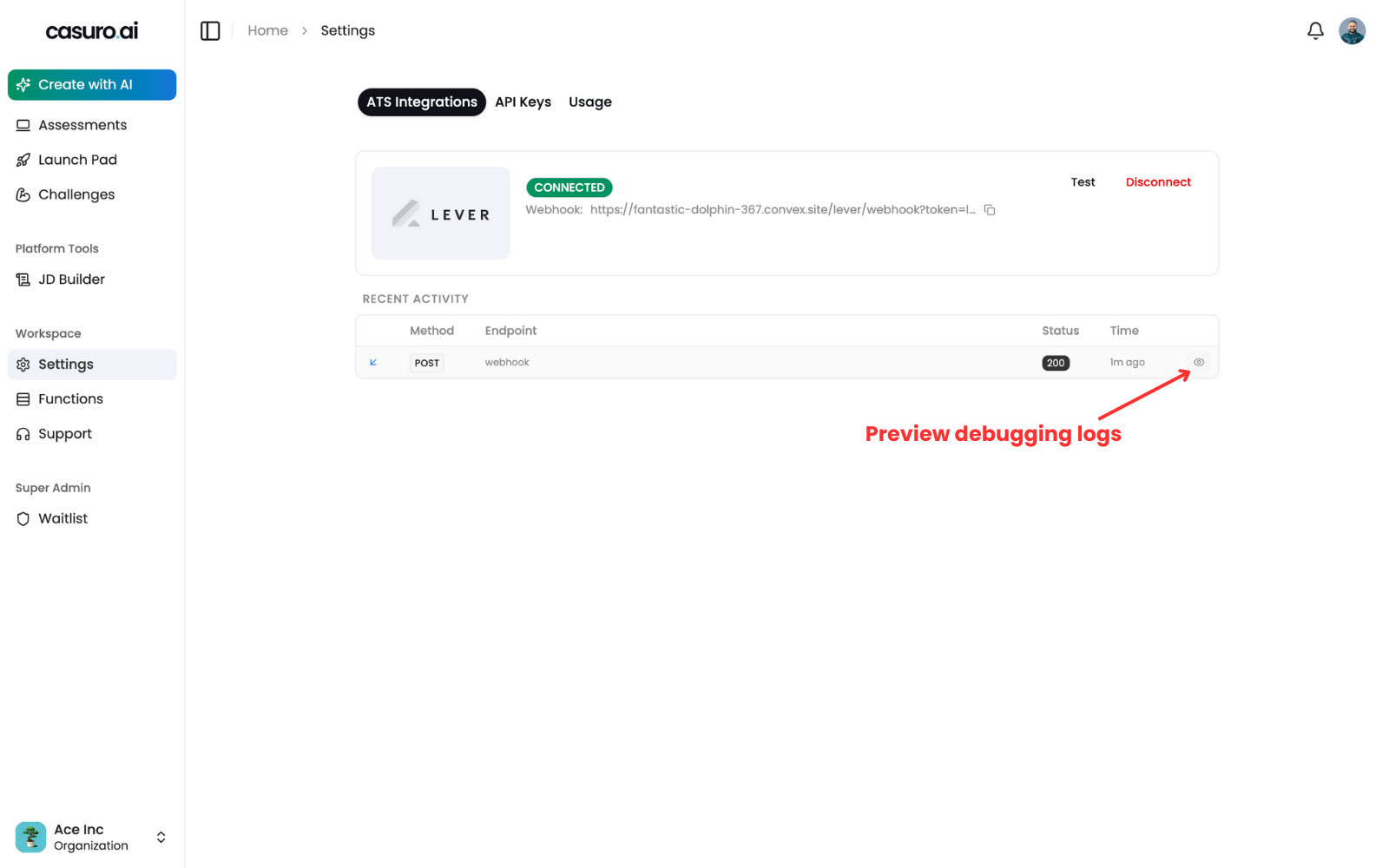
If you face any issues, you can check the logs in casuro.ai settings page under ATS integrations tab.
This will show you the logs of the integration.
<Frame>
  <img src="https://mintcdn.com/casuro/gA-onDWXKx268PjJ/images/integrations/lever/setup/debug1.png?fit=max&auto=format&n=gA-onDWXKx268PjJ&q=85&s=9c474e60576c60e3cedb334f7de55386" alt="Descriptive alt text" width="1600" height="1000" data-path="images/integrations/lever/setup/debug1.png" />
</Frame>

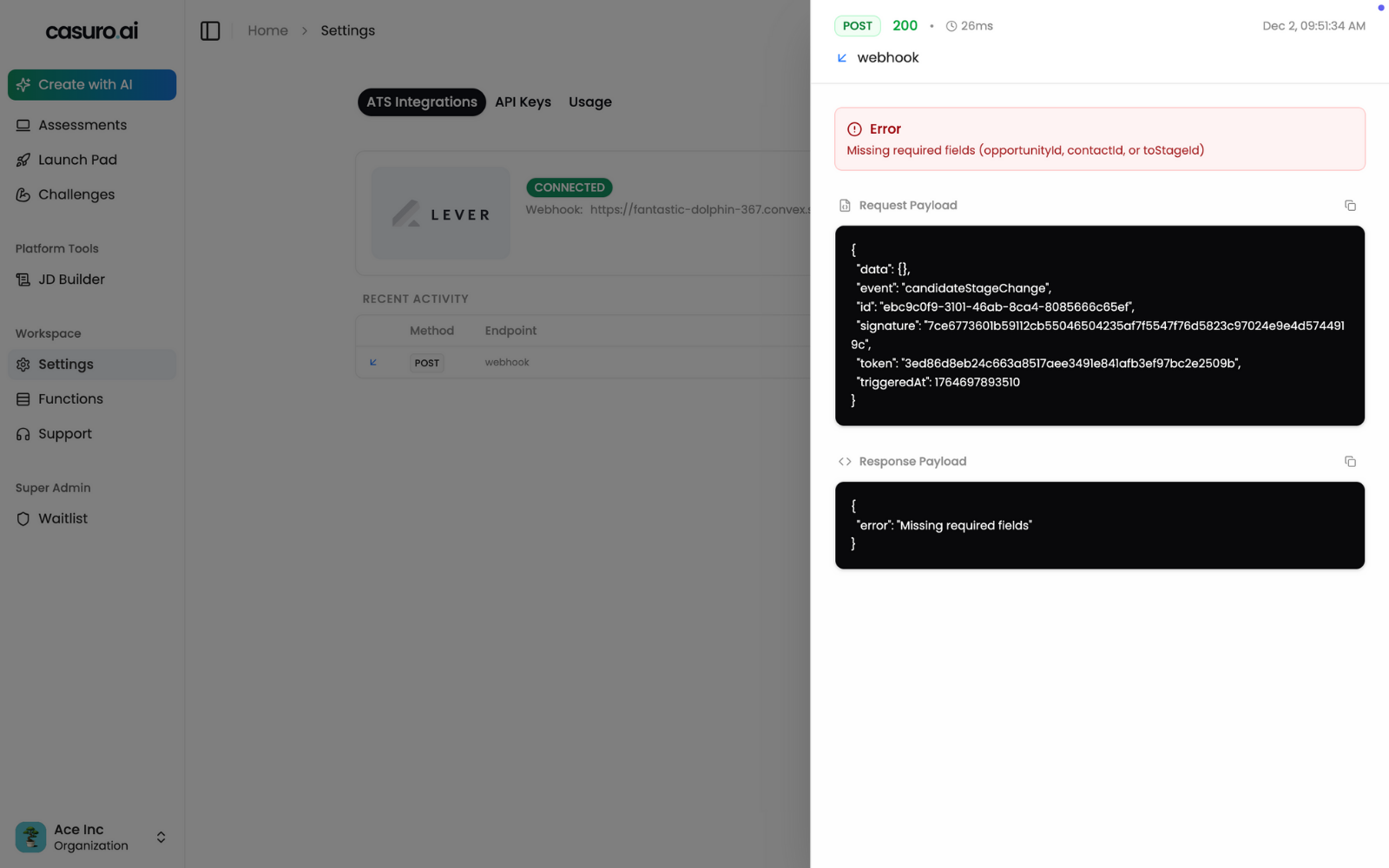
Full preview of the logs is available in casuro.ai.
<Frame>
  <img src="https://mintcdn.com/casuro/gA-onDWXKx268PjJ/images/integrations/lever/setup/debug2.png?fit=max&auto=format&n=gA-onDWXKx268PjJ&q=85&s=841894d5b70fab98ca0a97bfebccd3e8" alt="Descriptive alt text" width="1600" height="1000" data-path="images/integrations/lever/setup/debug2.png" />
</Frame>

If this doesn't help, please reach out to us at [support@casuro.ai](mailto:support@casuro.ai) for any help or just ping in the community slack channel.