> ## Documentation Index
> Fetch the complete documentation index at: https://docs.casuro.ai/llms.txt
> Use this file to discover all available pages before exploring further.
# Assessments
> Assessments workflow for Lever native integration with casuro.ai
## A360 Assessment Workflow
### Create assessment
Login to casuro.ai and click on assessments on the left menu bar.
Choose the assessment you want to use (in this case it is A360).
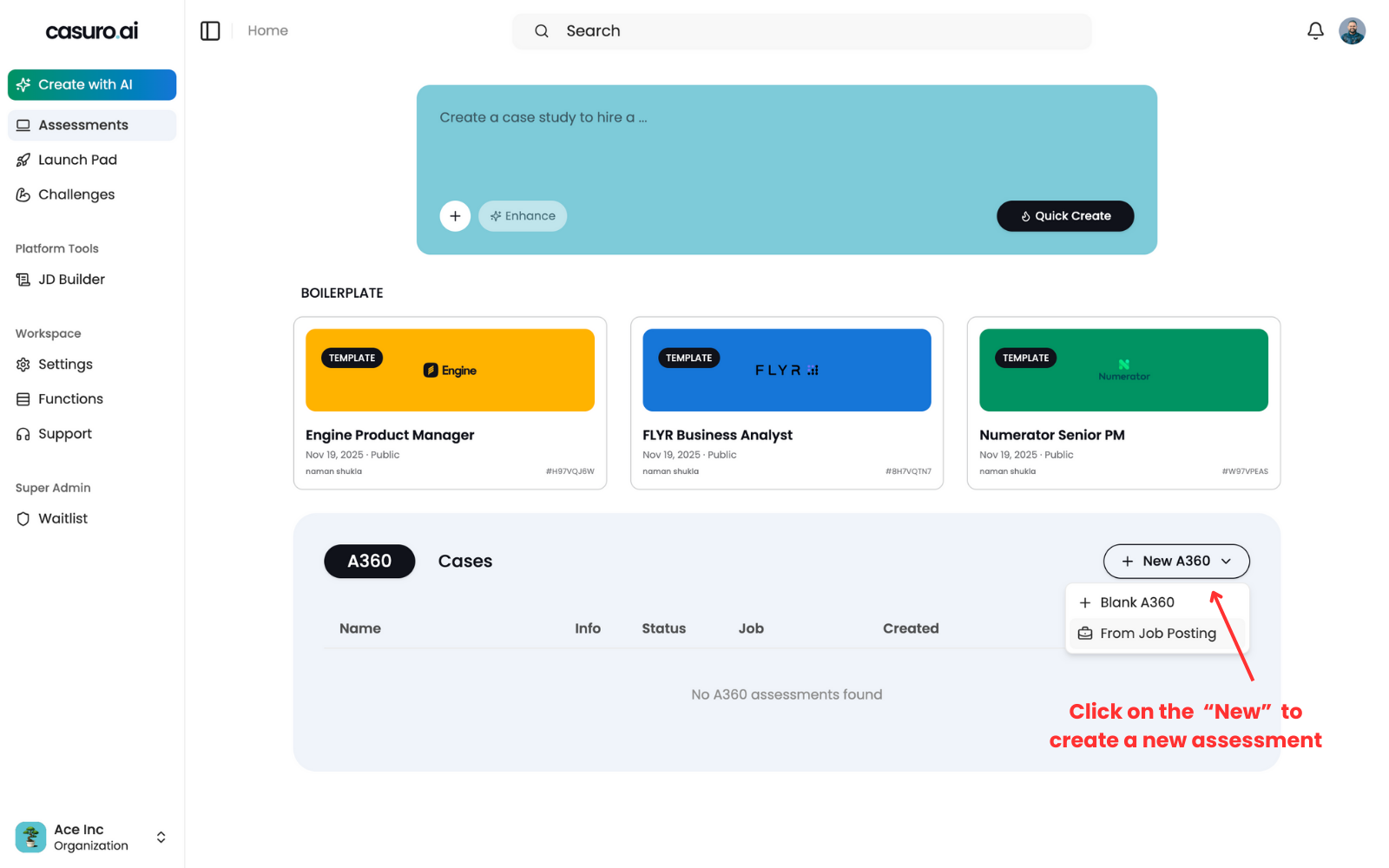
Click on the "New" button and select "From Job Posting".
Optionally, you can also create an assessment from a blank template.
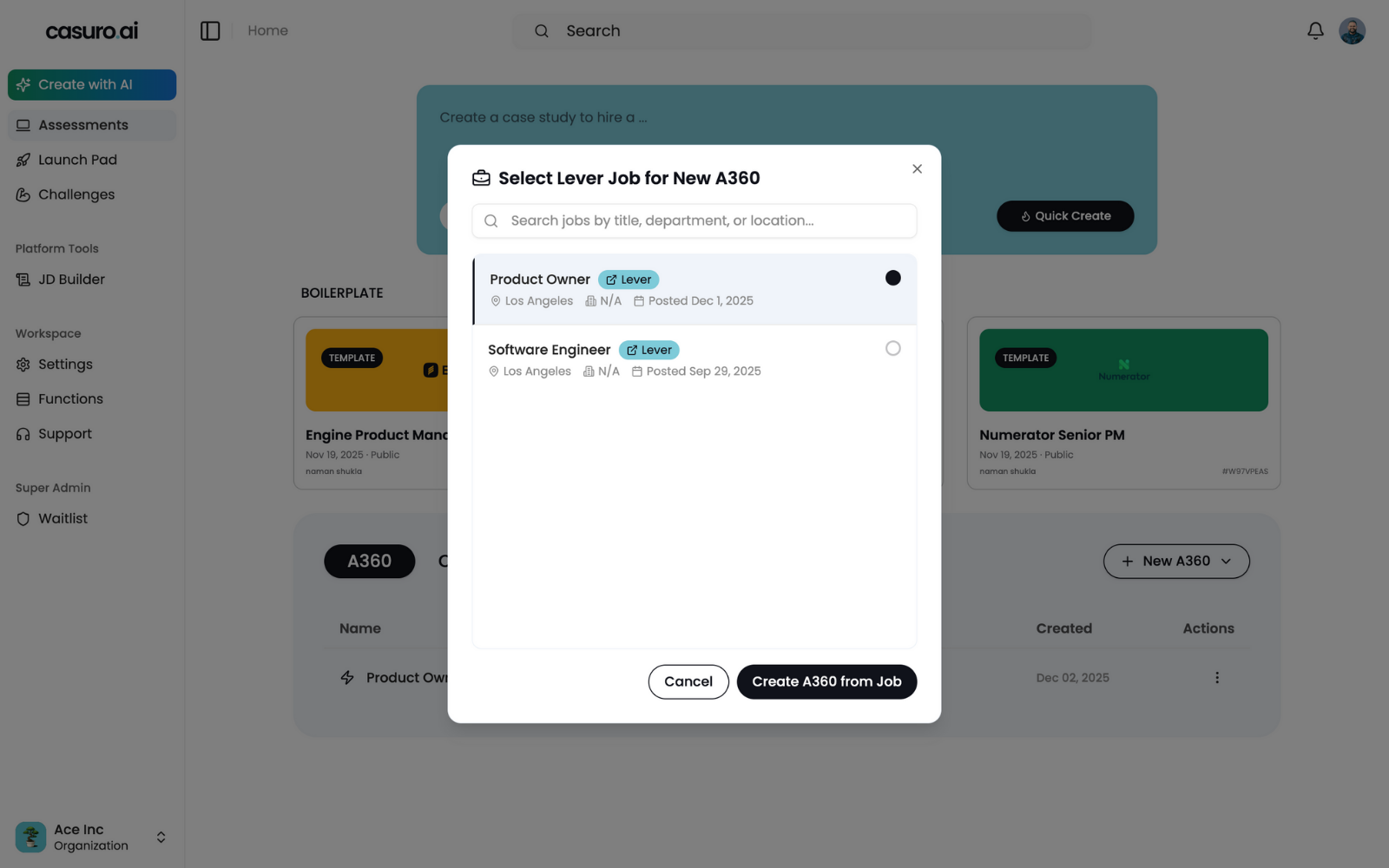
 Select the job posting you want to create an assessment from and click on "Create".
 Once the assessment is created and you are satisfied with the assessment, you can click on "Launch".
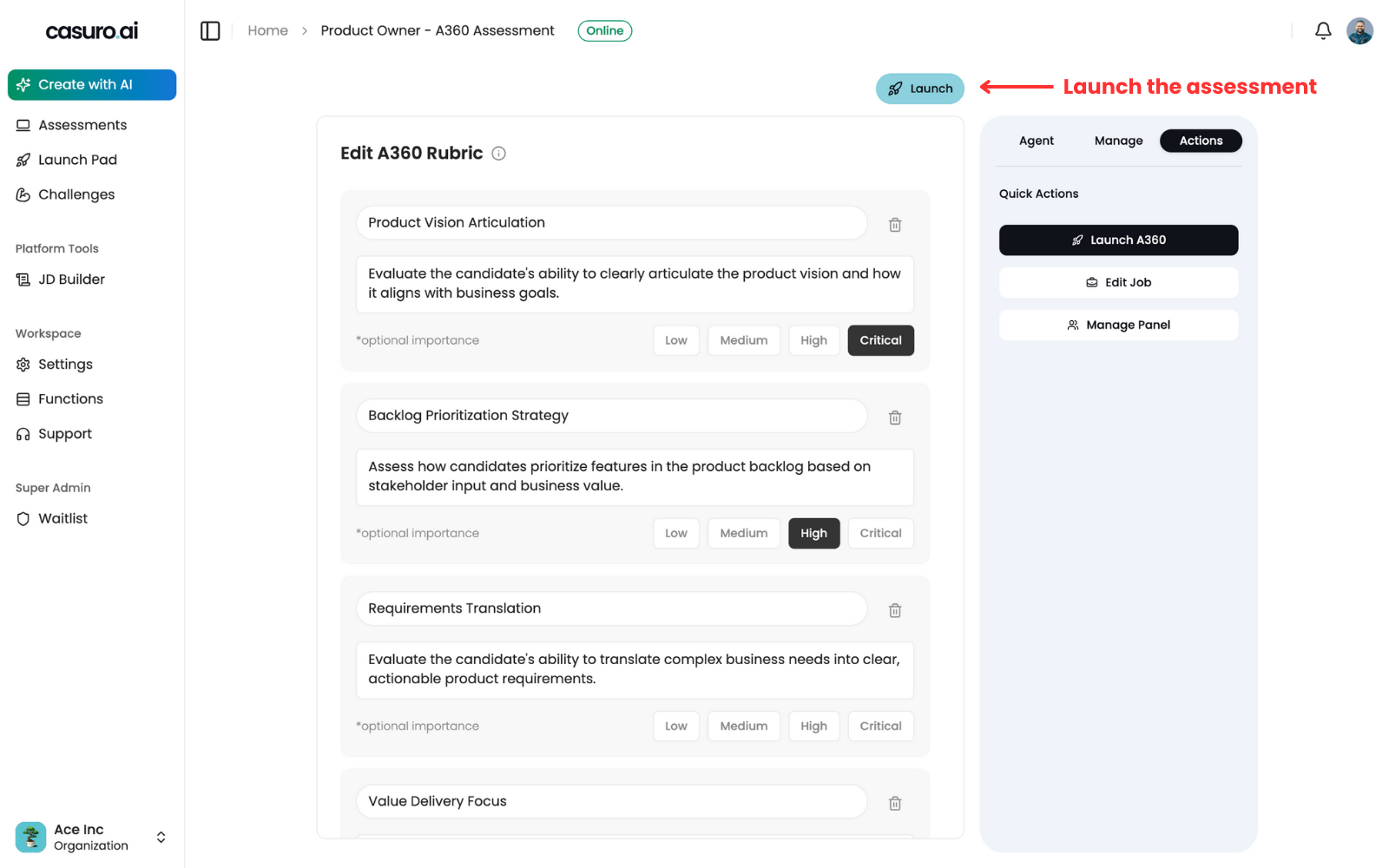 Congratulations! You have successfully created an assessment.
### Setup triggers (automation)
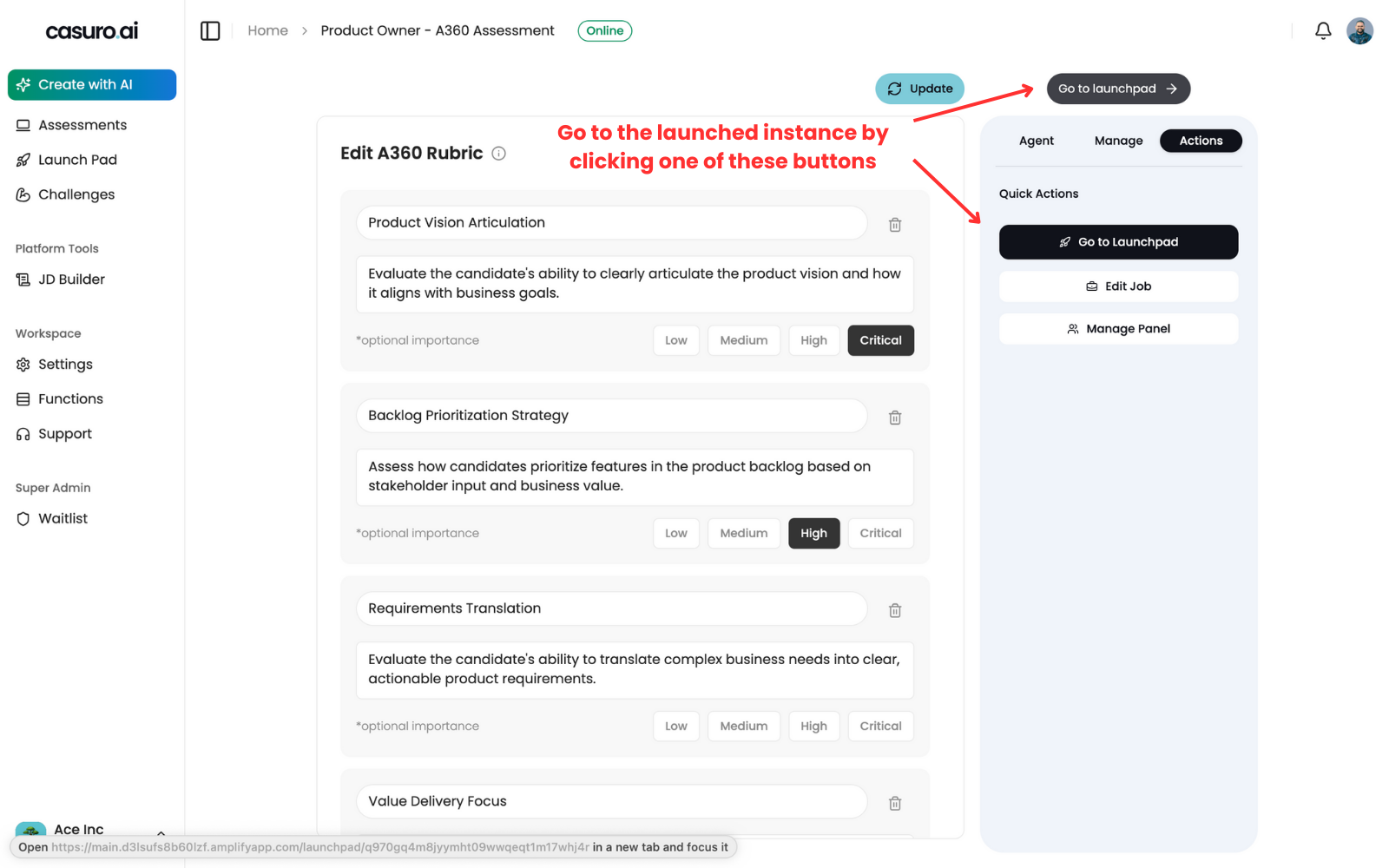
Go to the launch page by clicking on "Go to launchpad" button.
Congratulations! You have successfully created an assessment.
### Setup triggers (automation)
Go to the launch page by clicking on "Go to launchpad" button.
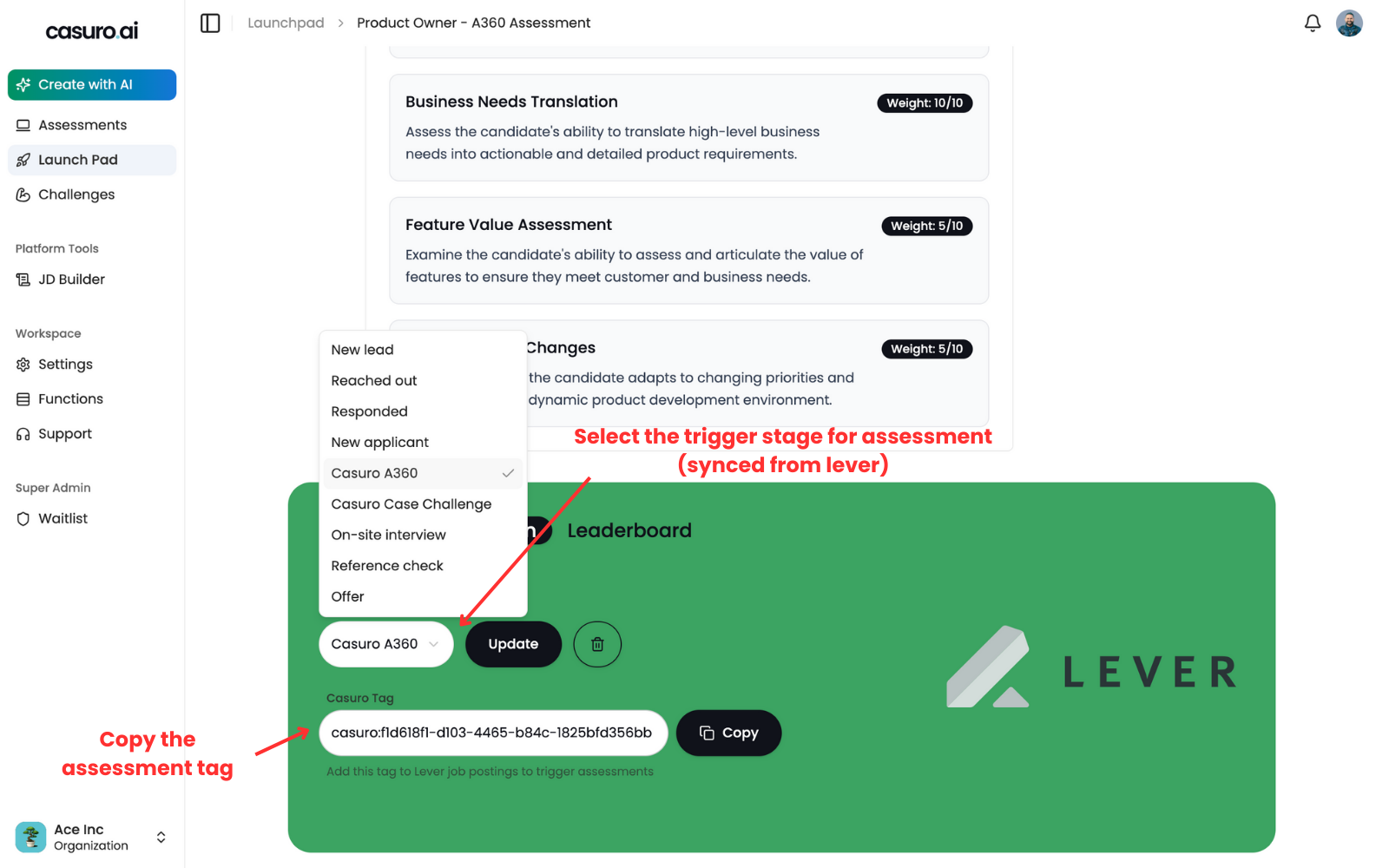
 Scroll to the bottom and click on "Automation" tab. Click on the trigger stage you want to use for this assessment. Then, click on copy button to copy the assessment tag.
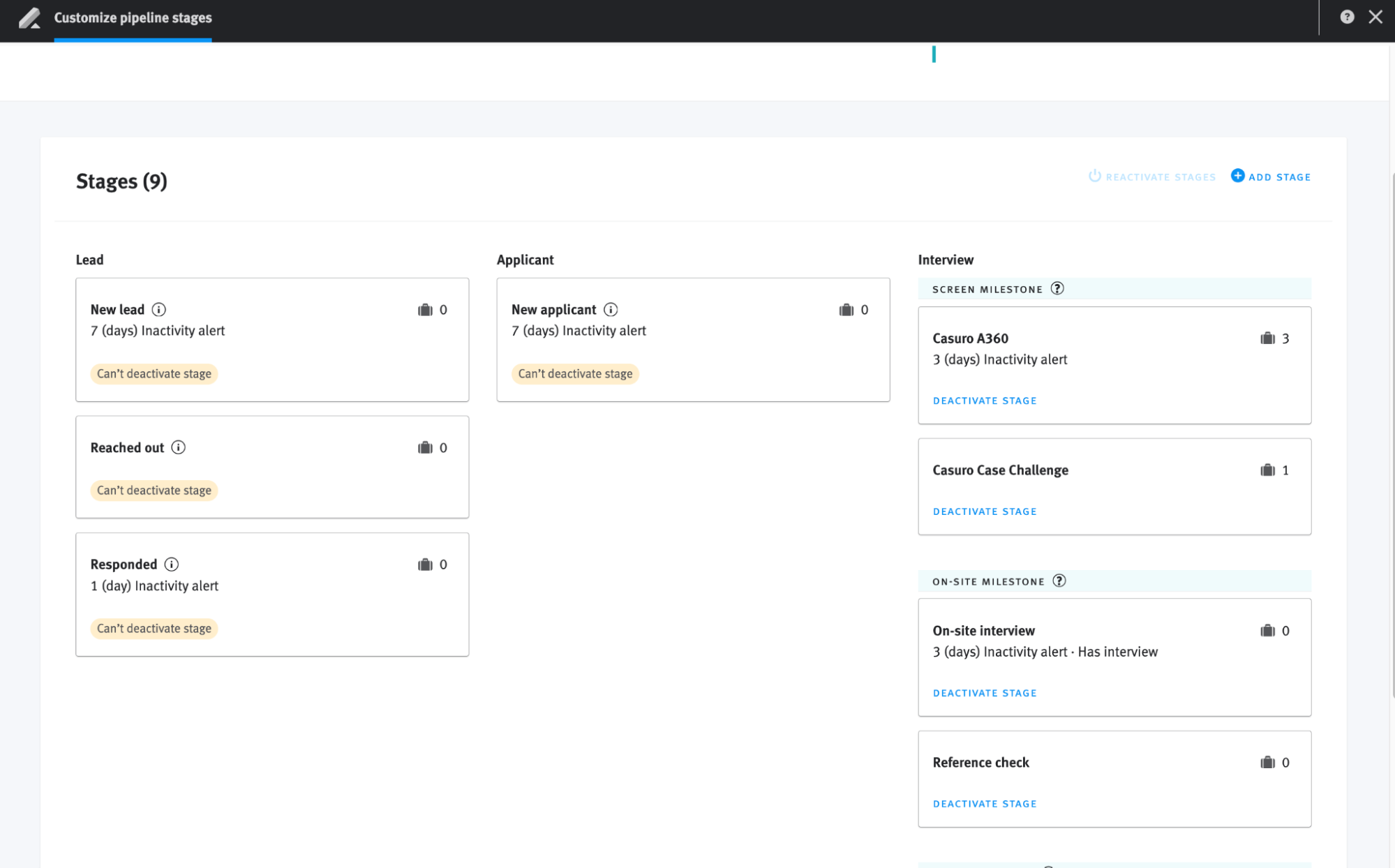
 **Optional but recommended**: Create assessment specific stages as shown in image below. To create custom pipeline stages, please follow this [guide](https://help.lever.co/hc/en-us/articles/20087324594333-Modifying-pipeline-stages).
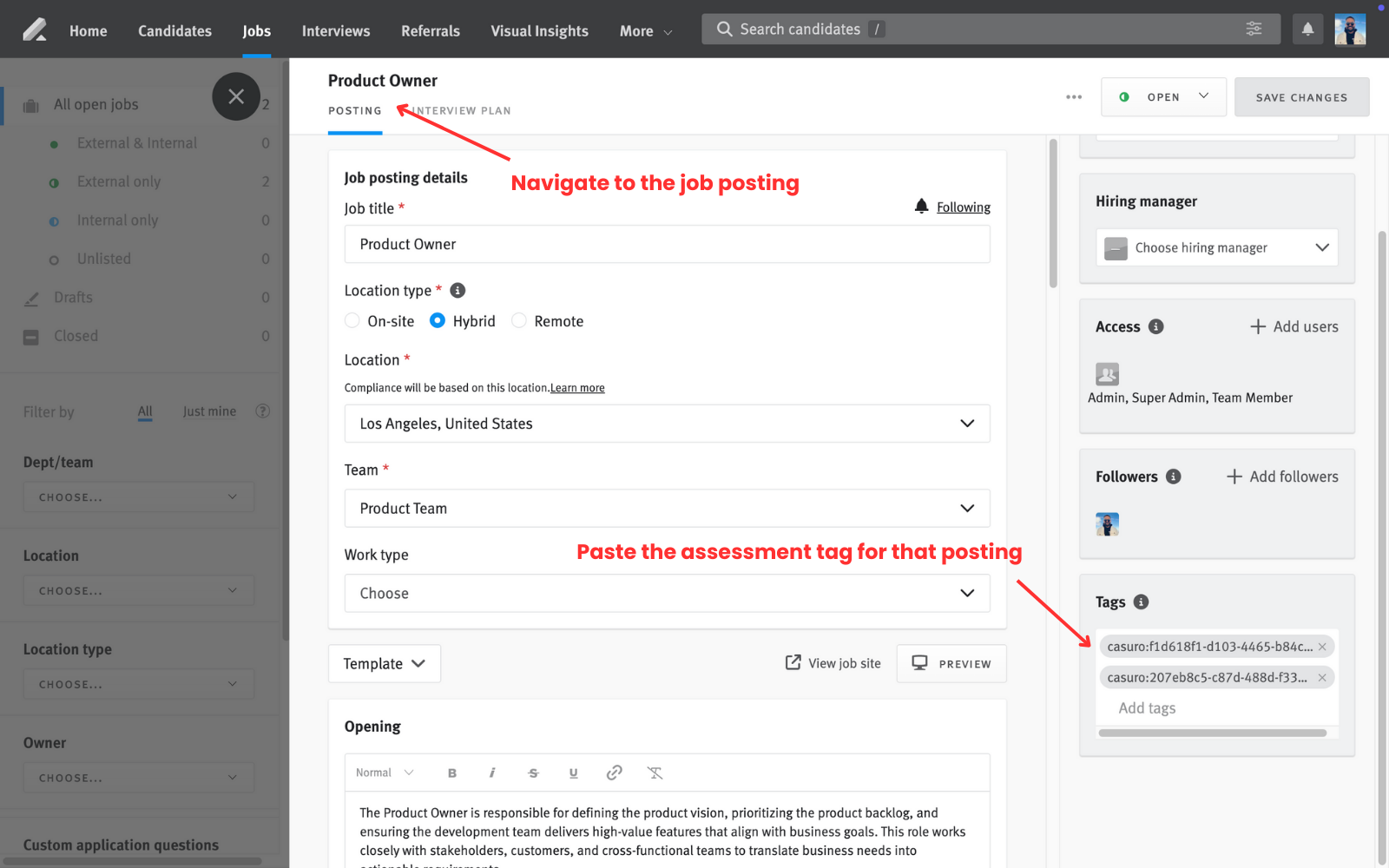
 On Lever, go to the job posting you want to use this assessment for and add the tag copied from casuro.ai in the "Tags" section.
 That's it! You have successfully set up the trigger for this assessment.
### Assessment updates
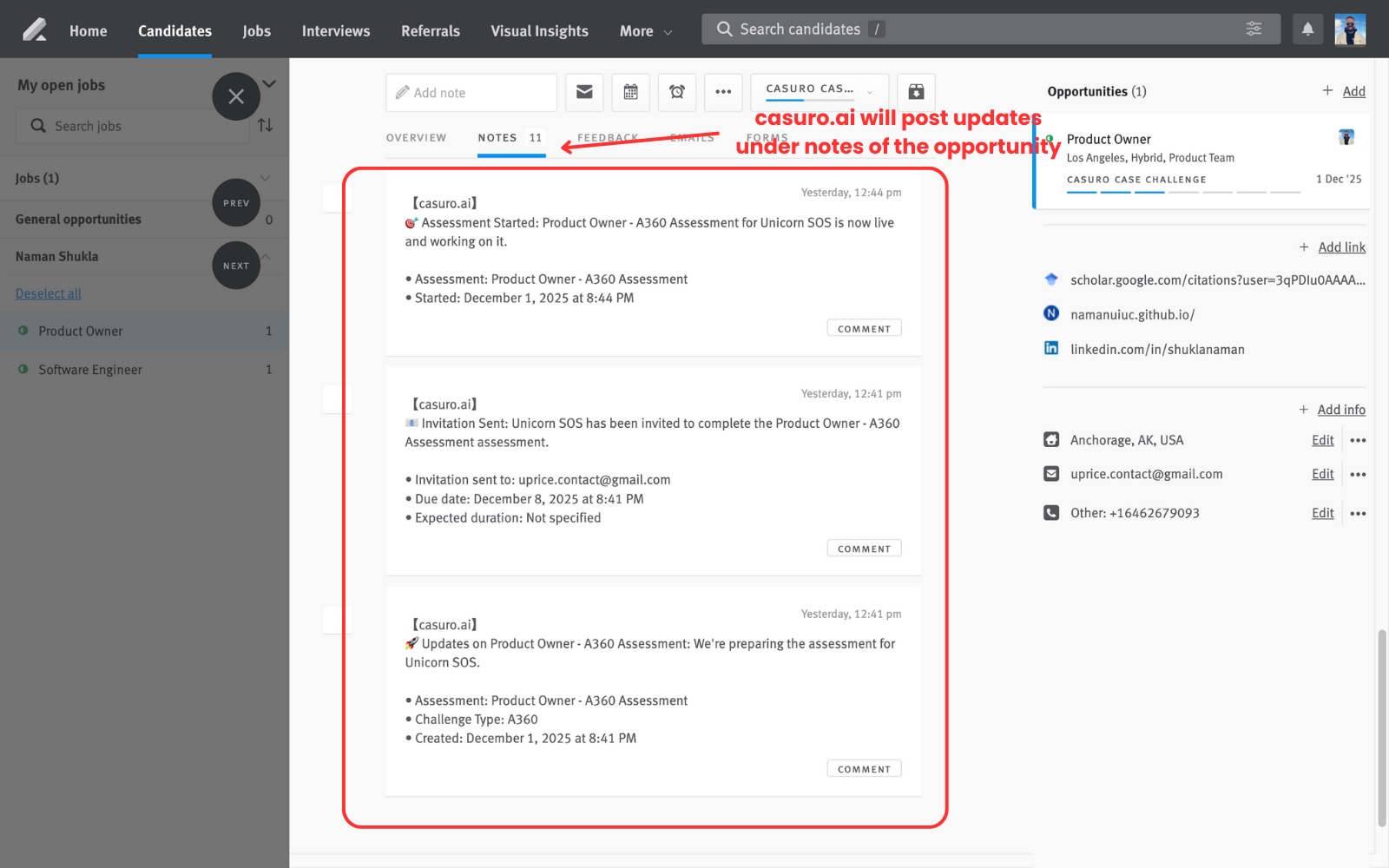
When an opportunity is moved to the trigger stage, casuro.ai will post updates in the notes section of the opportunity as shown in the image below.
That's it! You have successfully set up the trigger for this assessment.
### Assessment updates
When an opportunity is moved to the trigger stage, casuro.ai will post updates in the notes section of the opportunity as shown in the image below.