> ## Documentation Index
> Fetch the complete documentation index at: https://docs.casuro.ai/llms.txt
> Use this file to discover all available pages before exploring further.

# Setup

> Step-by-step guide to connect Greenhouse with Casuro.

<Callout icon="party-popper" color="#24A47F" iconType="regular">
  Proud to be an official integration partner of Greenhouse!
</Callout>

Watch this short video to learn how to setup Greenhouse native integration with casuro.ai.

<video controls className="w-full aspect-video rounded-xl" src="https://brand.assets.casuro.ai/videos/Greenhouse/GreenhouseSetup.mp4" />

## Connection Guide

Follow these steps to seamlessly integrate Greenhouse with Casuro.

### Prerequisites

Before you begin, ensure you have the following:

* An active Greenhouse account
* An active Casuro account
* Admin access to both accounts

<Steps>
  <Step title="Initiate Connection">
    Start by navigating to your settings in Casuro.
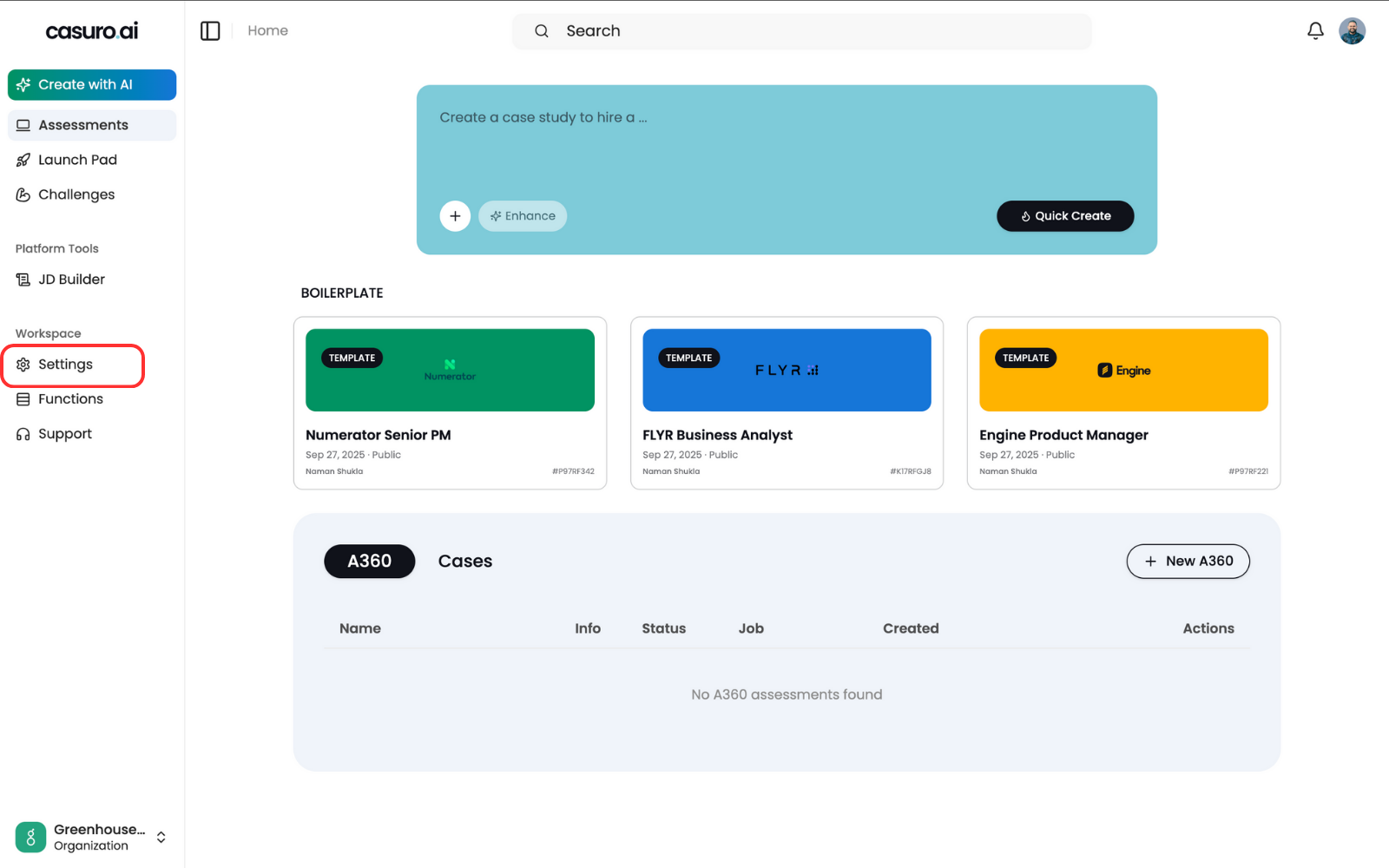
    <Frame caption="Open Casuro and click on 'Settings' in the left menu bar.">
      <img src="https://mintcdn.com/casuro/j8XHxnh1nUAEJYS8/images/integrations/greenhouse/setup/1.png?fit=max&auto=format&n=j8XHxnh1nUAEJYS8&q=85&s=7cfe21bb3d8e7c81f8930d59d78f32b4" alt="Settings Menu" width="1600" height="1000" data-path="images/integrations/greenhouse/setup/1.png" />
    </Frame>

    <br />

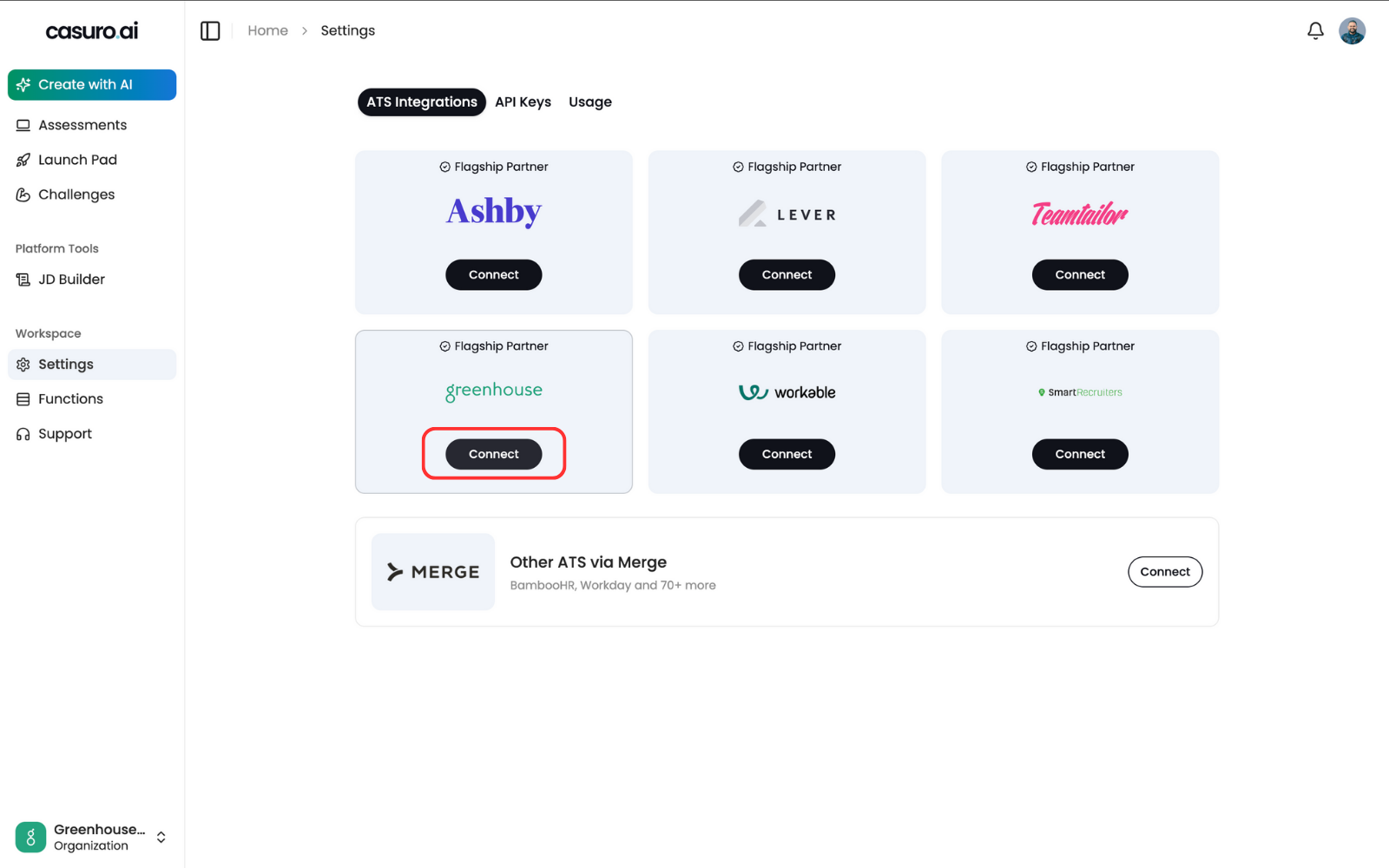
    <Frame caption="Under the 'ATS Integrations' tab, locate Greenhouse and click 'Connect'.">
      <img src="https://mintcdn.com/casuro/j8XHxnh1nUAEJYS8/images/integrations/greenhouse/setup/2.png?fit=max&auto=format&n=j8XHxnh1nUAEJYS8&q=85&s=58fd428d83df66a0729f5eab88e3a0de" alt="Connect to Greenhouse" width="1600" height="1000" data-path="images/integrations/greenhouse/setup/2.png" />
    </Frame>
  </Step>

  <Step title="Authenticate with Greenhouse">
    You will be redirected to the Greenhouse login page. Log in to your Greenhouse account.
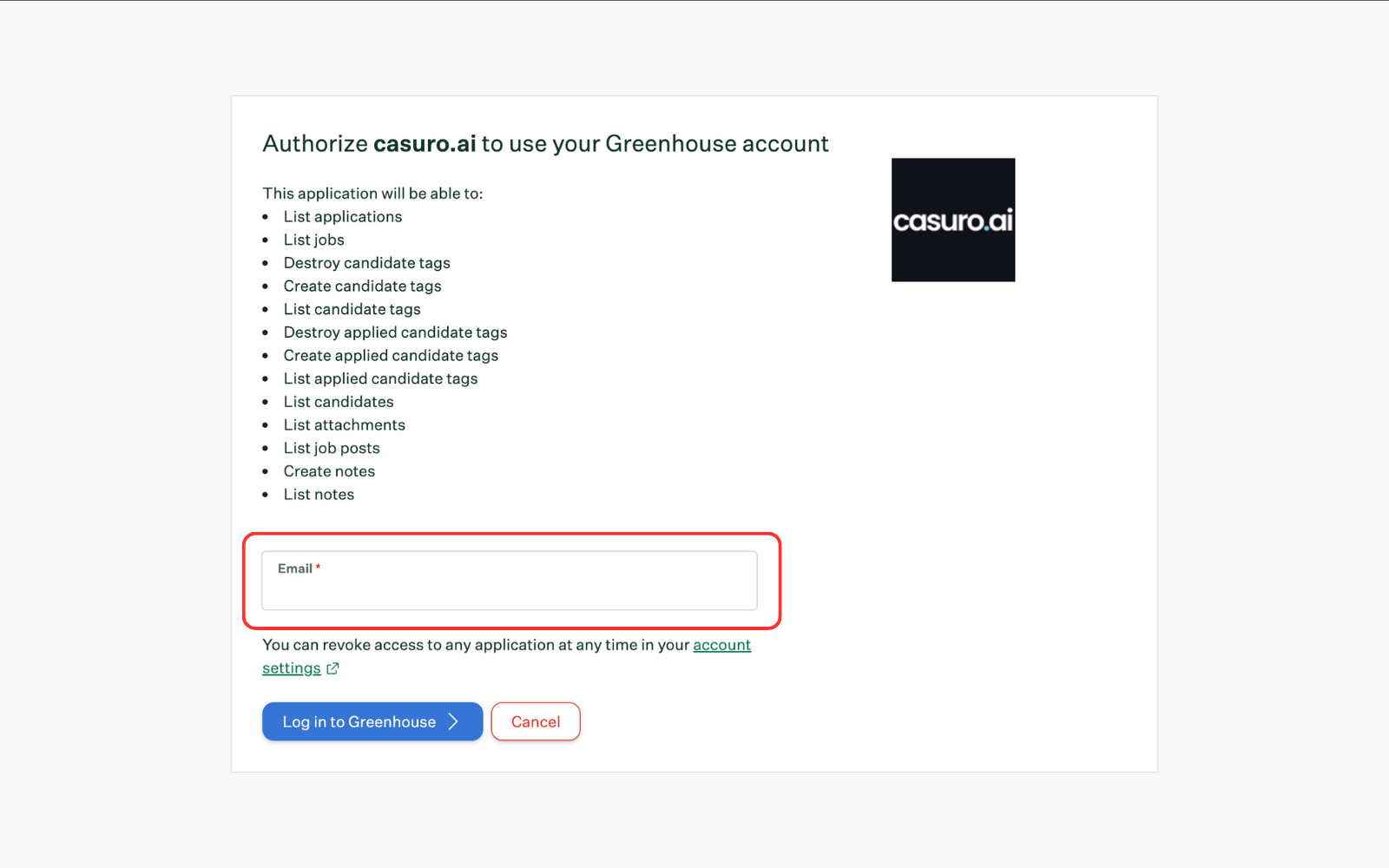
    <Frame caption="Greenhouse authentication page will open where you can provide your email (credentials) for greenhouse and click on Login to Greenhouse.">
      <img src="https://mintcdn.com/casuro/j8XHxnh1nUAEJYS8/images/integrations/greenhouse/setup/3.png?fit=max&auto=format&n=j8XHxnh1nUAEJYS8&q=85&s=fe8a1a01b74a94daa09bcf6f98903436" alt="Configuration Form" width="1600" height="1000" data-path="images/integrations/greenhouse/setup/3.png" />
    </Frame>

    <br />

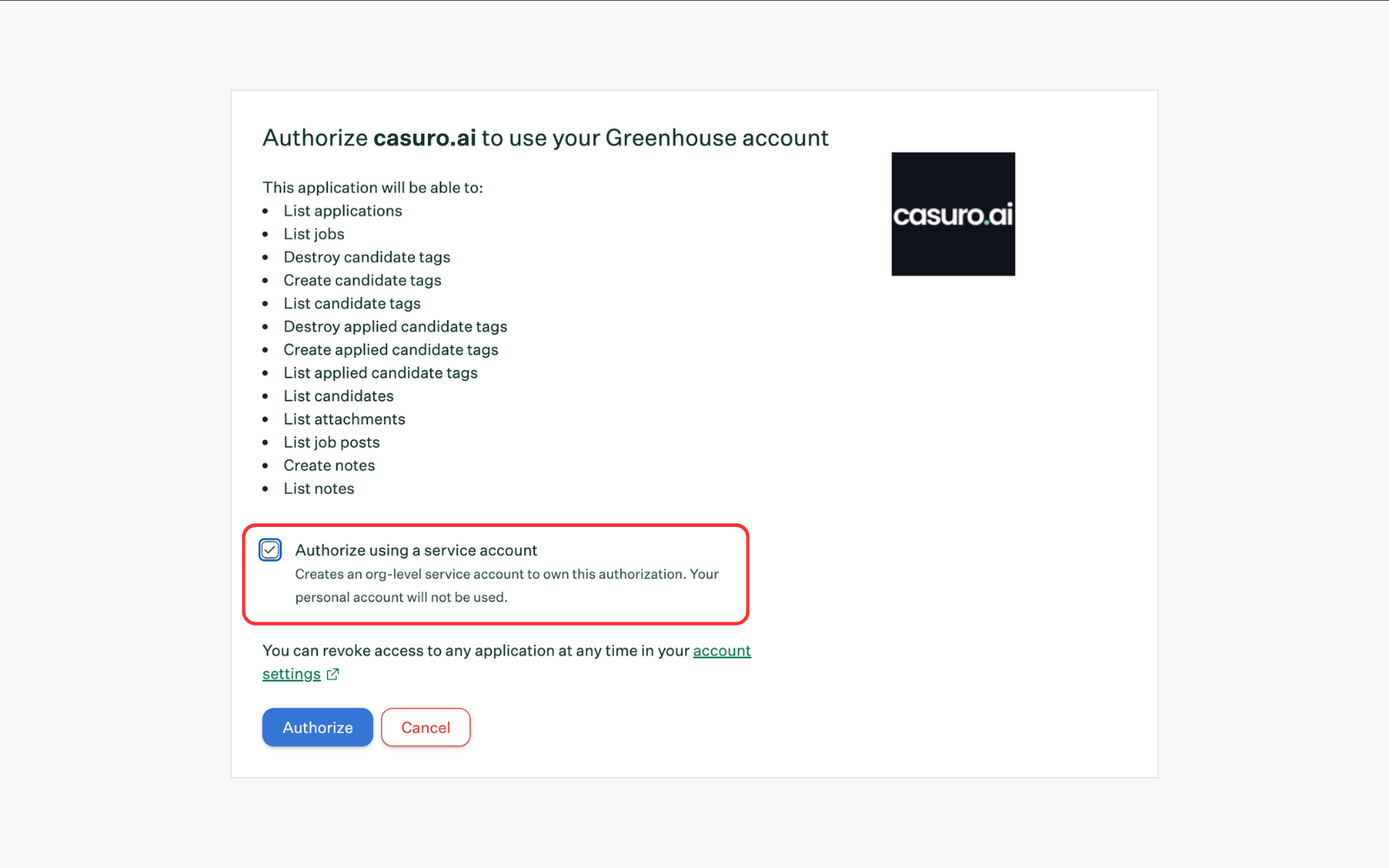
    <Frame caption="You will be asked to authorize casuro.ai to grant required permissions. Check the box and click on Authorize.">
      <img src="https://mintcdn.com/casuro/j8XHxnh1nUAEJYS8/images/integrations/greenhouse/setup/4.png?fit=max&auto=format&n=j8XHxnh1nUAEJYS8&q=85&s=7c74295162880ff6f81b3467be294a94" alt="Greenhouse Marketplace" width="1600" height="1000" data-path="images/integrations/greenhouse/setup/4.png" />
    </Frame>
  </Step>

  <Step title="Reachout to account manager">
    Once you have authenticated with greenhouse, you will be redirected to the casuro.ai dashboard. Reach out to your account manager to complete the setup.
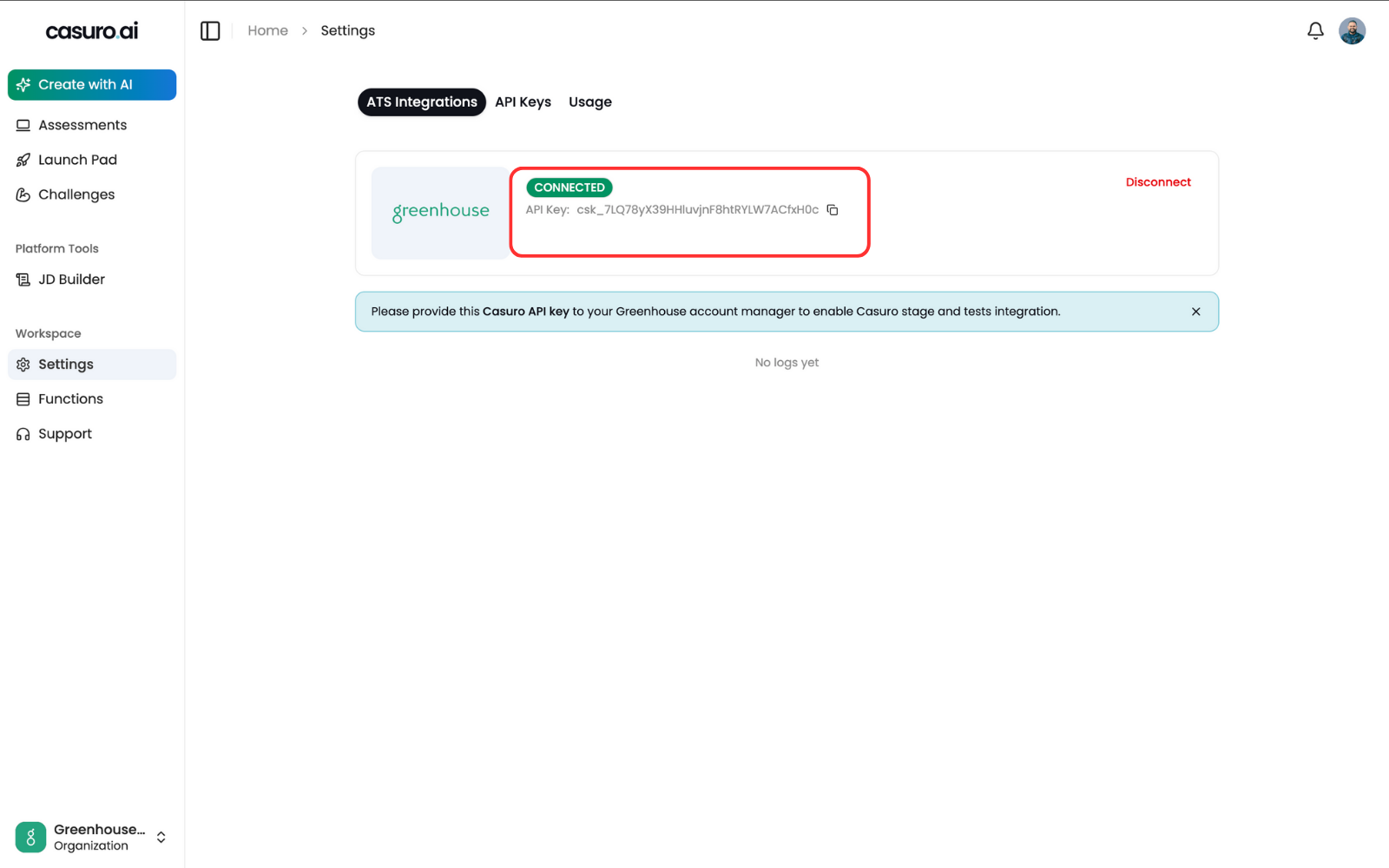
    <Frame caption="Copy the 'Integration Key' shown next to connected badge and give it to your account manager and ask them to enable .">
      <img src="https://mintcdn.com/casuro/j8XHxnh1nUAEJYS8/images/integrations/greenhouse/setup/5.png?fit=max&auto=format&n=j8XHxnh1nUAEJYS8&q=85&s=98b82ead59872640e7561265946dd922" alt="Copy API key" width="1600" height="1000" data-path="images/integrations/greenhouse/setup/5.png" />
    </Frame>
  </Step>
</Steps>

Congratulations! Your Greenhouse integration is now active 🎉