> ## Documentation Index
> Fetch the complete documentation index at: https://docs.casuro.ai/llms.txt
> Use this file to discover all available pages before exploring further.

# Assessments

> Manage A360 and Case Study assessments with Greenhouse integration.

## A360 Assessment Workflow

Streamline your multimodal screening process directly within Greenhouse.

<Steps>
  <Step title="Create and Launch Assessment">
    Start by creating the assessment in casuro.
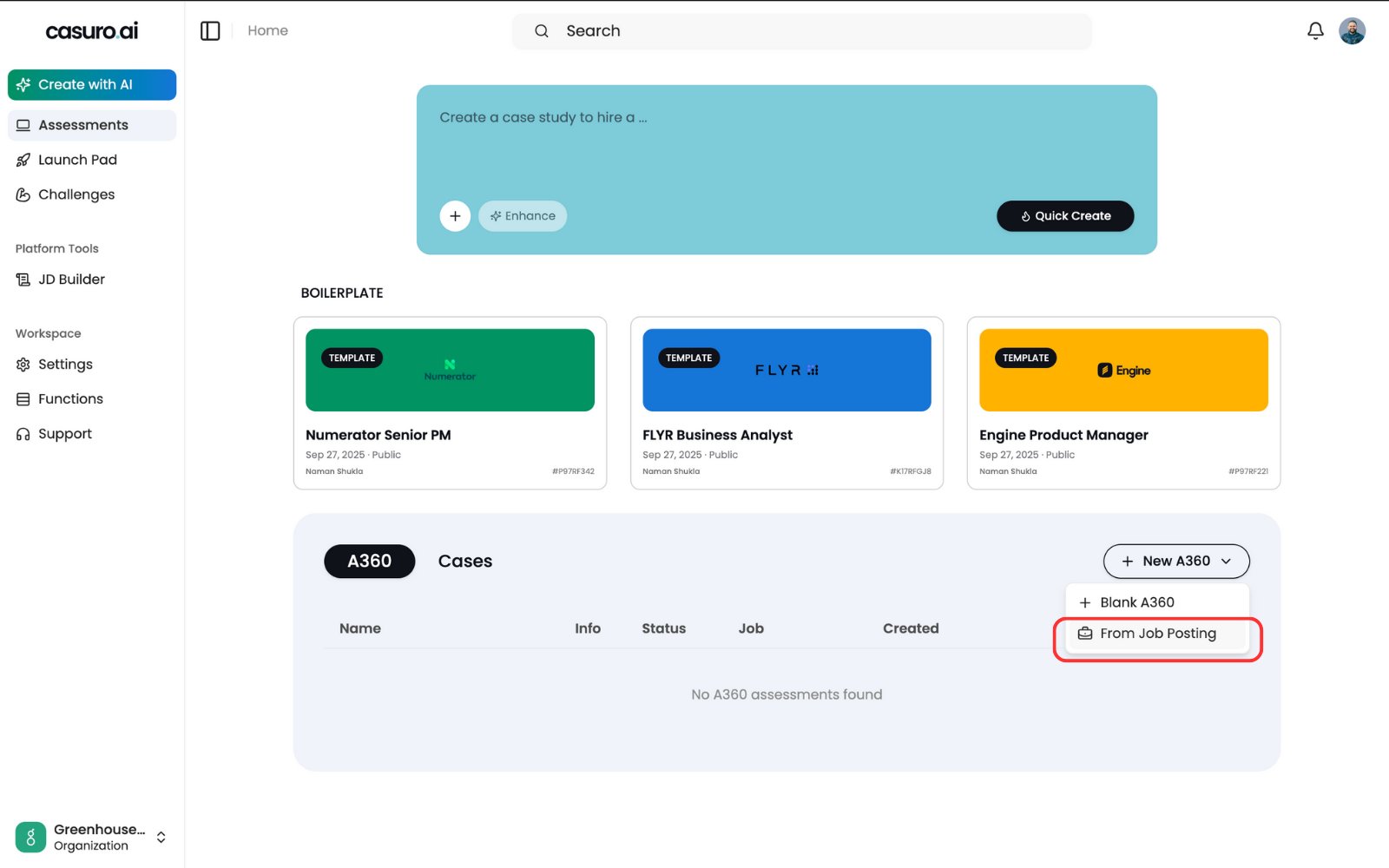
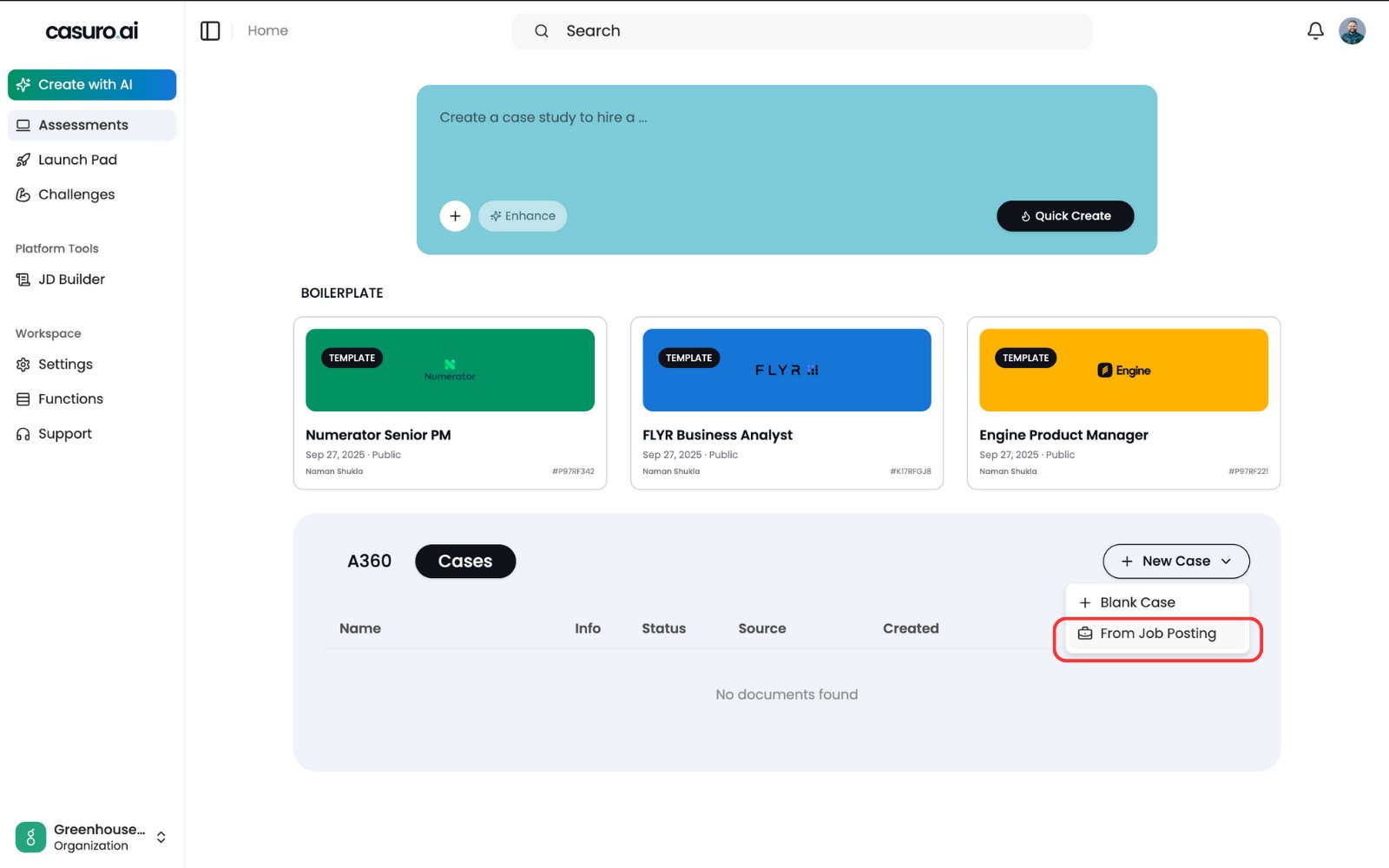
    <Frame caption="In casuro, select 'A360 Assessment', click 'New A360', and choose 'From Job Posting'.">
      <img src="https://mintcdn.com/casuro/j8XHxnh1nUAEJYS8/images/integrations/greenhouse/workflow/1.png?fit=max&auto=format&n=j8XHxnh1nUAEJYS8&q=85&s=1b080cccaf911a45d0249b1b1629f155" alt="Create A360" width="1600" height="1000" data-path="images/integrations/greenhouse/workflow/1.png" />
    </Frame>

    <br />

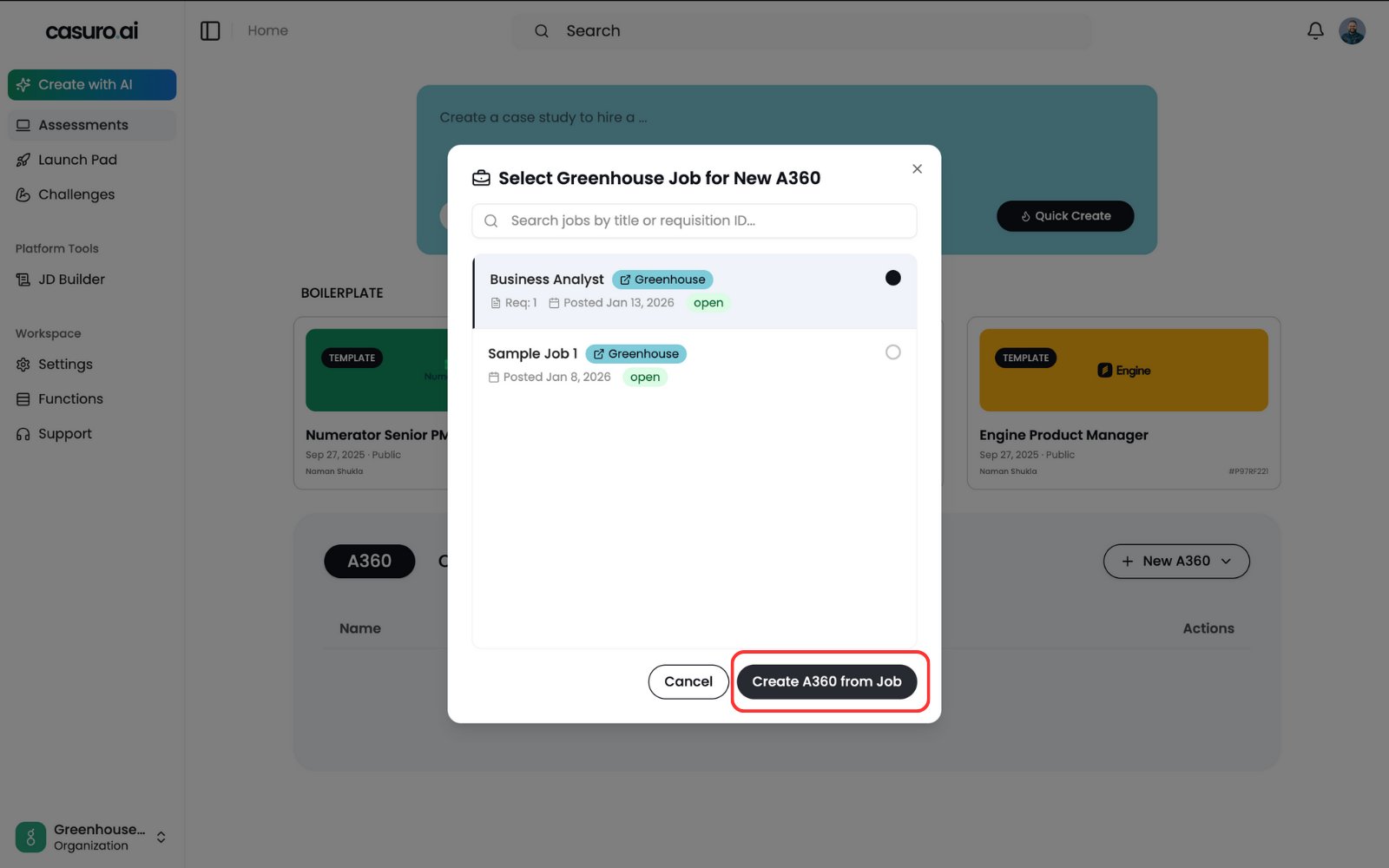
    <Frame caption="Select the relevant job posting and click 'Create'.">
      <img src="https://mintcdn.com/casuro/j8XHxnh1nUAEJYS8/images/integrations/greenhouse/workflow/2.png?fit=max&auto=format&n=j8XHxnh1nUAEJYS8&q=85&s=7af40b973e3c37b7bf97f566c89d3a32" alt="Select Job" width="1600" height="1000" data-path="images/integrations/greenhouse/workflow/2.png" />
    </Frame>

    <br />

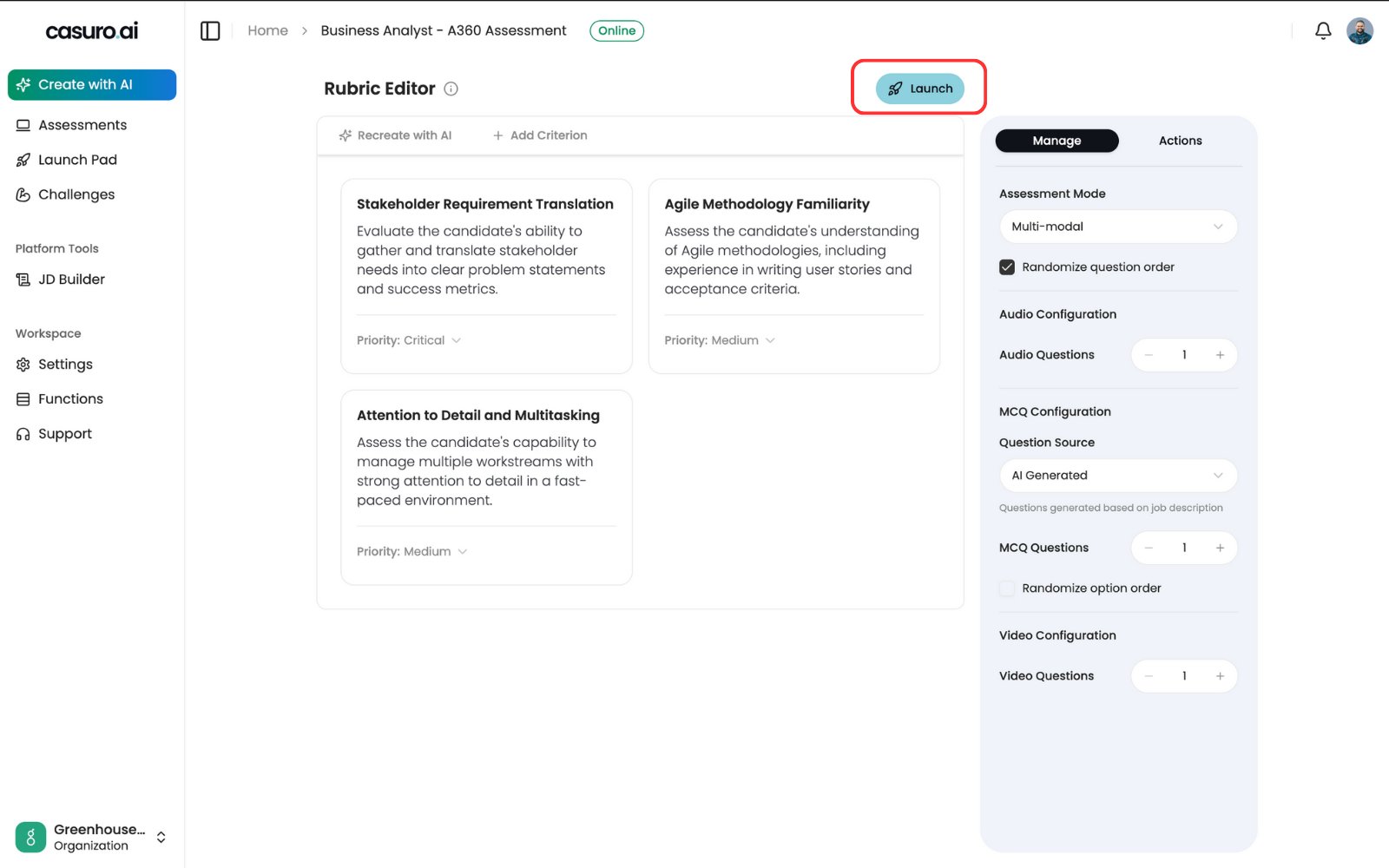
    <Frame caption="Customize your assessment in the editor, then click 'Launch'. Once launched, this assessment is now available in Greenhouse.">
      <img src="https://mintcdn.com/casuro/j8XHxnh1nUAEJYS8/images/integrations/greenhouse/workflow/3.png?fit=max&auto=format&n=j8XHxnh1nUAEJYS8&q=85&s=ed7b111aa63c2aac2f96e9ae0128e8de" alt="Launch Assessment" width="1600" height="1000" data-path="images/integrations/greenhouse/workflow/3.png" />
    </Frame>
  </Step>

  <Step title="Add casuro.ai Stage in Greenhouse">
    Set up a dedicated casuro stage in your hiring pipeline.
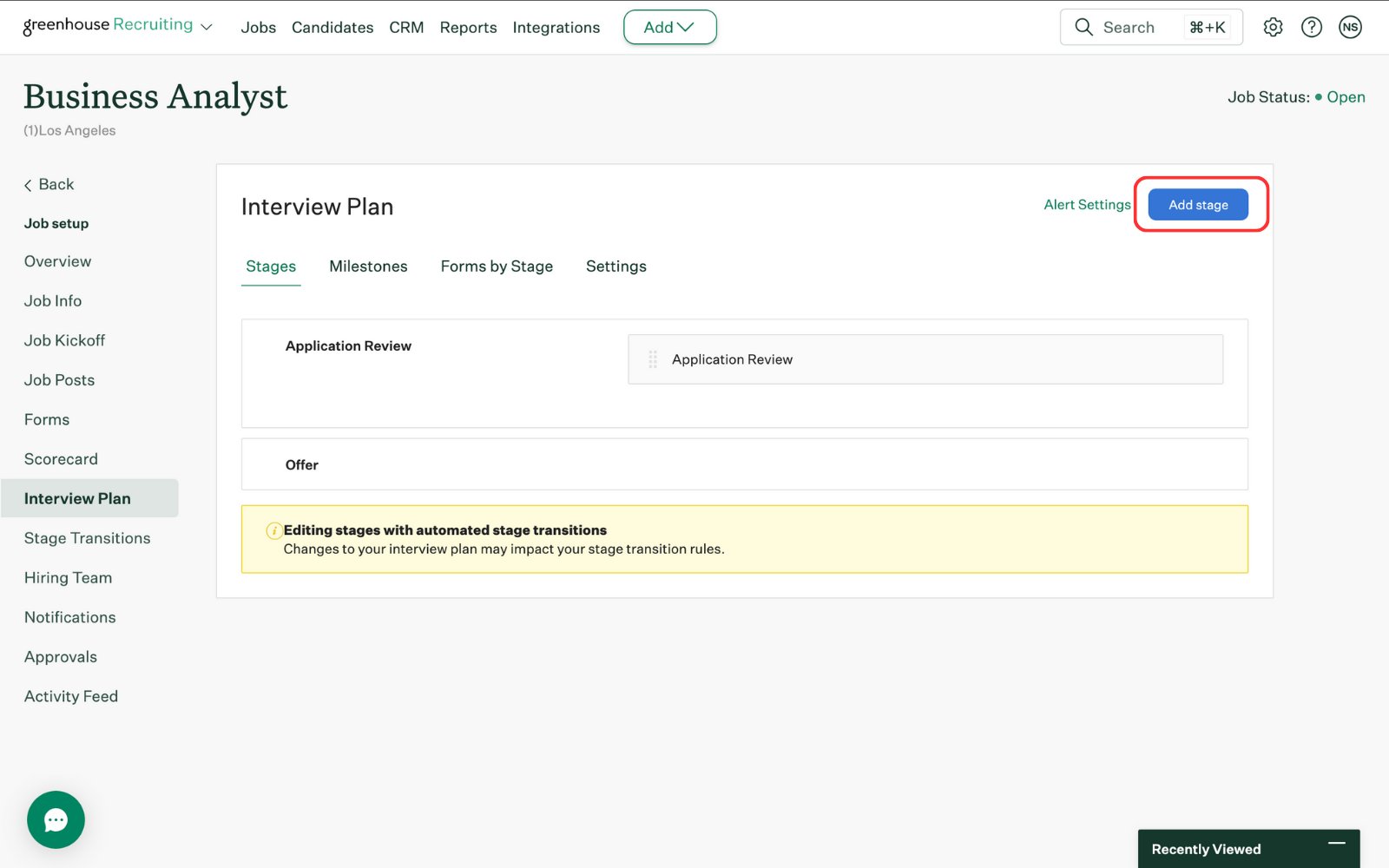
    <Frame caption="In Greenhouse, click 'Add Stage' to add a casuro.ai stage.">
      <img src="https://mintcdn.com/casuro/j8XHxnh1nUAEJYS8/images/integrations/greenhouse/workflow/7.png?fit=max&auto=format&n=j8XHxnh1nUAEJYS8&q=85&s=081eb54cfe9cce594a387526468b639d" alt="Add Stage" width="1600" height="1000" data-path="images/integrations/greenhouse/workflow/7.png" />
    </Frame>

    <br />

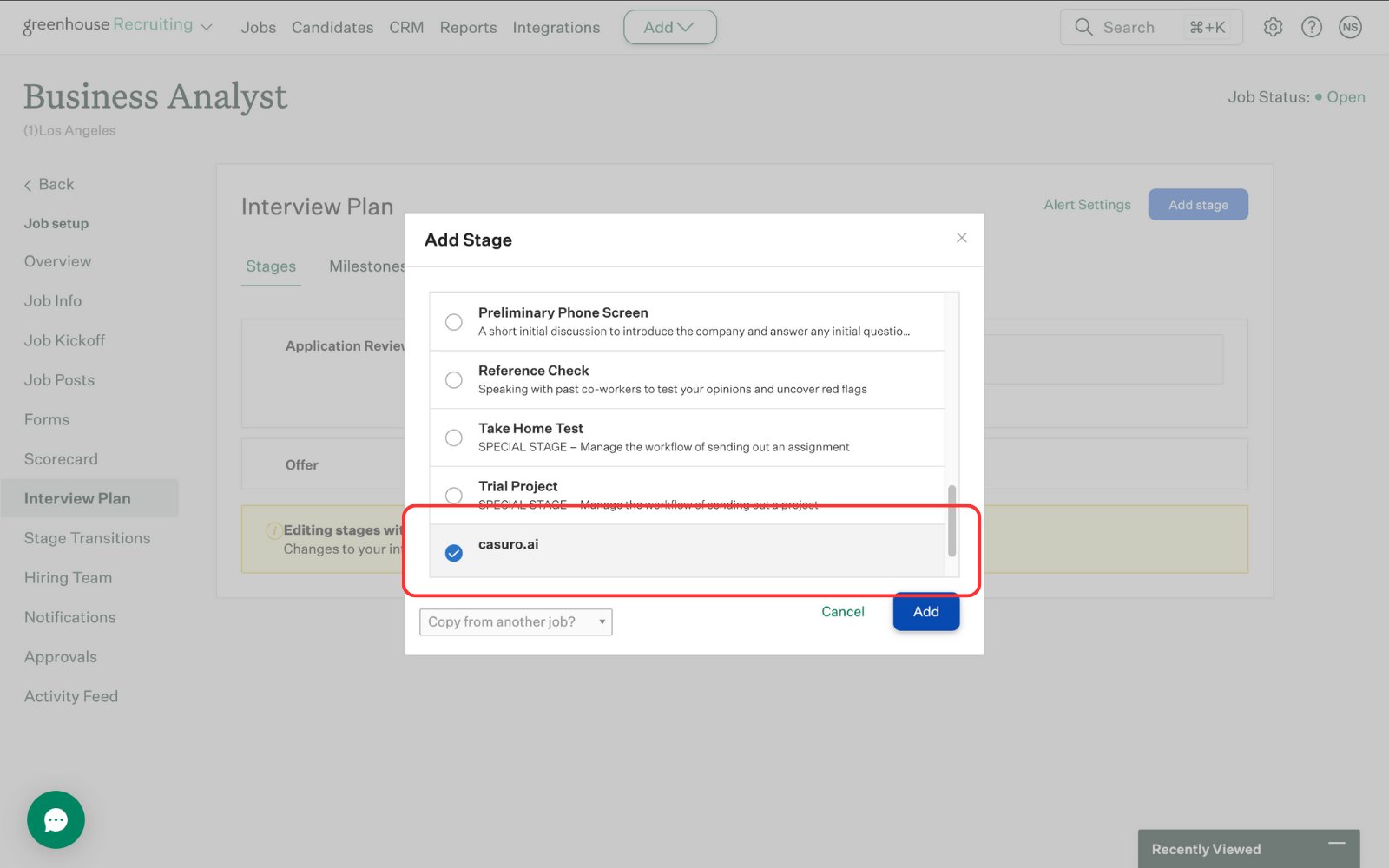
    <Frame caption="Select the casuro.ai stage and click 'Add'. Note: You need to provide your account manager with the API key to enable the casuro.ai assessment stage. More information is in the setup page.">
      <img src="https://mintcdn.com/casuro/j8XHxnh1nUAEJYS8/images/integrations/greenhouse/workflow/8.png?fit=max&auto=format&n=j8XHxnh1nUAEJYS8&q=85&s=a76bbd192e1d9f301efc6ef215370e6c" alt="Select casuro Stage" width="1600" height="1000" data-path="images/integrations/greenhouse/workflow/8.png" />
    </Frame>

    <br />

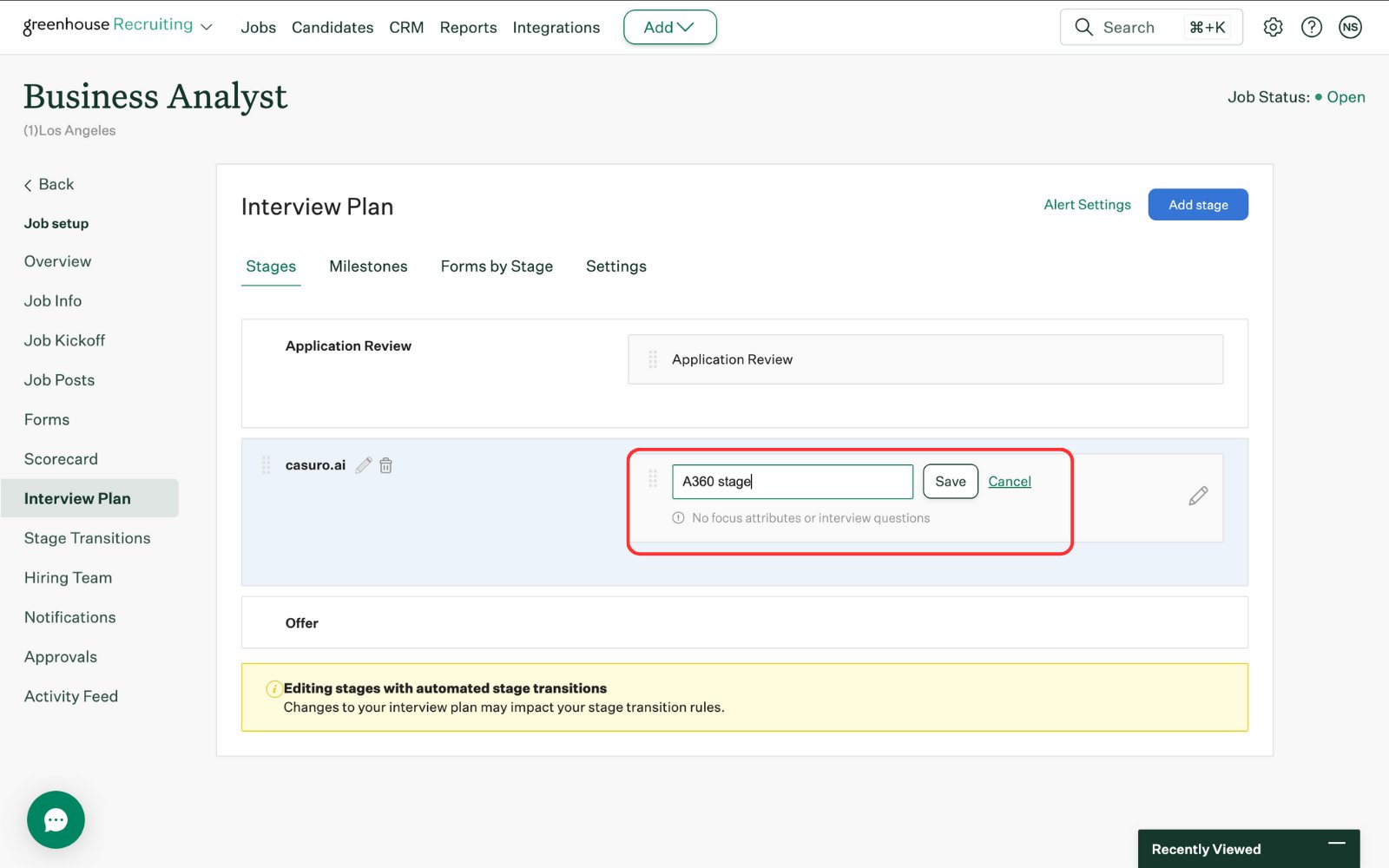
    <Frame caption="Give the stage a relevant name and click 'Save'.">
      <img src="https://mintcdn.com/casuro/j8XHxnh1nUAEJYS8/images/integrations/greenhouse/workflow/9.png?fit=max&auto=format&n=j8XHxnh1nUAEJYS8&q=85&s=f5a1f3ae02d55da6e808a9bc2a8b11c1" alt="Name Stage" width="1600" height="1000" data-path="images/integrations/greenhouse/workflow/9.png" />
    </Frame>
  </Step>

  <Step title="Configure the Stage">
    Set up the assessment and automation rules for the stage.

    <Frame caption="Edit the stage and select the assessment you want to use. All launched assessments are available in Greenhouse.">
      <img src="https://mintcdn.com/casuro/j8XHxnh1nUAEJYS8/images/integrations/greenhouse/workflow/11.png?fit=max&auto=format&n=j8XHxnh1nUAEJYS8&q=85&s=256b766ab781216ad181b1f937575259" alt="Select Assessment" width="1600" height="1000" data-path="images/integrations/greenhouse/workflow/11.png" />
    </Frame>

    <br />

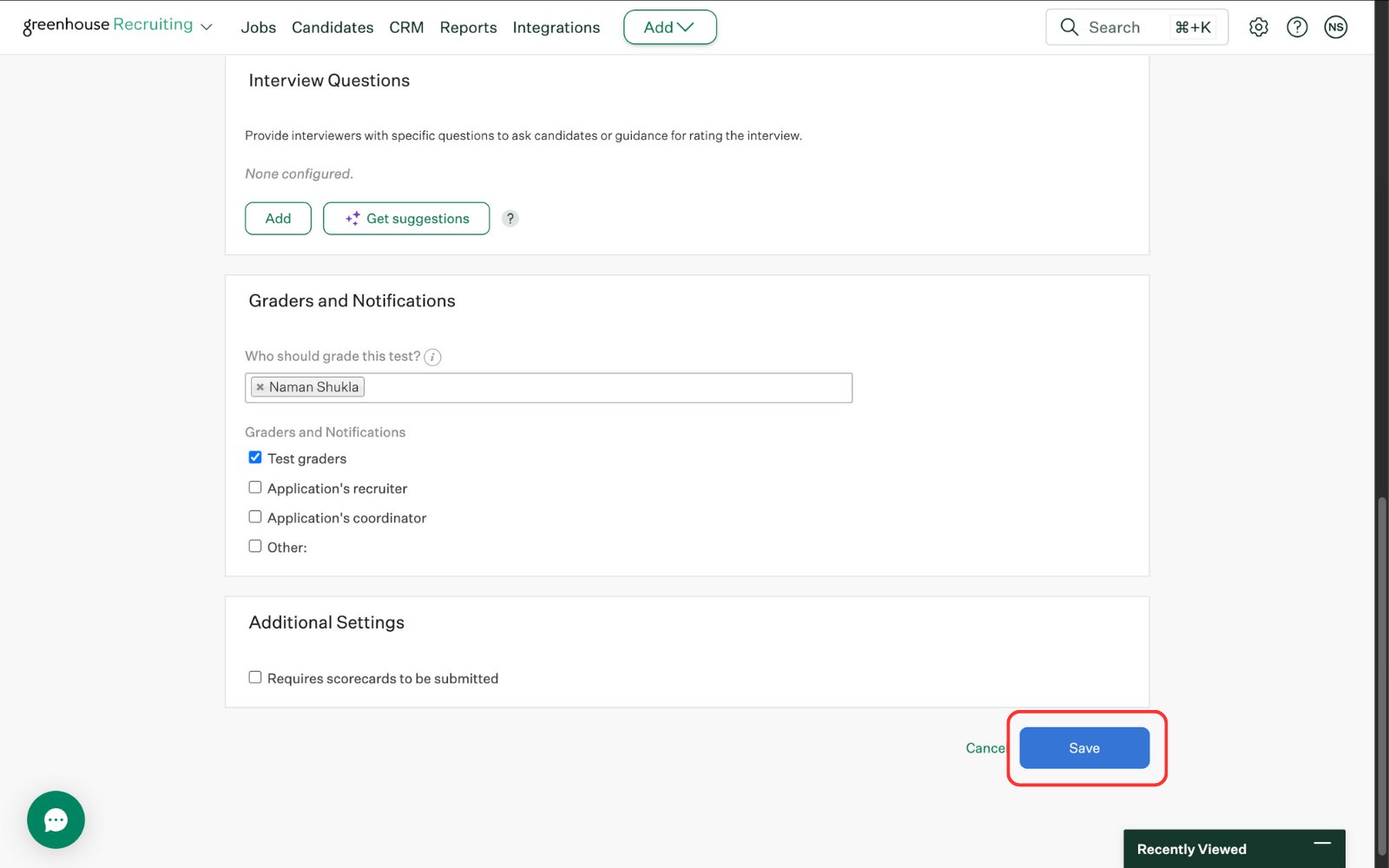
    <Frame caption="Update other settings as needed and click 'Save'.">
      <img src="https://mintcdn.com/casuro/j8XHxnh1nUAEJYS8/images/integrations/greenhouse/workflow/12.png?fit=max&auto=format&n=j8XHxnh1nUAEJYS8&q=85&s=e73f7ee2d2d94811de828e383307984b" alt="Save Settings" width="1600" height="1000" data-path="images/integrations/greenhouse/workflow/12.png" />
    </Frame>

    <br />

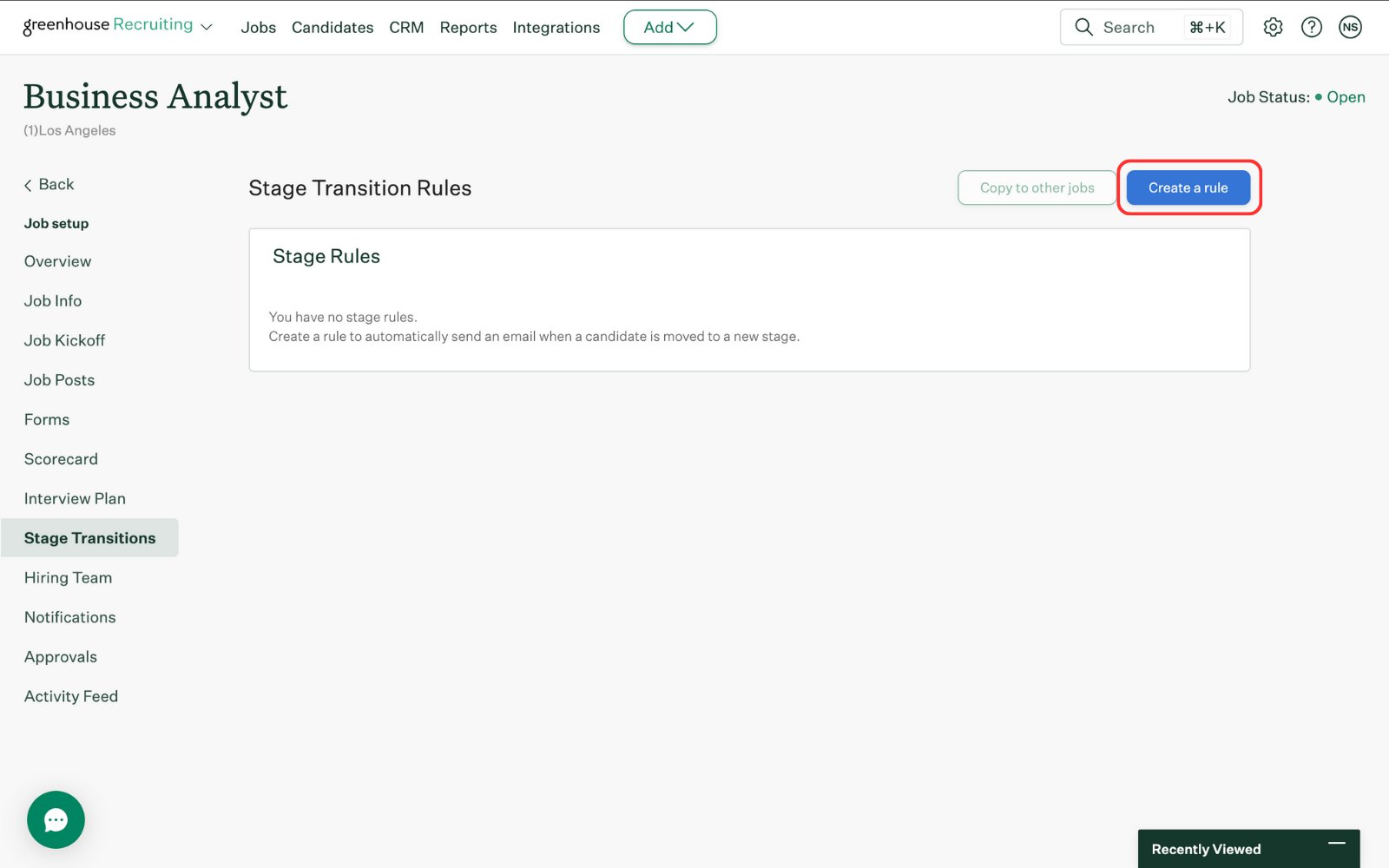
    <Frame caption="[Optional] You can add stage transition rules. Click 'Create a rule'.">
      <img src="https://mintcdn.com/casuro/j8XHxnh1nUAEJYS8/images/integrations/greenhouse/workflow/13.png?fit=max&auto=format&n=j8XHxnh1nUAEJYS8&q=85&s=8dd211647fa3ef8d96047ff2b80d3195" alt="Create Rule" width="1600" height="1000" data-path="images/integrations/greenhouse/workflow/13.png" />
    </Frame>

    <br />

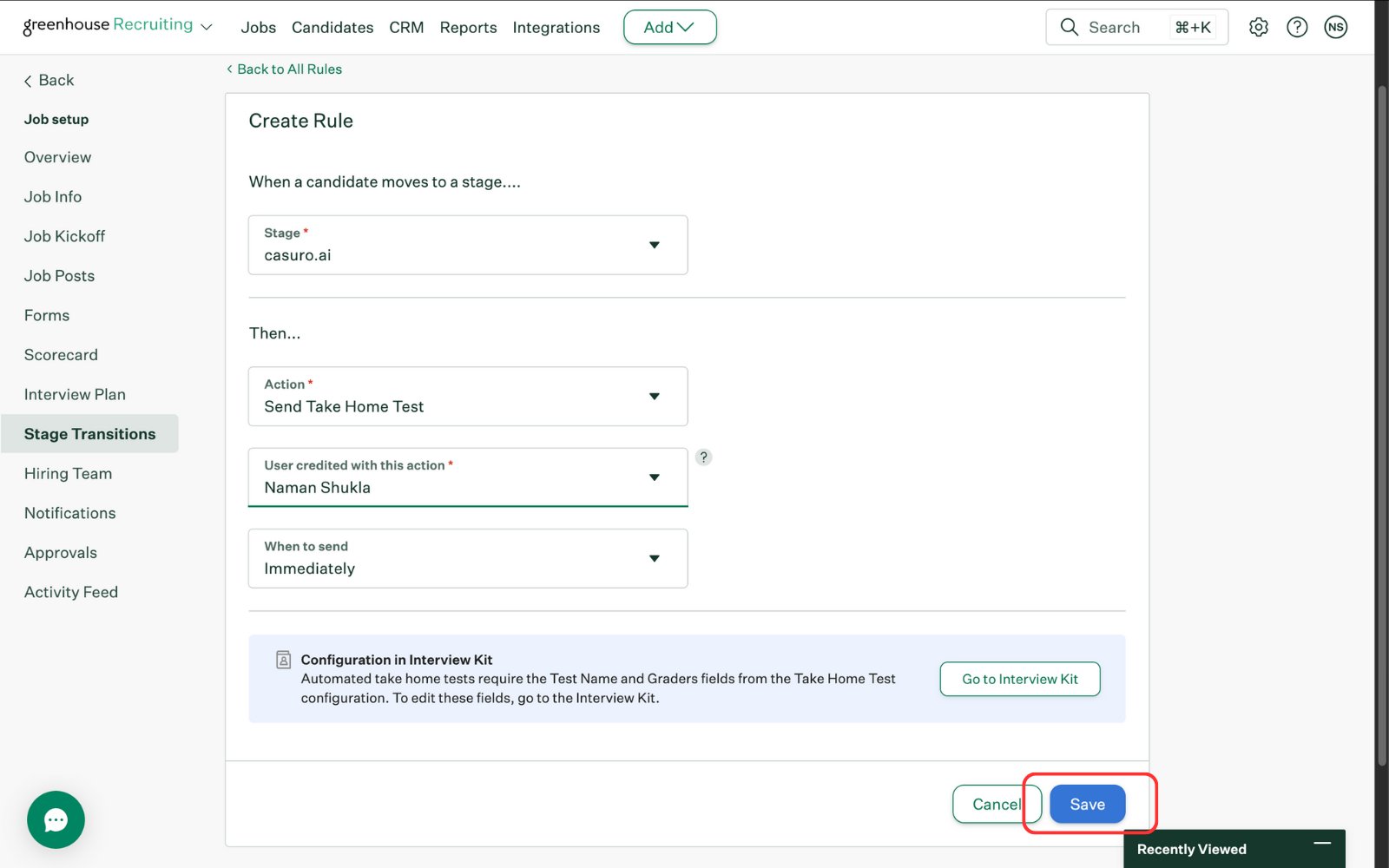
    <Frame caption="[Optional] Once rules are created, hit 'Save'.">
      <img src="https://mintcdn.com/casuro/j8XHxnh1nUAEJYS8/images/integrations/greenhouse/workflow/14.png?fit=max&auto=format&n=j8XHxnh1nUAEJYS8&q=85&s=99232d4ef61091599350c40ed0268916" alt="Save Rule" width="1600" height="1000" data-path="images/integrations/greenhouse/workflow/14.png" />
    </Frame>
  </Step>

  <Step title="Track Progress & Results">
    Monitor candidate status updates and scores directly in Greenhouse.

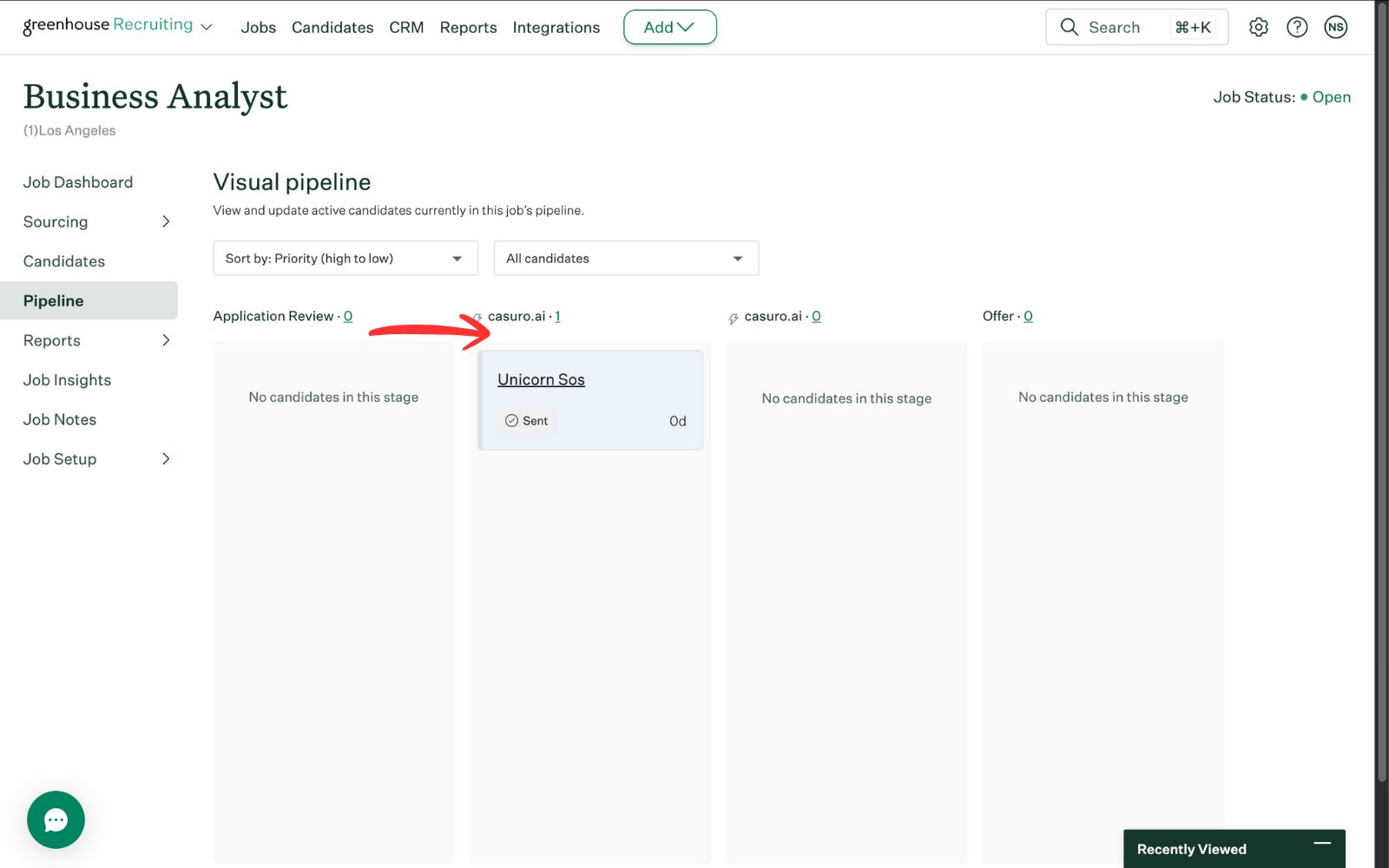
    <Frame caption="Move the candidate to the casuro stage you created in Greenhouse.">
      <img src="https://mintcdn.com/casuro/j8XHxnh1nUAEJYS8/images/integrations/greenhouse/workflow/15.png?fit=max&auto=format&n=j8XHxnh1nUAEJYS8&q=85&s=ab71683e62ca07b924283b869afe7dc9" alt="Move Candidate" width="1600" height="1000" data-path="images/integrations/greenhouse/workflow/15.png" />
    </Frame>

    <br />

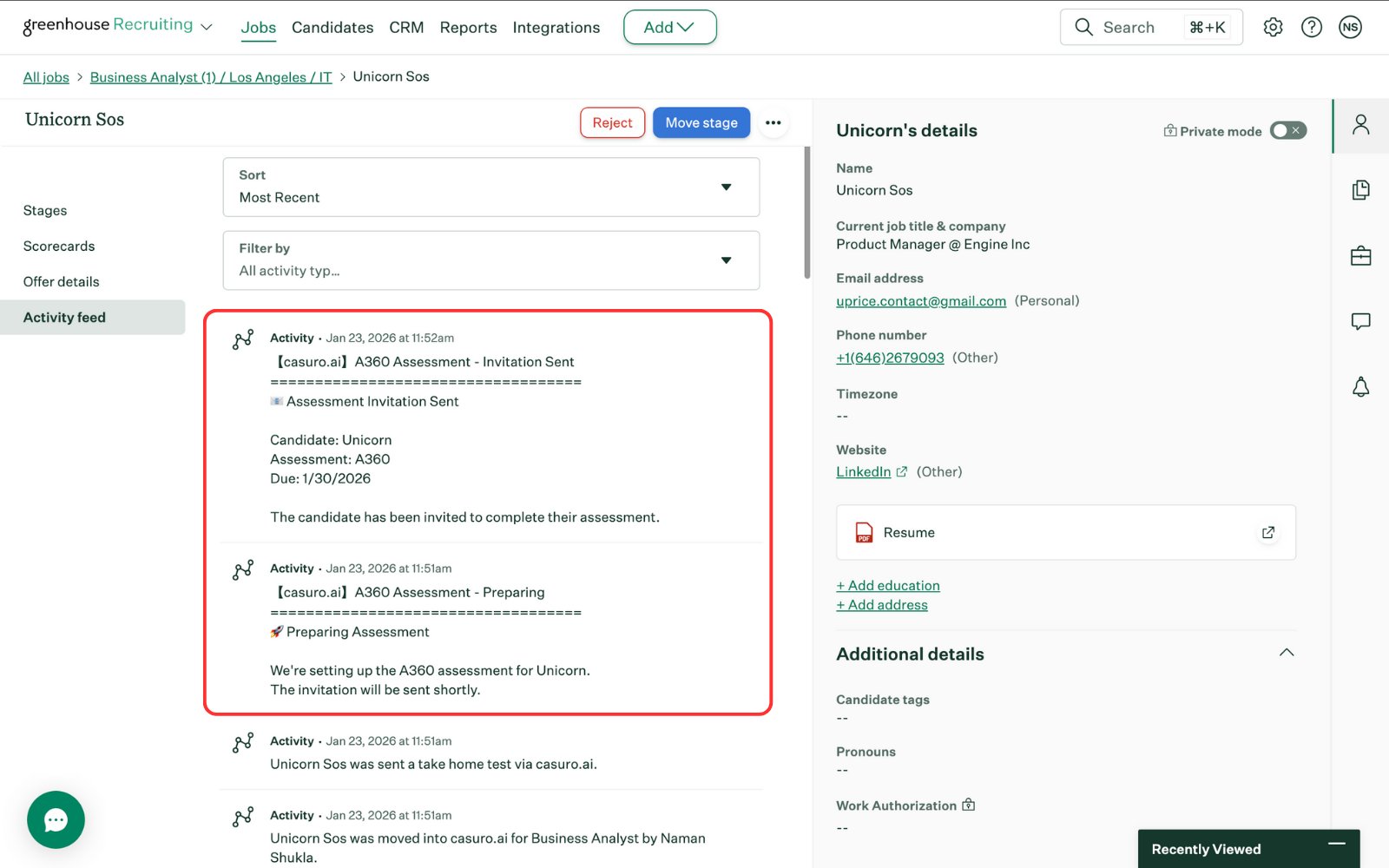
    <Frame caption="In the activity feed, you will see notifications from casuro.ai including preparation and invitation notifications.">
      <img src="https://mintcdn.com/casuro/j8XHxnh1nUAEJYS8/images/integrations/greenhouse/workflow/16.png?fit=max&auto=format&n=j8XHxnh1nUAEJYS8&q=85&s=98d7b4c16df51582afba671f4f93d1fd" alt="Activity Notifications" width="1600" height="1000" data-path="images/integrations/greenhouse/workflow/16.png" />
    </Frame>

    <br />

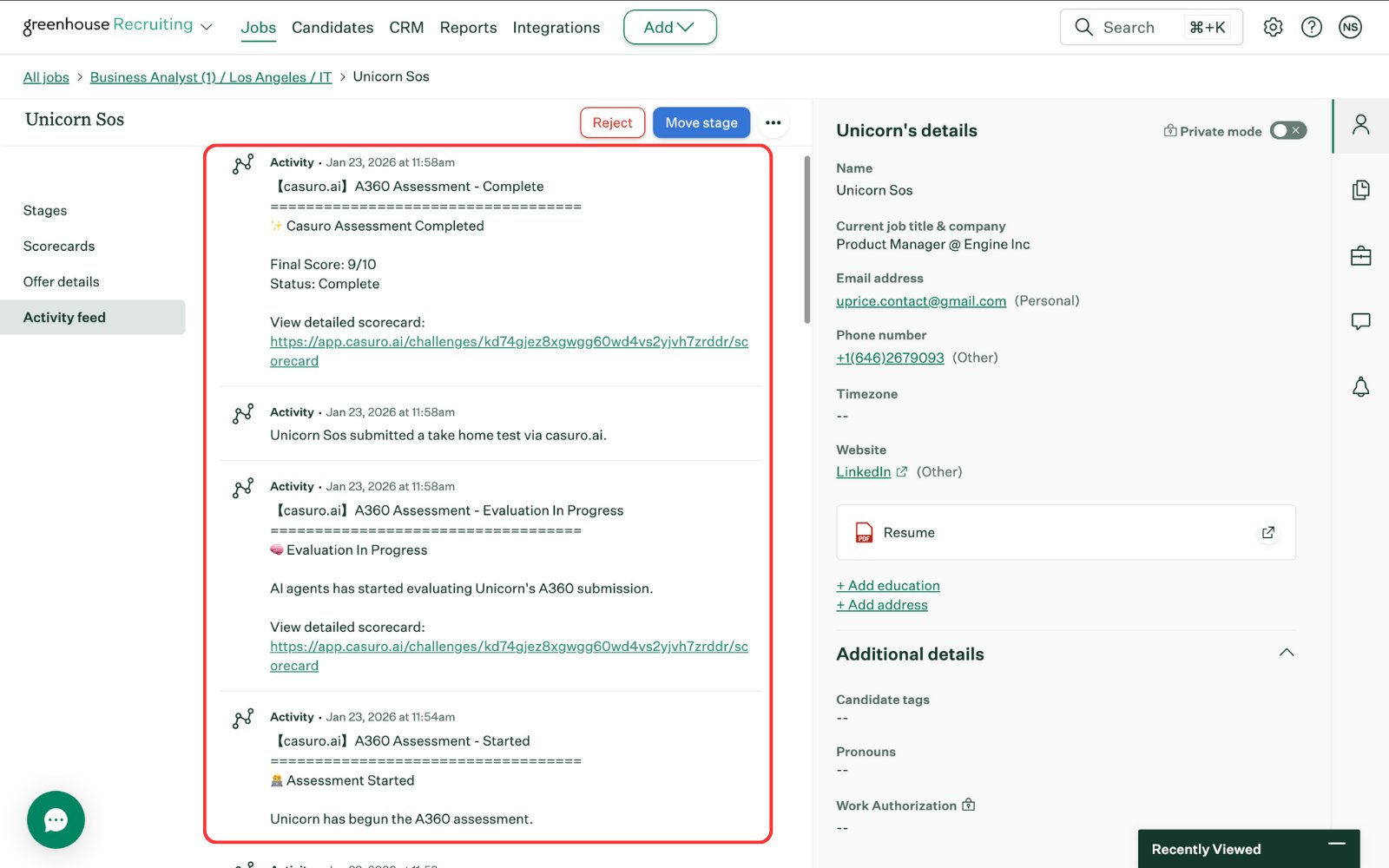
    <Frame caption="Once assessment is completed, you will see the full log trail of the assessment in the activity feed.">
      <img src="https://mintcdn.com/casuro/j8XHxnh1nUAEJYS8/images/integrations/greenhouse/workflow/17.png?fit=max&auto=format&n=j8XHxnh1nUAEJYS8&q=85&s=a71a43e165605616fdd4e90b7799bdb2" alt="Complete Log" width="1600" height="1000" data-path="images/integrations/greenhouse/workflow/17.png" />
    </Frame>

    <br />

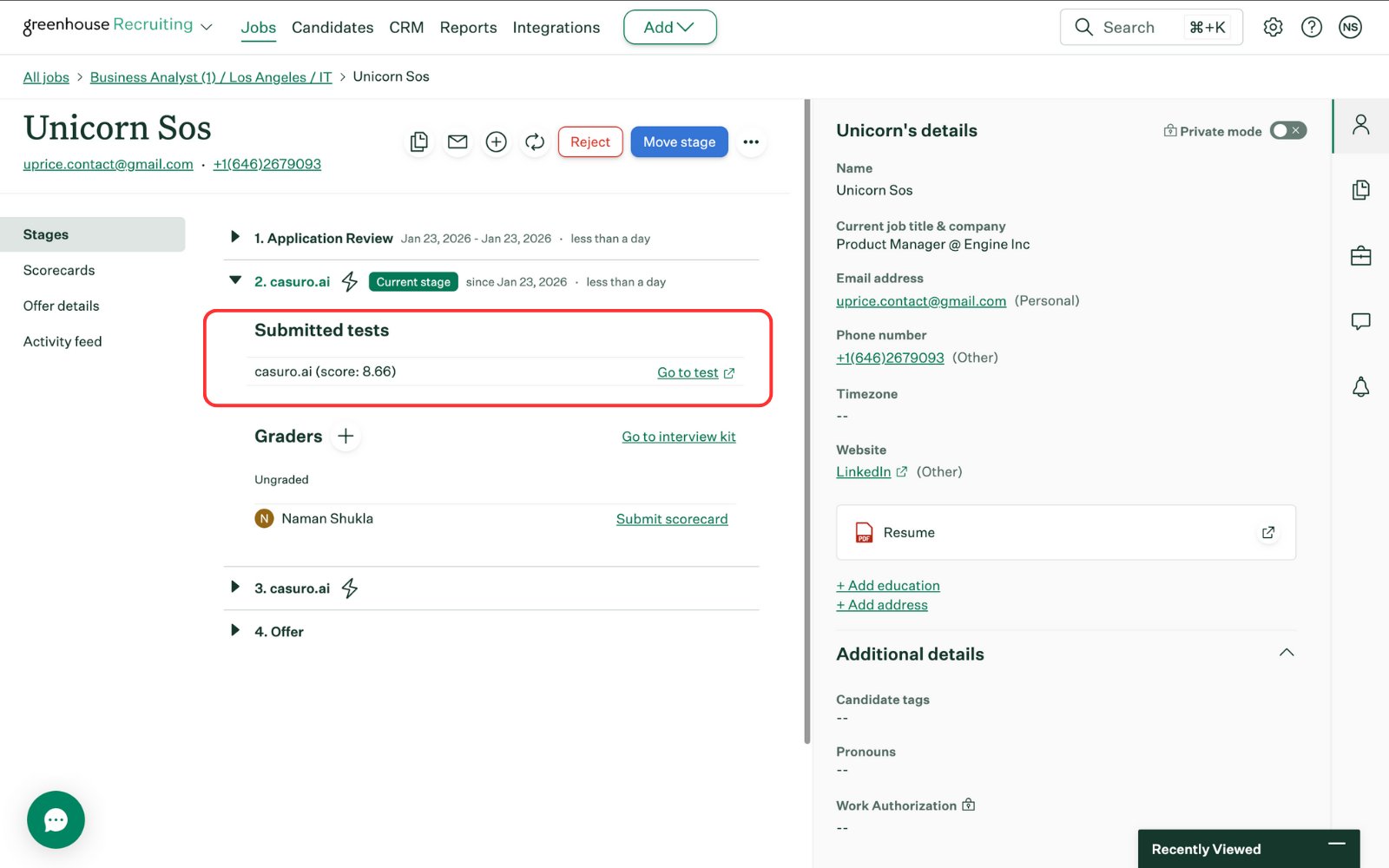
    <Frame caption="In the stages section, you will see the final score of the candidate and a link to the scorecard.">
      <img src="https://mintcdn.com/casuro/j8XHxnh1nUAEJYS8/images/integrations/greenhouse/workflow/18.png?fit=max&auto=format&n=j8XHxnh1nUAEJYS8&q=85&s=e6b559de10a6026f95eb197ebdf6a897" alt="Final Score" width="1600" height="1000" data-path="images/integrations/greenhouse/workflow/18.png" />
    </Frame>

    <br />

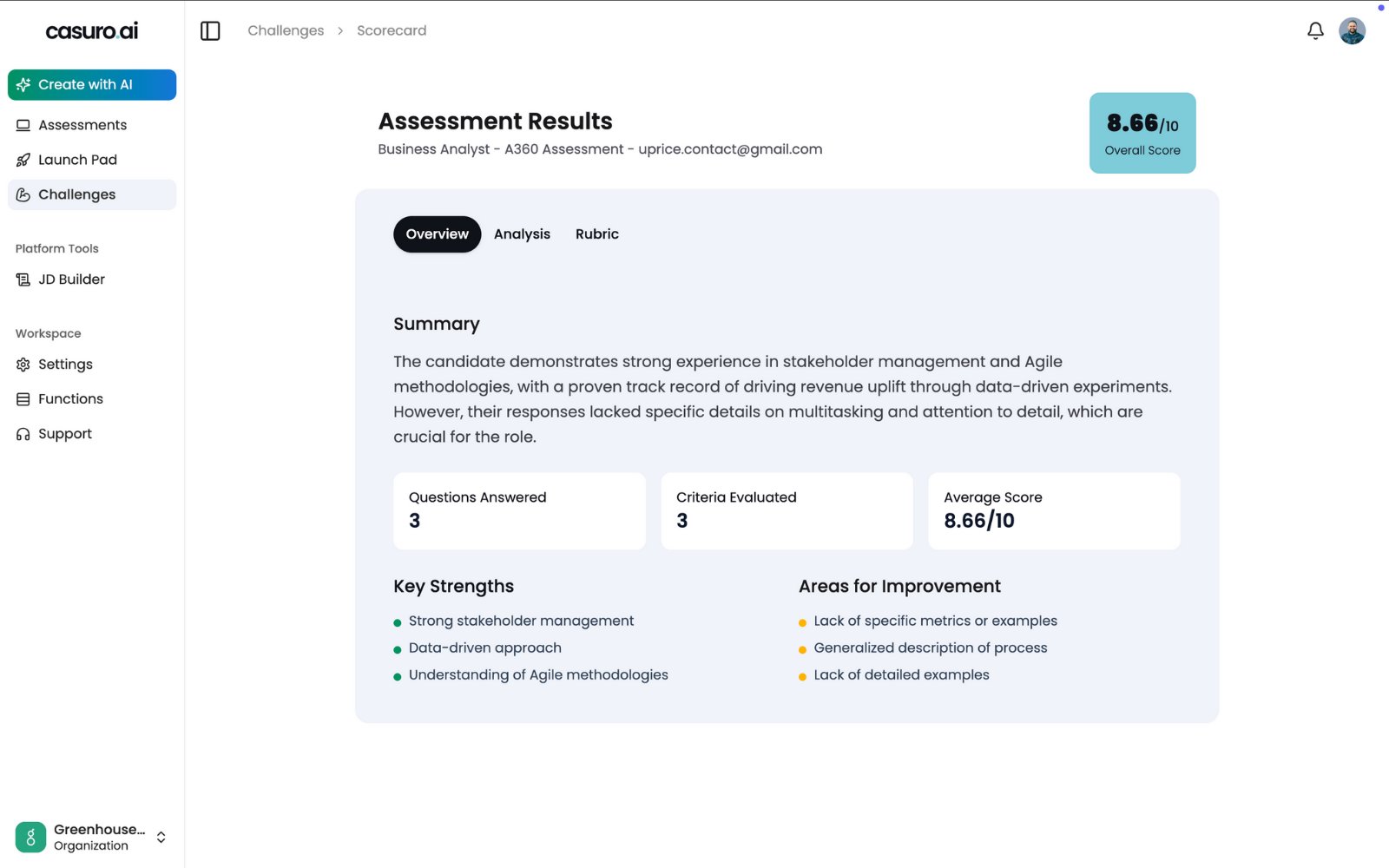
    <Frame caption="Clicking the scorecard link directs you to the detailed casuro.ai scorecard.">
      <img src="https://mintcdn.com/casuro/j8XHxnh1nUAEJYS8/images/integrations/greenhouse/workflow/19.png?fit=max&auto=format&n=j8XHxnh1nUAEJYS8&q=85&s=7544a98aece6df61faf186d1b806daec" alt="Scorecard" width="1600" height="1000" data-path="images/integrations/greenhouse/workflow/19.png" />
    </Frame>

    **Status Updates Include:**

    * Preparing assessment
    * Invitation sent
    * Assessment started
    * Assessment completed
    * Evaluation started
    * Evaluation completed
  </Step>
</Steps>

## Case Study Assessment Workflow

Deploy realistic work simulations automated through your ATS.

<Steps>
  <Step title="Create and Launch Case Study">
    Generate the case study from your job requirements.

    <Frame caption="In casuro, select 'Case Study', click 'New Case Study', and choose 'From Job Posting'.">
      <img src="https://mintcdn.com/casuro/j8XHxnh1nUAEJYS8/images/integrations/greenhouse/workflow/4.png?fit=max&auto=format&n=j8XHxnh1nUAEJYS8&q=85&s=b1a95245121e8766f40d73ab1b38009e" alt="Create Case Study" width="1600" height="1000" data-path="images/integrations/greenhouse/workflow/4.png" />
    </Frame>

    <br />

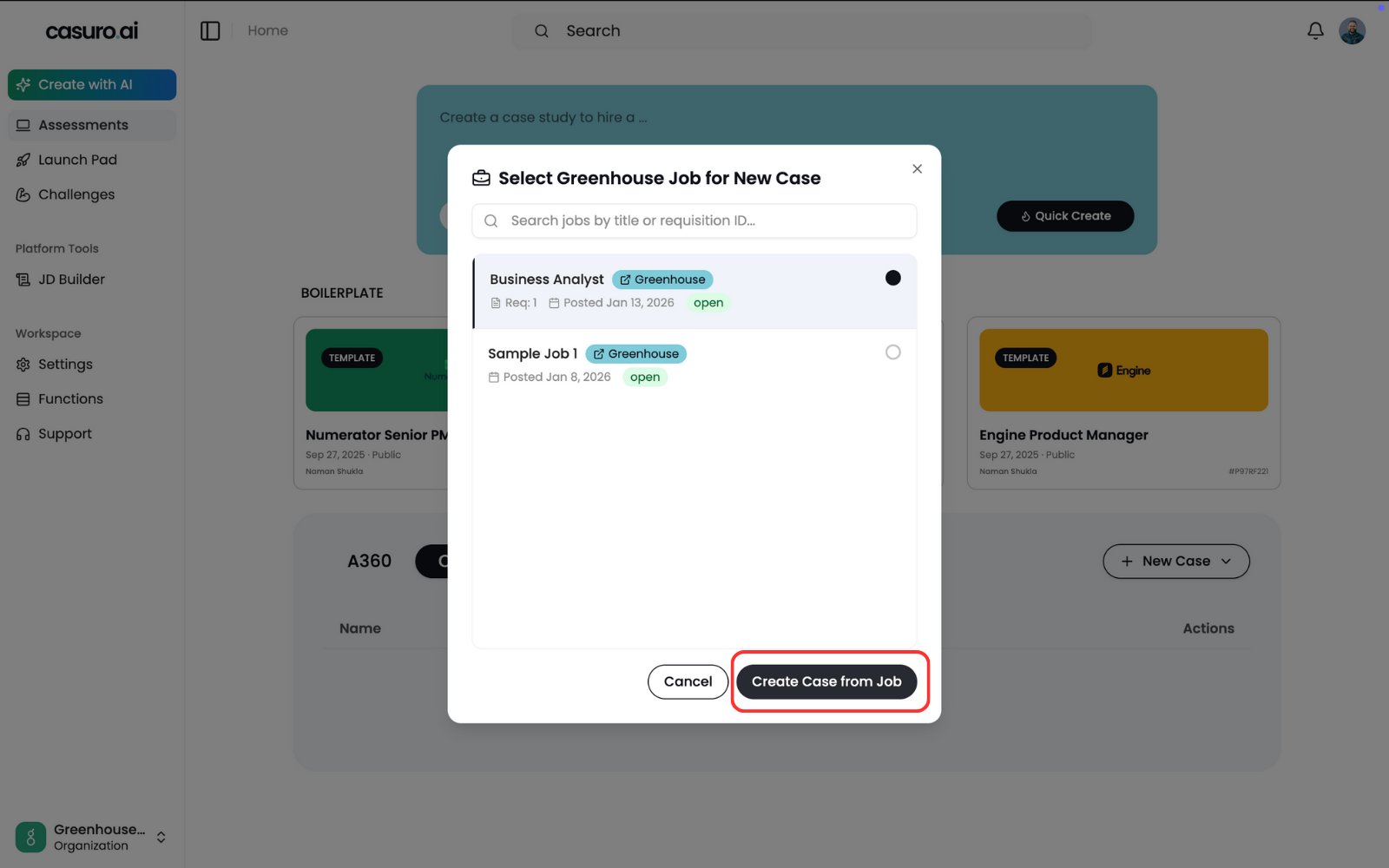
    <Frame caption="Select the job posting to generate the case study context and click 'Create'.">
      <img src="https://mintcdn.com/casuro/j8XHxnh1nUAEJYS8/images/integrations/greenhouse/workflow/5.png?fit=max&auto=format&n=j8XHxnh1nUAEJYS8&q=85&s=f201783b4bf992039874c0a6ab5c089d" alt="Select Job" width="1600" height="1000" data-path="images/integrations/greenhouse/workflow/5.png" />
    </Frame>

    <br />

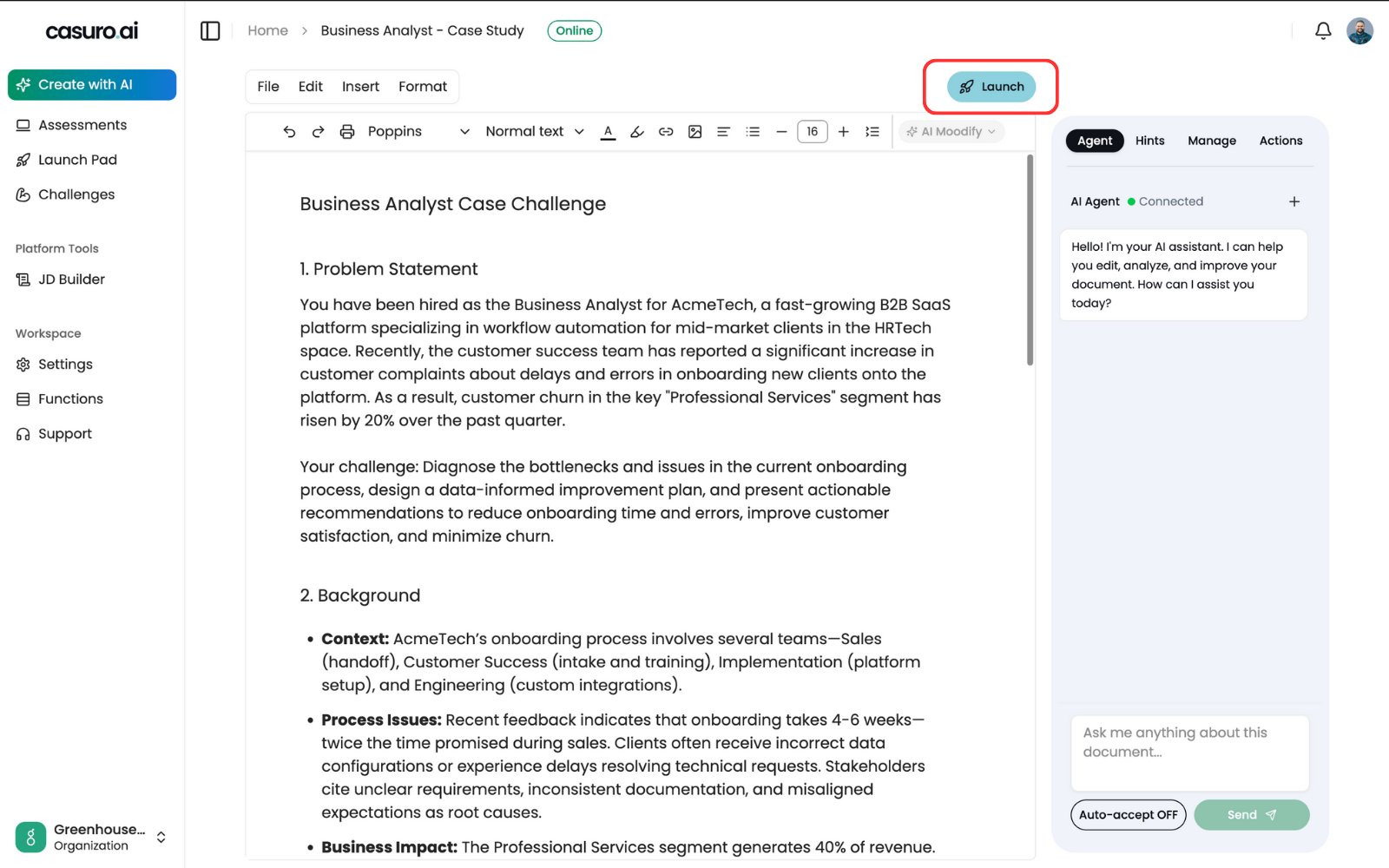
    <Frame caption="Review the generated content in the editor and click 'Launch'. Once launched, this assessment is now available in Greenhouse.">
      <img src="https://mintcdn.com/casuro/j8XHxnh1nUAEJYS8/images/integrations/greenhouse/workflow/6.png?fit=max&auto=format&n=j8XHxnh1nUAEJYS8&q=85&s=5fca00415f199a45bb2e6e2459b7ff4b" alt="Launch Case Study" width="1600" height="1000" data-path="images/integrations/greenhouse/workflow/6.png" />
    </Frame>
  </Step>

  <Step title="Add casuro.ai Stage in Greenhouse">
    Set up a dedicated casuro stage in your hiring pipeline.
    <Frame caption="In Greenhouse, click 'Add Stage' to add a casuro.ai stage.">
      <img src="https://mintcdn.com/casuro/j8XHxnh1nUAEJYS8/images/integrations/greenhouse/workflow/7.png?fit=max&auto=format&n=j8XHxnh1nUAEJYS8&q=85&s=081eb54cfe9cce594a387526468b639d" alt="Add Stage" width="1600" height="1000" data-path="images/integrations/greenhouse/workflow/7.png" />
    </Frame>

    <br />

    <Frame caption="Select the casuro.ai stage and click 'Add'. Note: You need to provide your account manager with the API key to enable the casuro.ai assessment stage. More information is in the setup page.">
      <img src="https://mintcdn.com/casuro/j8XHxnh1nUAEJYS8/images/integrations/greenhouse/workflow/8.png?fit=max&auto=format&n=j8XHxnh1nUAEJYS8&q=85&s=a76bbd192e1d9f301efc6ef215370e6c" alt="Select casuro Stage" width="1600" height="1000" data-path="images/integrations/greenhouse/workflow/8.png" />
    </Frame>

    <br />

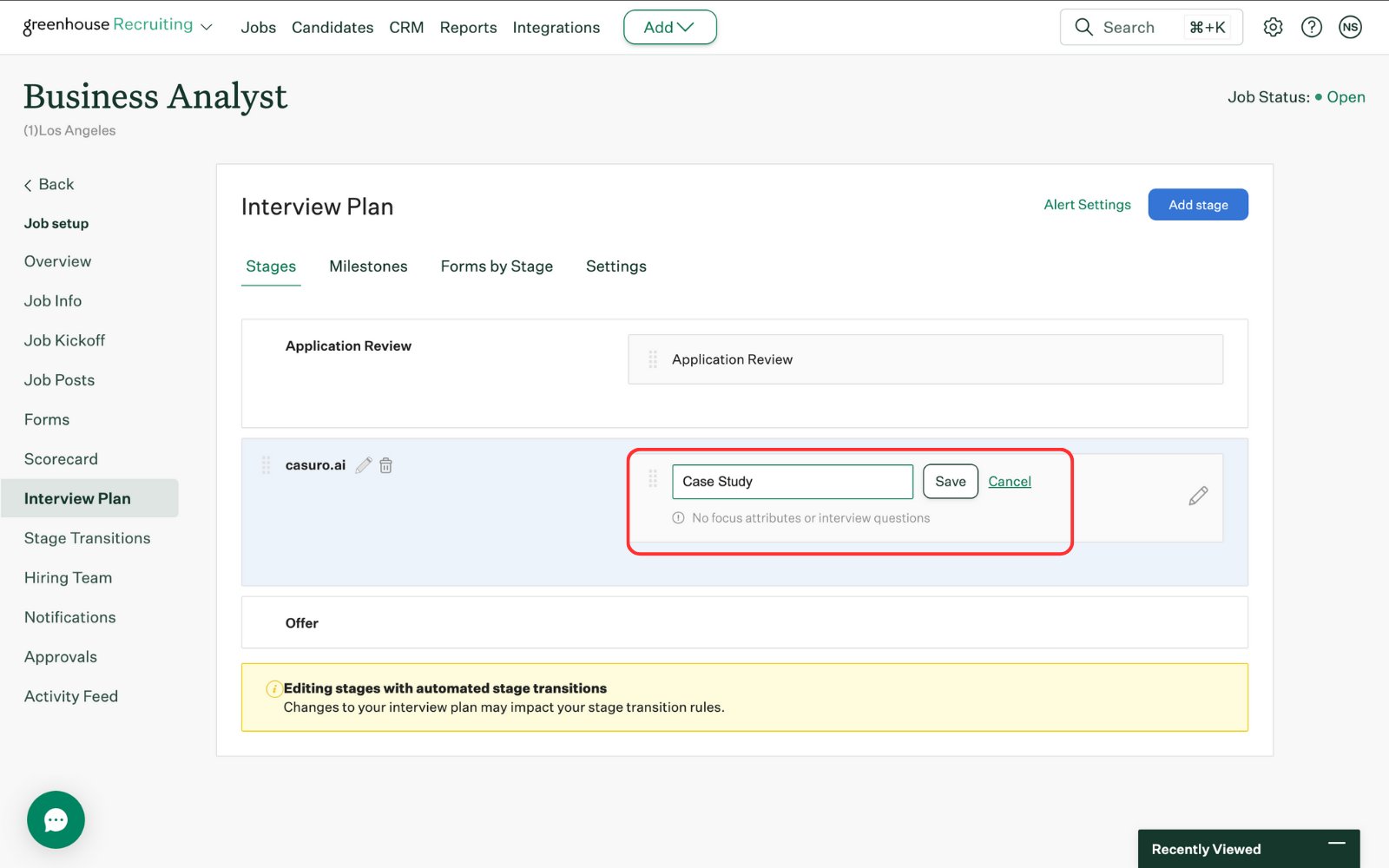
    <Frame caption="Give the stage a relevant name and click 'Save'.">
      <img src="https://mintcdn.com/casuro/j8XHxnh1nUAEJYS8/images/integrations/greenhouse/workflow/10.png?fit=max&auto=format&n=j8XHxnh1nUAEJYS8&q=85&s=e578b96e089669be56259fa96e06caeb" alt="Name Stage" width="1600" height="1000" data-path="images/integrations/greenhouse/workflow/10.png" />
    </Frame>
  </Step>

  <Step title="Configure the Stage">
    Set up the assessment and automation rules for the stage.
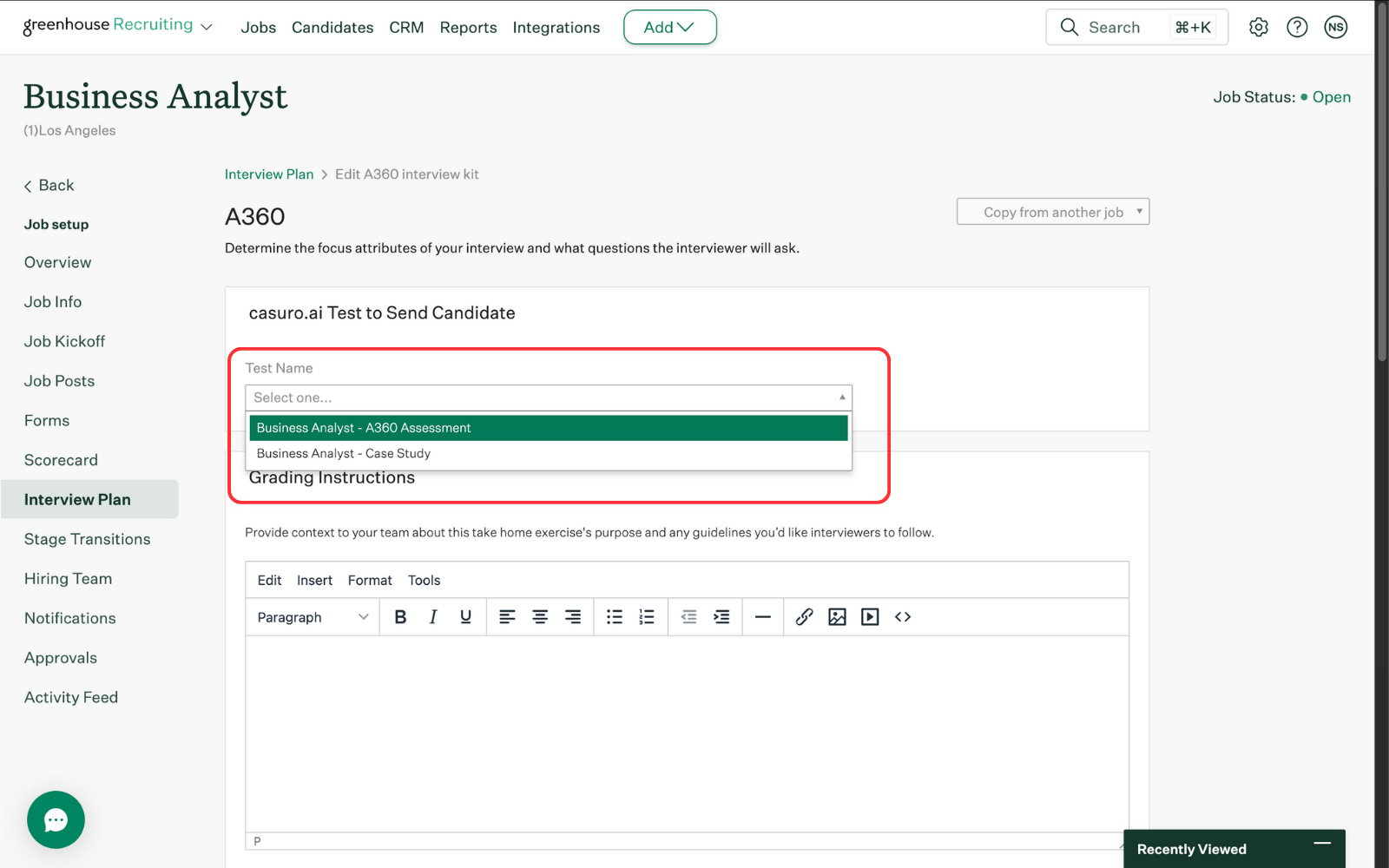
    <Frame caption="Edit the stage and select the assessment you want to use. All launched assessments are available in Greenhouse.">
      <img src="https://mintcdn.com/casuro/j8XHxnh1nUAEJYS8/images/integrations/greenhouse/workflow/11.png?fit=max&auto=format&n=j8XHxnh1nUAEJYS8&q=85&s=256b766ab781216ad181b1f937575259" alt="Select Assessment" width="1600" height="1000" data-path="images/integrations/greenhouse/workflow/11.png" />
    </Frame>

    <br />

    <Frame caption="Update other settings as needed and click 'Save'.">
      <img src="https://mintcdn.com/casuro/j8XHxnh1nUAEJYS8/images/integrations/greenhouse/workflow/12.png?fit=max&auto=format&n=j8XHxnh1nUAEJYS8&q=85&s=e73f7ee2d2d94811de828e383307984b" alt="Save Settings" width="1600" height="1000" data-path="images/integrations/greenhouse/workflow/12.png" />
    </Frame>

    <br />

    <Frame caption="[Optional] You can add stage transition rules. Click 'Create a rule'.">
      <img src="https://mintcdn.com/casuro/j8XHxnh1nUAEJYS8/images/integrations/greenhouse/workflow/13.png?fit=max&auto=format&n=j8XHxnh1nUAEJYS8&q=85&s=8dd211647fa3ef8d96047ff2b80d3195" alt="Create Rule" width="1600" height="1000" data-path="images/integrations/greenhouse/workflow/13.png" />
    </Frame>

    <br />

    <Frame caption="[Optional] Once rules are created, hit 'Save'.">
      <img src="https://mintcdn.com/casuro/j8XHxnh1nUAEJYS8/images/integrations/greenhouse/workflow/14.png?fit=max&auto=format&n=j8XHxnh1nUAEJYS8&q=85&s=99232d4ef61091599350c40ed0268916" alt="Save Rule" width="1600" height="1000" data-path="images/integrations/greenhouse/workflow/14.png" />
    </Frame>
  </Step>

  <Step title="Track Progress & Results">
    View detailed status updates and scores in the candidate's profile.
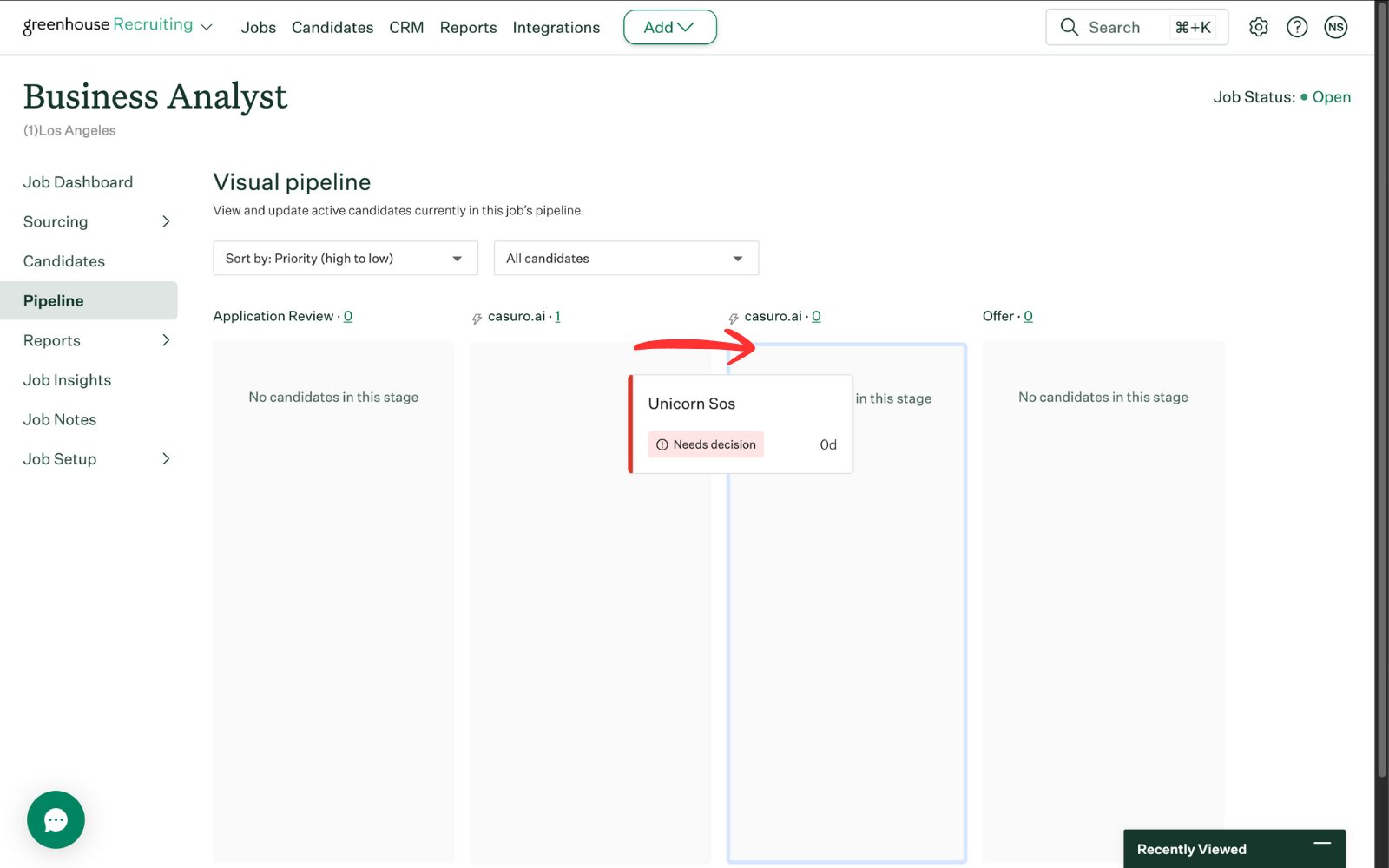
    <Frame caption="Move the candidate to the casuro stage you created in Greenhouse.">
      <img src="https://mintcdn.com/casuro/j8XHxnh1nUAEJYS8/images/integrations/greenhouse/workflow/20.png?fit=max&auto=format&n=j8XHxnh1nUAEJYS8&q=85&s=05143a14645fc9bc98ac725431d35ee8" alt="Move Candidate" width="1600" height="1000" data-path="images/integrations/greenhouse/workflow/20.png" />
    </Frame>

    <br />

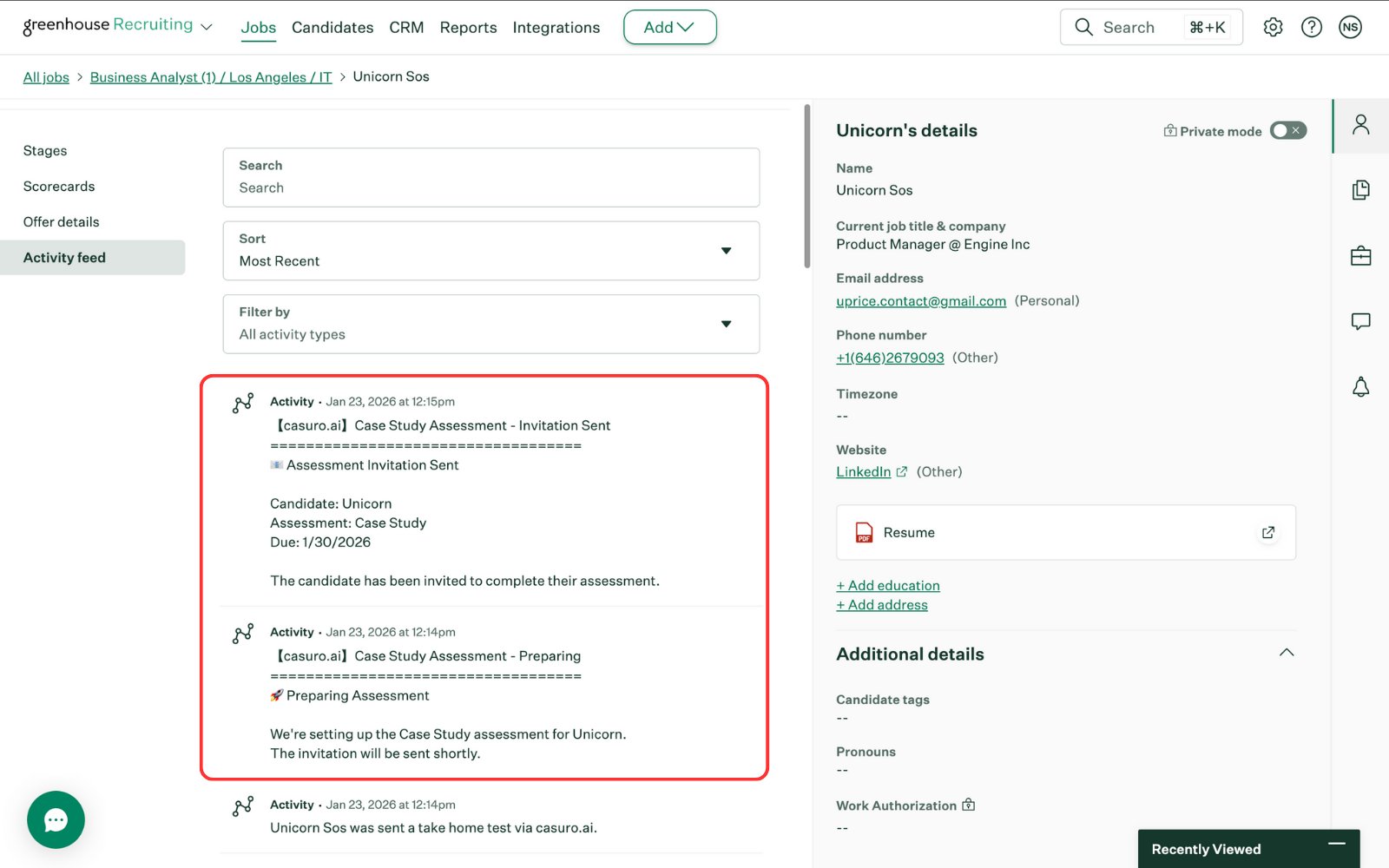
    <Frame caption="In the activity feed, you will see notifications from casuro.ai including preparation and invitation notifications.">
      <img src="https://mintcdn.com/casuro/j8XHxnh1nUAEJYS8/images/integrations/greenhouse/workflow/21.png?fit=max&auto=format&n=j8XHxnh1nUAEJYS8&q=85&s=4ddb409126dd7ab845633019a677455a" alt="Activity Notifications" width="1600" height="1000" data-path="images/integrations/greenhouse/workflow/21.png" />
    </Frame>

    <br />

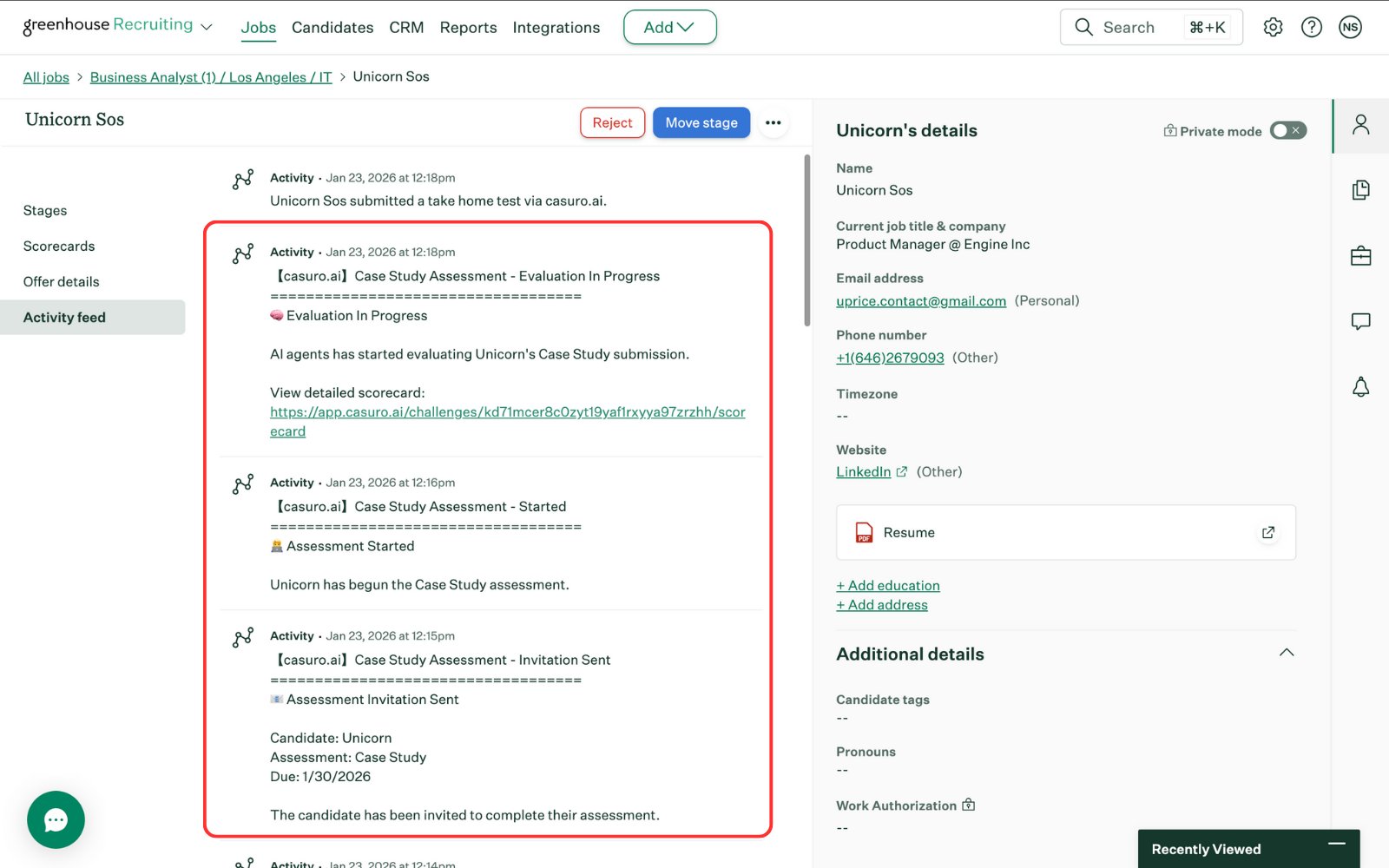
    <Frame caption="Once completed, you will see the full log trail of the assessment in the activity feed.">
      <img src="https://mintcdn.com/casuro/j8XHxnh1nUAEJYS8/images/integrations/greenhouse/workflow/22.png?fit=max&auto=format&n=j8XHxnh1nUAEJYS8&q=85&s=c1c2468414445577fdf27f84f7b9d7e1" alt="Complete Log" width="1600" height="1000" data-path="images/integrations/greenhouse/workflow/22.png" />
    </Frame>

    <br />

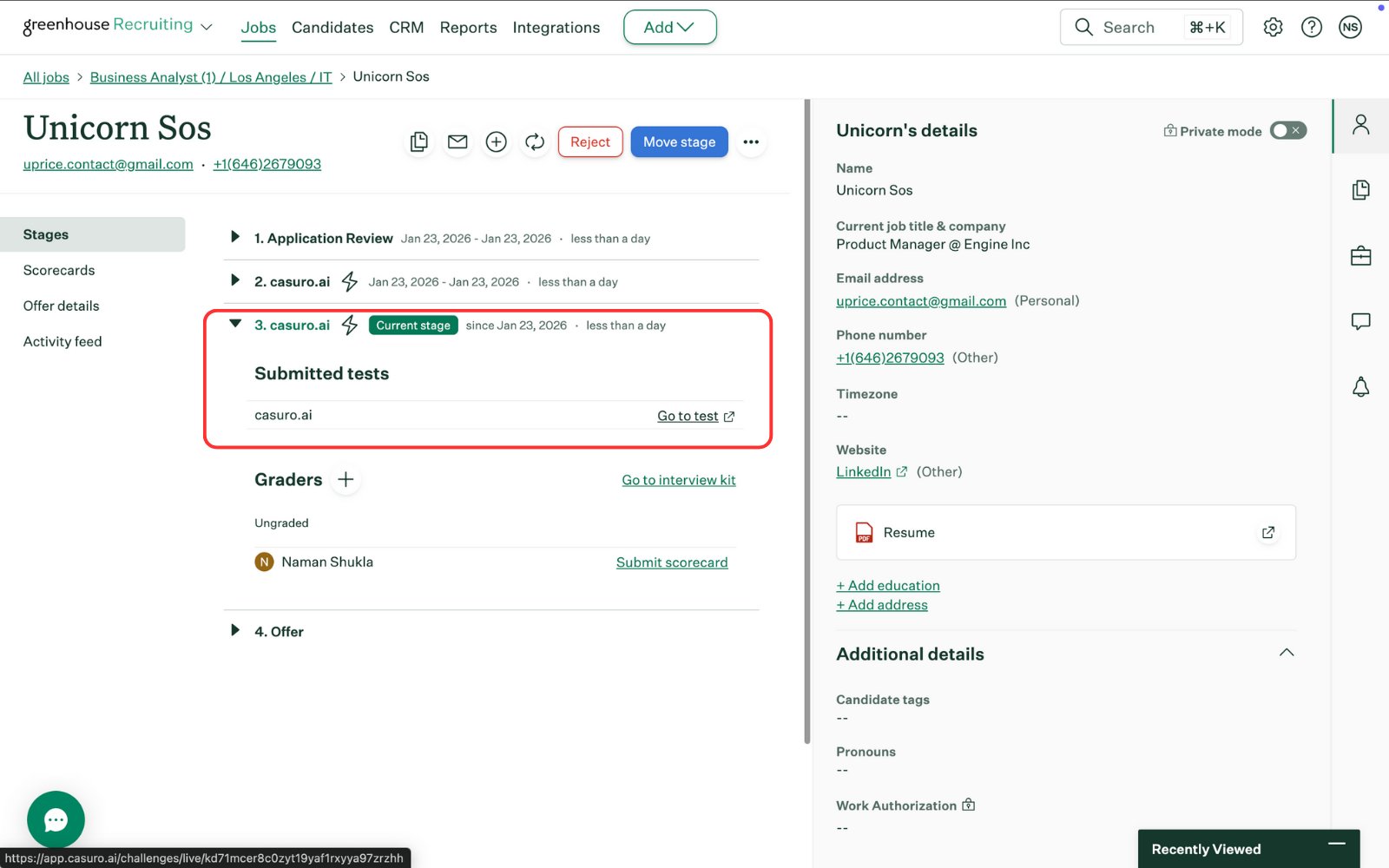
    <Frame caption="In the stages section, you will see the final score of the candidate and a link to the scorecard.">
      <img src="https://mintcdn.com/casuro/j8XHxnh1nUAEJYS8/images/integrations/greenhouse/workflow/23.png?fit=max&auto=format&n=j8XHxnh1nUAEJYS8&q=85&s=acf6b27793f813fd0d241f5171d06e67" alt="Final Score" width="1600" height="1000" data-path="images/integrations/greenhouse/workflow/23.png" />
    </Frame>

    <br />

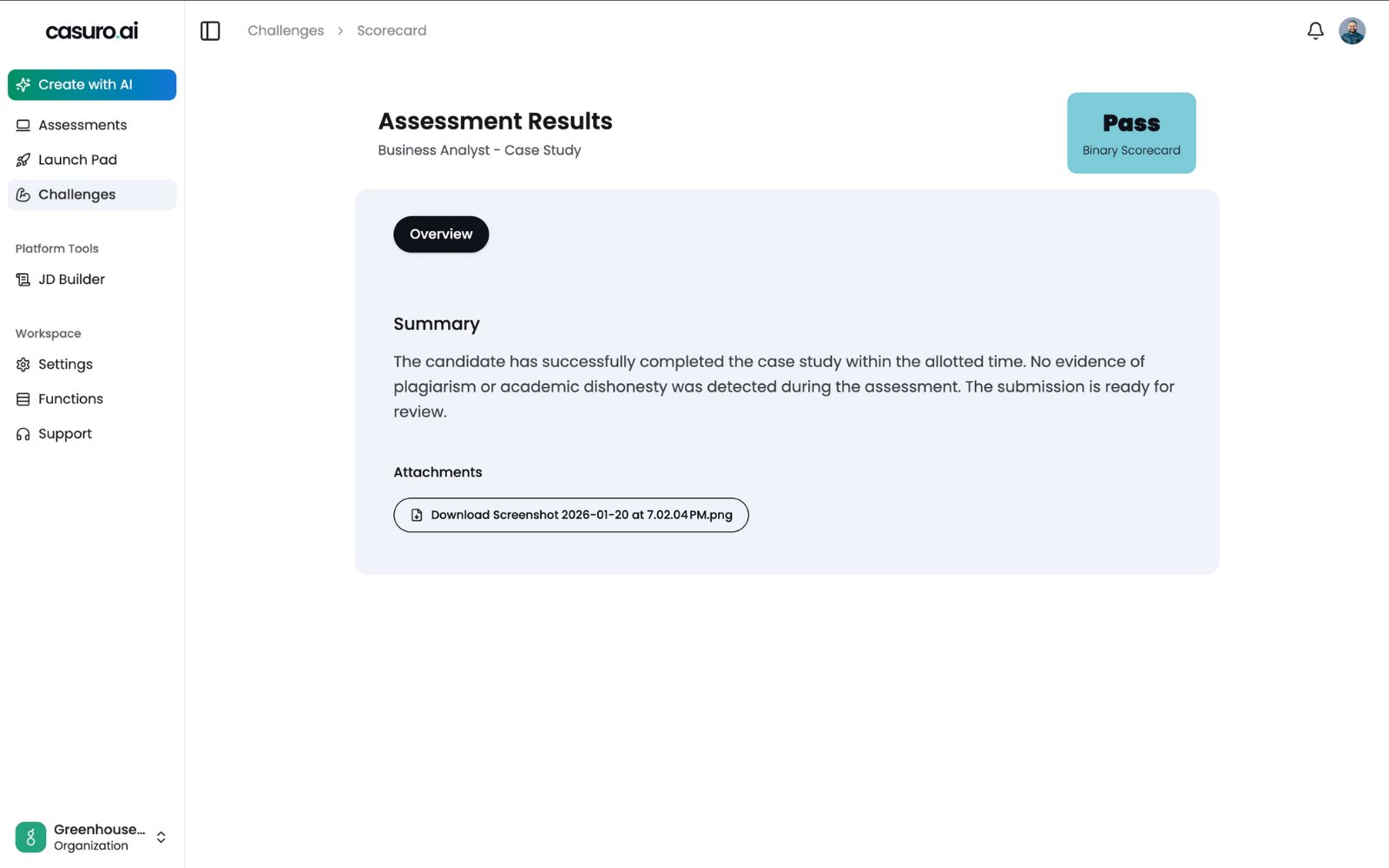
    <Frame caption="Clicking the scorecard link directs you to the detailed casuro.ai scorecard.">
      <img src="https://mintcdn.com/casuro/j8XHxnh1nUAEJYS8/images/integrations/greenhouse/workflow/24.png?fit=max&auto=format&n=j8XHxnh1nUAEJYS8&q=85&s=a70f708348f29a41685cd311ade50de8" alt="Scorecard" width="1600" height="1000" data-path="images/integrations/greenhouse/workflow/24.png" />
    </Frame>

    **Status Updates Include:**

    * Preparing assessment
    * Invitation sent
    * Assessment started
    * Assessment completed
    * Evaluation started
    * Evaluation completed
  </Step>
</Steps>