> ## Documentation Index
> Fetch the complete documentation index at: https://docs.casuro.ai/llms.txt
> Use this file to discover all available pages before exploring further.

# Setup

> Setup Ashby native integration with casuro.ai

<Callout icon="party-popper" color="#FD4B22" iconType="regular">
  Proud to be official integration partner of Ashby!
</Callout>

Watch this short video to learn how to setup Ashby native integration with casuro.ai.

<video controls className="w-full aspect-video rounded-xl" src="https://brand.assets.casuro.ai/videos/Ashby/IntegrationWalthrough_Ashby_22.26.39.mp4" />

## Step by step guide

Follow these simple steps to get started with Ashby integration with casuro.ai
<Steps>
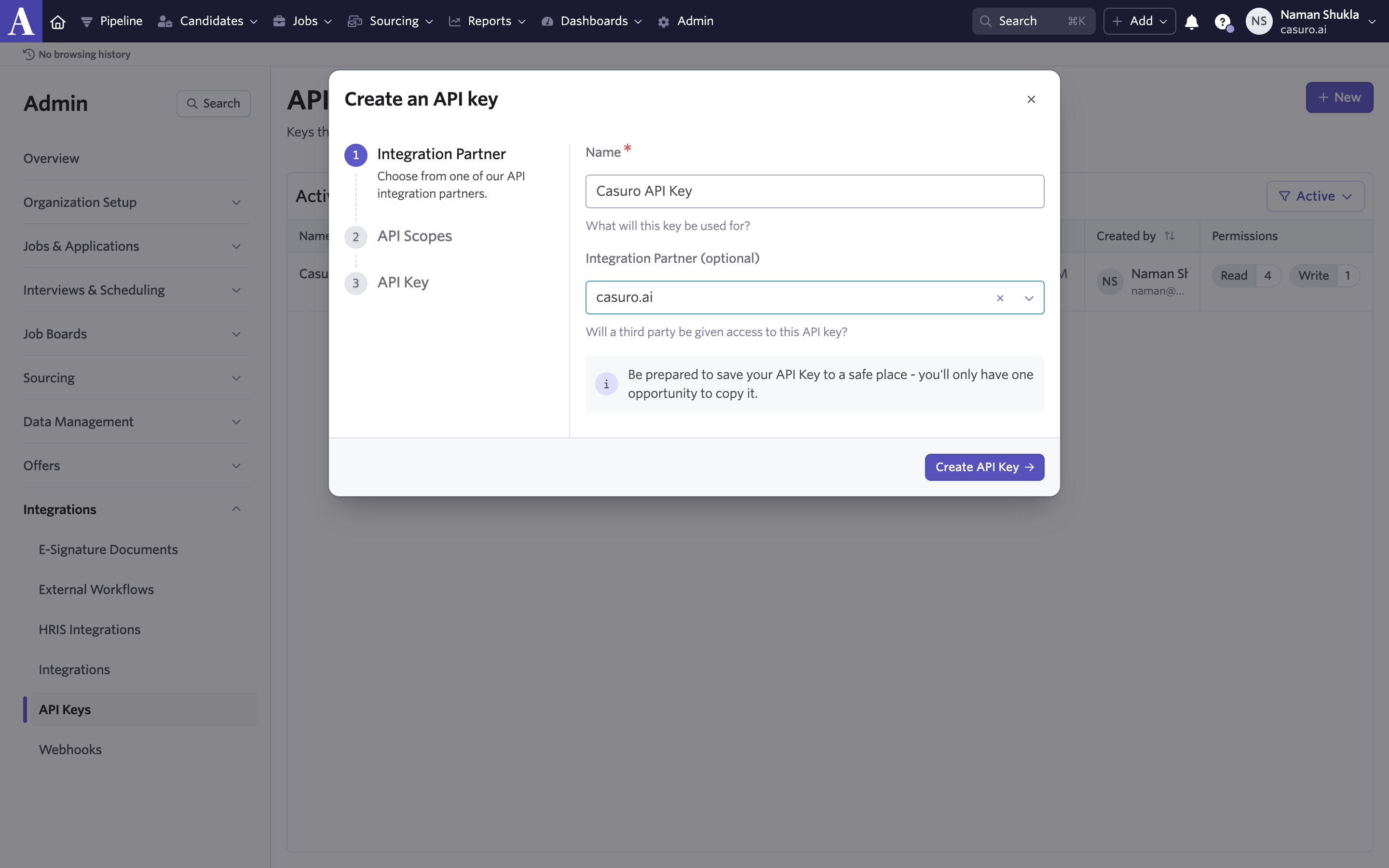
  <Step title="Create API key in Ashby">
    <Frame caption="Login to Ashby and go to Admin and then API keys. Click on create API key, give it a name and select casuro.ai as integration partner. Copy the API key.">
      <img src="https://mintcdn.com/casuro/gA-onDWXKx268PjJ/images/integrations/ashby/setup/step1.png?fit=max&auto=format&n=gA-onDWXKx268PjJ&q=85&s=776b6ce62996c9ca380c698f0b3e8066" alt="Descriptive alt text" width="2880" height="1800" data-path="images/integrations/ashby/setup/step1.png" />
    </Frame>
  </Step>

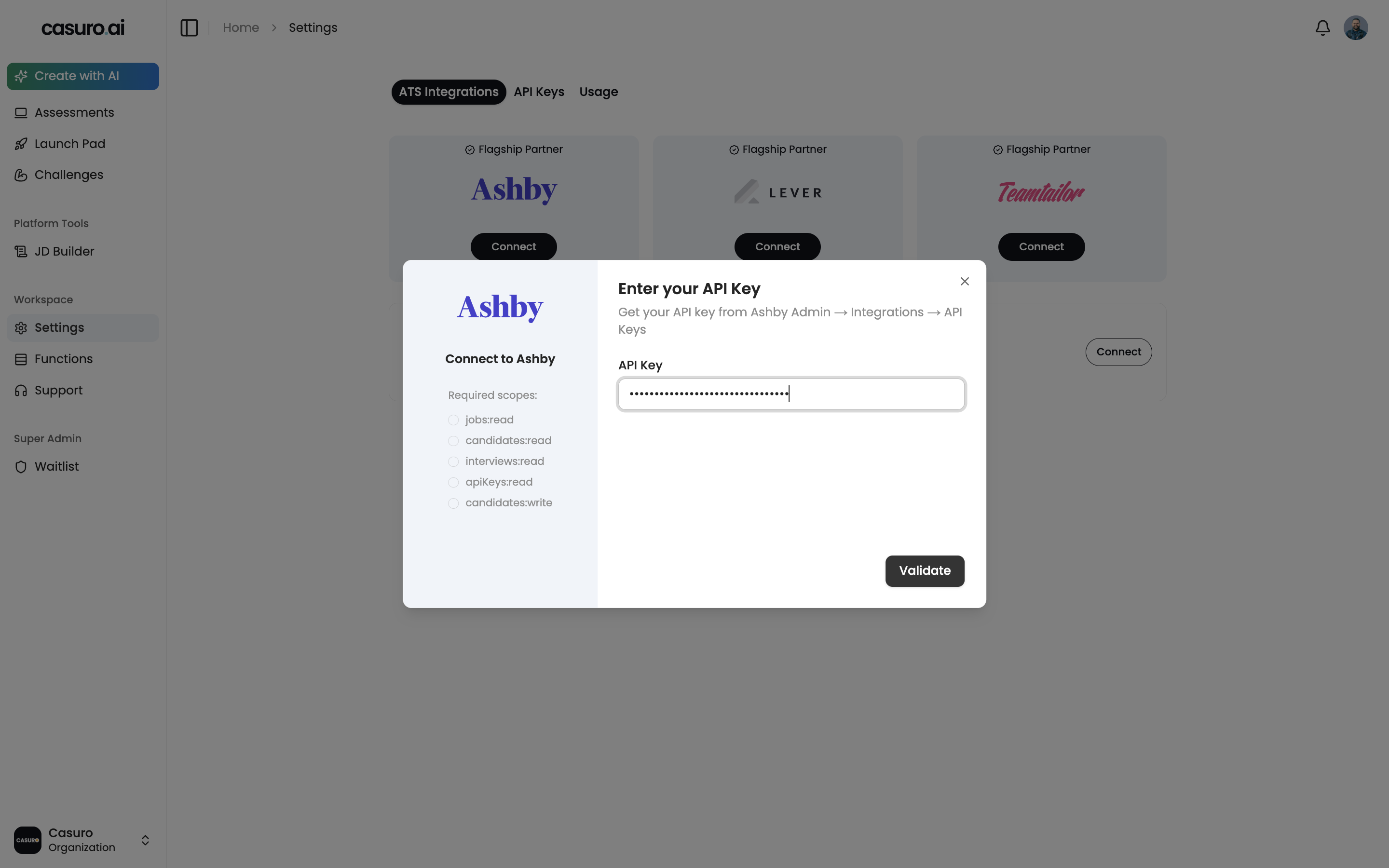
  <Step title="Add Ashby API Key in Casuro">
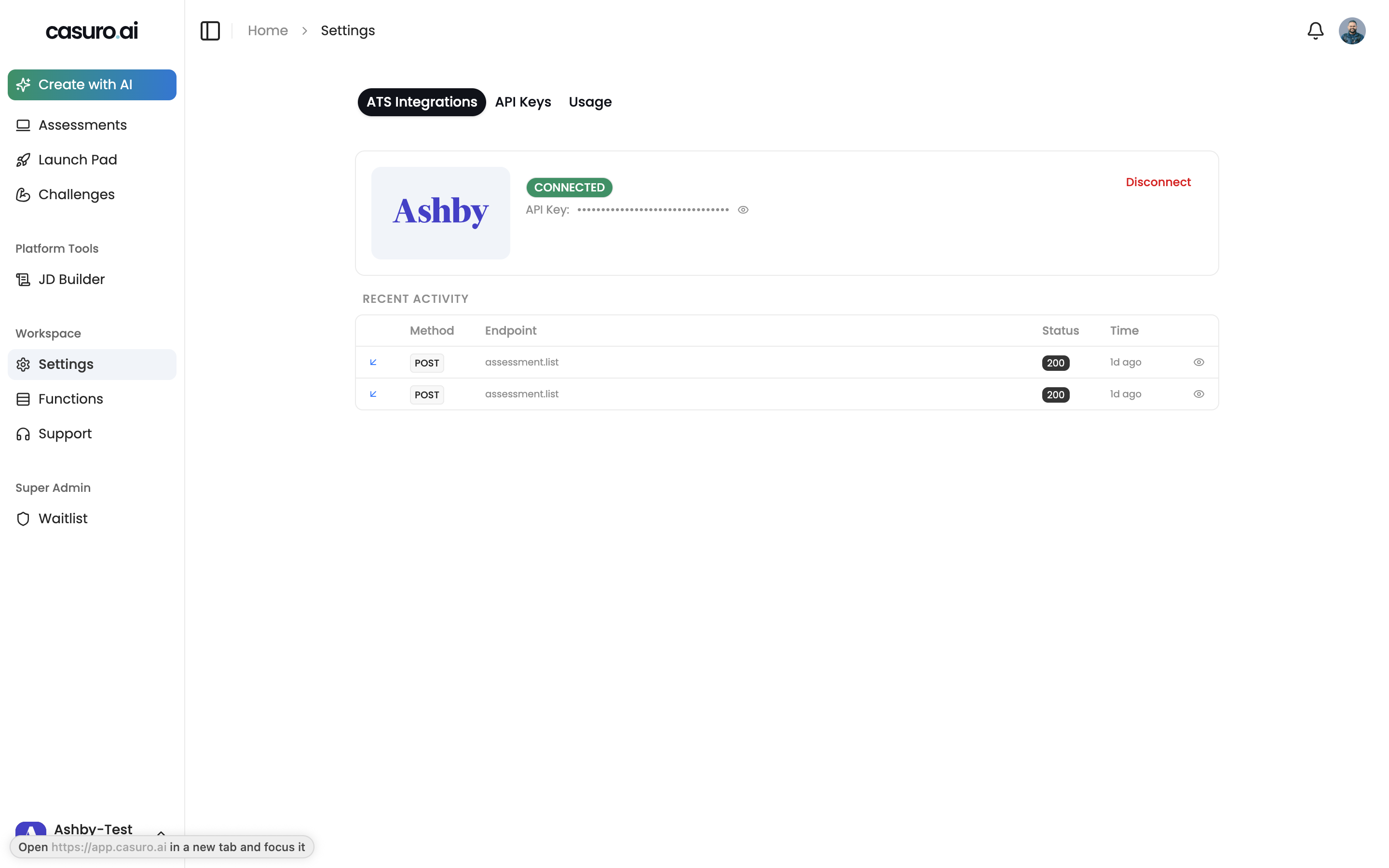
    <Frame caption="Now, login to casuro.ai and open settings. Under the integrations tab, click on add integration and select Ashby. Paste the API key from Ashby">
      <img src="https://mintcdn.com/casuro/gA-onDWXKx268PjJ/images/integrations/ashby/setup/step2.png?fit=max&auto=format&n=gA-onDWXKx268PjJ&q=85&s=cd24d1a049d52270b42b32ffd791fe89" alt="Descriptive alt text" width="2880" height="1800" data-path="images/integrations/ashby/setup/step2.png" />
    </Frame>
  </Step>

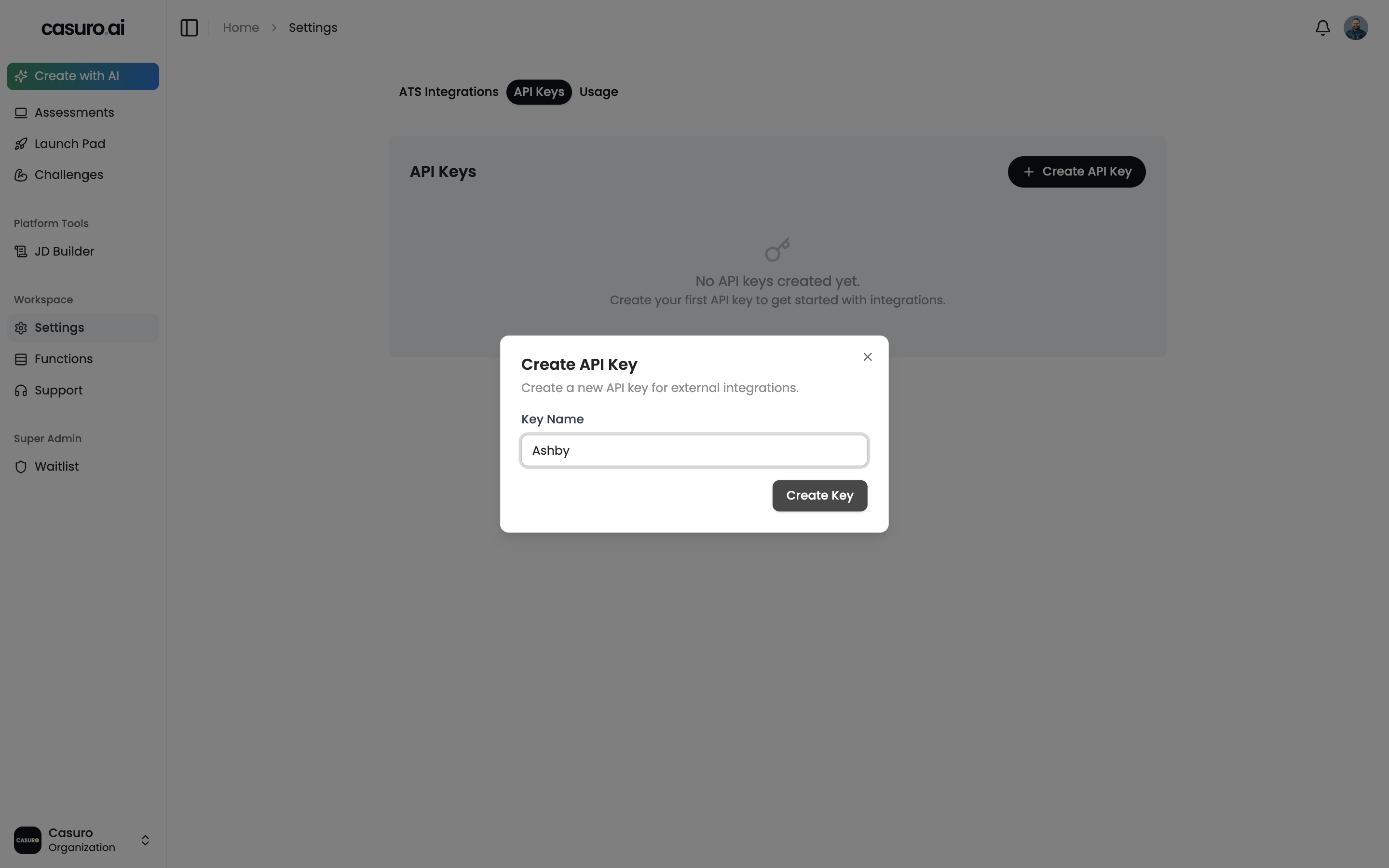
  <Step title="Create API key in casuro.ai">
    <Frame caption="Click on API keys tab in settings page and click on create API key. Give it a name and copy the API key.">
      <img src="https://mintcdn.com/casuro/gA-onDWXKx268PjJ/images/integrations/ashby/setup/step3.png?fit=max&auto=format&n=gA-onDWXKx268PjJ&q=85&s=18499f5ce5ebf8dc81408e278c6d2298" alt="Descriptive alt text" width="2880" height="1800" data-path="images/integrations/ashby/setup/step3.png" />
    </Frame>
  </Step>

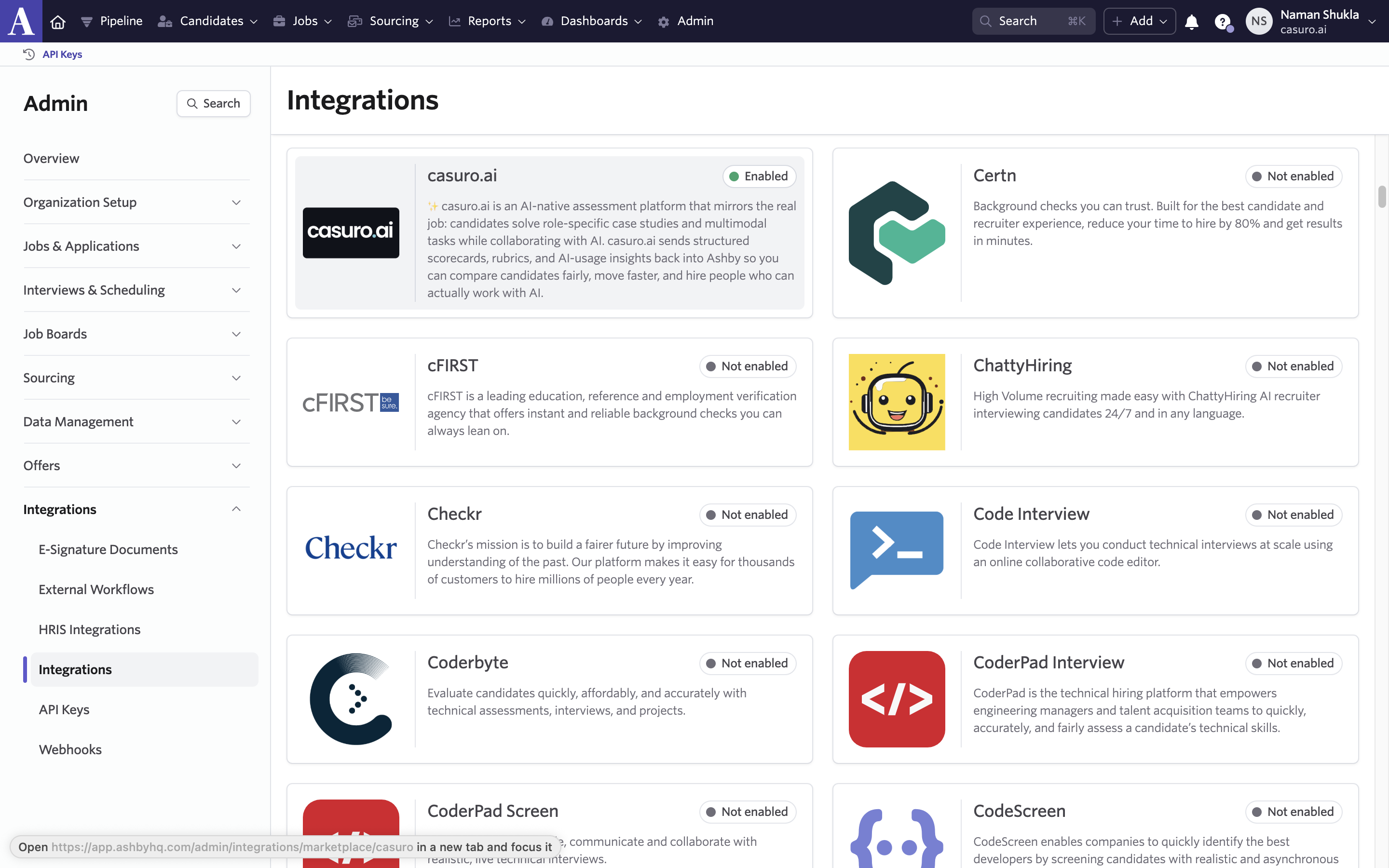
  <Step title="Enable Ashby integration in casuro.ai">
    <Frame caption="In Ashby, got to Admin, then integrations and then click on casuro.ai integration. Enable the integration.">
      <img src="https://mintcdn.com/casuro/gA-onDWXKx268PjJ/images/integrations/ashby/setup/step4.png?fit=max&auto=format&n=gA-onDWXKx268PjJ&q=85&s=2c6d269beccb3ec586d32f8d10c573b9" alt="Descriptive alt text" width="2880" height="1800" data-path="images/integrations/ashby/setup/step4.png" />
    </Frame>
  </Step>

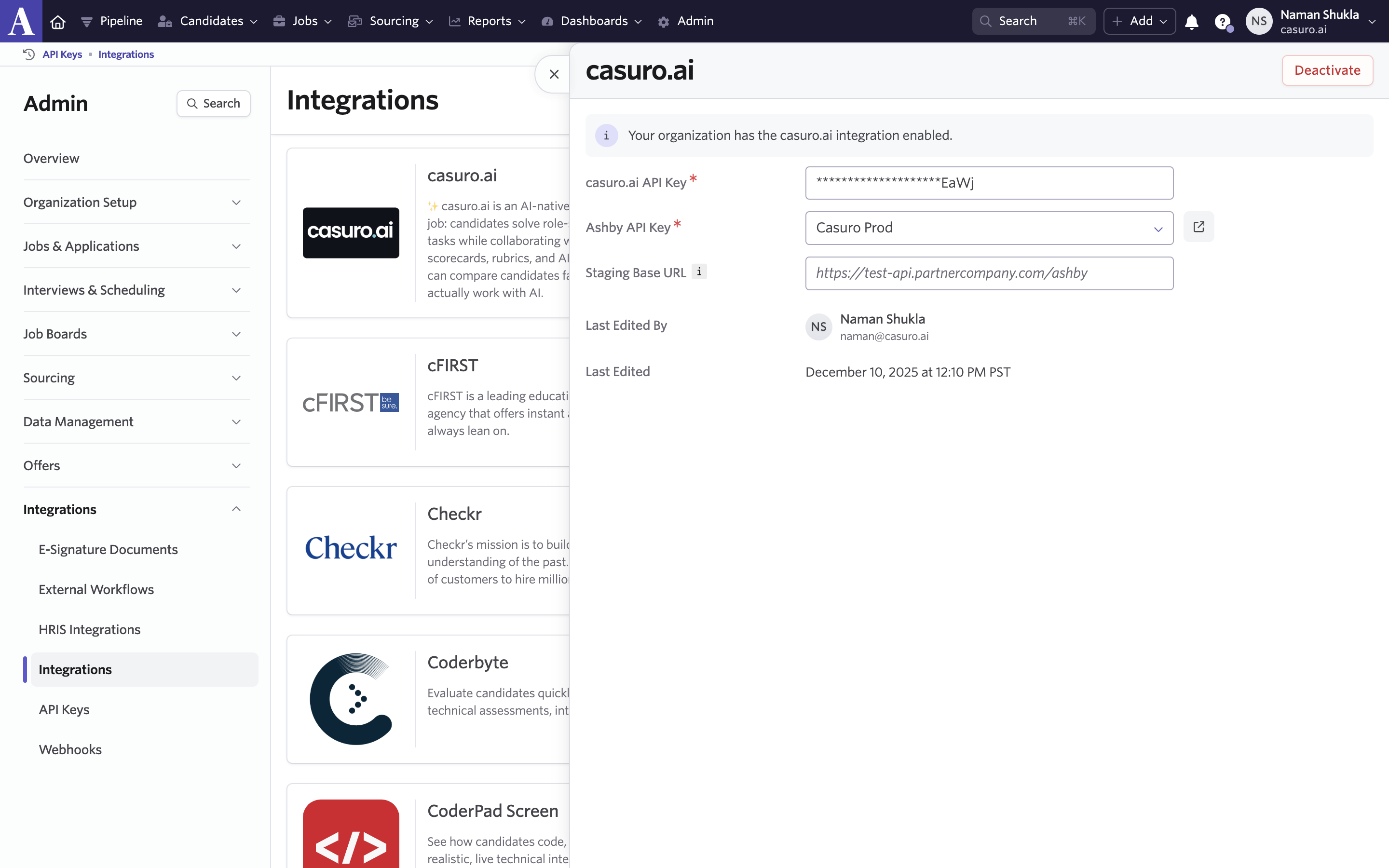
  <Step title="Add casuro.ai API Key in Ashby">
    <Frame caption="Login to casuro.ai and open settings. Under the integrations tab, click on add integration and select Ashby. You will be asked for an API key from Ashby.">
      <img src="https://mintcdn.com/casuro/gA-onDWXKx268PjJ/images/integrations/ashby/setup/step5.png?fit=max&auto=format&n=gA-onDWXKx268PjJ&q=85&s=07651e96d0ca3881fb942daa133c4660" alt="Descriptive alt text" width="2880" height="1800" data-path="images/integrations/ashby/setup/step5.png" />
    </Frame>
  </Step>

  <Step title="You are all set 🎉">
    <Frame caption="You can now use casuro.ai assessments and see them pop up in Ashby.">
      <img src="https://mintcdn.com/casuro/gA-onDWXKx268PjJ/images/integrations/ashby/setup/step6.png?fit=max&auto=format&n=gA-onDWXKx268PjJ&q=85&s=9c2fe44d7eb7487b4e17875ddff7c93f" alt="Descriptive alt text" width="2880" height="1800" data-path="images/integrations/ashby/setup/step6.png" />
    </Frame>
  </Step>
</Steps>